7
MICROTUBES INFINITY: USER GUIDE
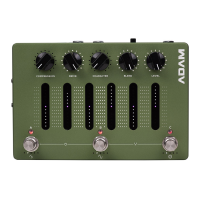
ROTARY FOOTSWITCH ENCODERS
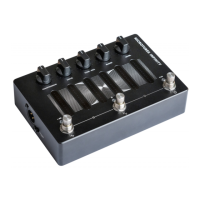
Below the touch sliders are three rotary footswitch
encoders -∞, 0, and +∞, which can be pressed or
rotated. These footswitch encoders enable many of the
Microtubes Innity’s functions. Simply press A, B, or C to
switch to the preset stored in that footswitch.
The rotational position of each encoder is displayed on
the ve LEDs under each encoder. Additionally, when
rotating, the position is shown on the potentiometer
LEDs - this is a visual aid that does not affect the
potentiometer conguration.
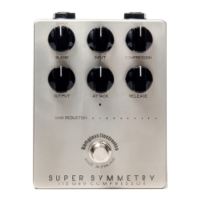
· Rotating -∞ allows you to change the compressor
ratio or bypass the compressor.
· Rotating 0 allows you to change the distortion mode
or bypass the distortion.
· Rotating +∞ allows you to change the active IR in the
signal chain or bypass the IR.
When none of the ve LEDs are lit, the respective
compressor/distortion/IR is bypassed.
Rotating 0 allows you to bypass or change the distortion
mode. The modes are:
1. Clean tube preamp
2. Vintage Microtubes
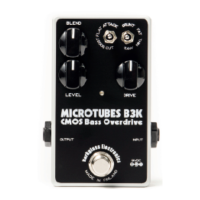
3. Microtubes B3K*
4. Vintage Microtubes multi-band*
5. Microtubes B3K multi-band*
* Bluetooth/USB connection and Darkglass Suite
application are required to access the extra controls, like
GRUNT, MIDBOOST, high-pass and low-pass lter .
BASIC OPERATION
EDITING AND SAVING PRESETS
Editing and saving presets on the Microtubes Innity is
remarkably easy. If any of the parameters are changed
(i.e. potentiometers, sliders, encoder rotation), the color
LED of your current preset will gently breathe, indicating
that the edit or audition mode is active.
Auditions are an easy way to try new sounds and settings,
which can be either saved or discarded. When you nd
a sound that you would like to save, the audition can be
saved into any of the three presets by pressing and holding
one of the preset footswitches for two seconds. All LEDs
on the Microtubes Innity will ash rapidly a few times
indicating that your edits have been saved into a preset.


 To Next Page