EasyManua.ls Logo

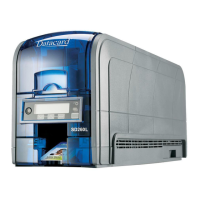
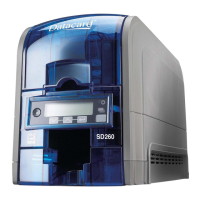
DataCard SD260LTM - User Manual

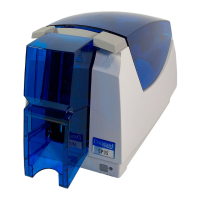
DataCard SD260LTM
10 pages
Print Icon
To Next Page IconTo Next Page
Loading...
SD260L
TM
/SD360
TM
/SD460
TM
Card Printers
For Printers Using the Datacard
XPS Card Printer Driver
USB and Network
Installation Instructions
Quick Install Guide

Questions and Answers

  • J
    Julian HernandezAug 16, 2025
    What to do if DataCard SD260LTM Printer does not install or print when connected to a remote network via VPN?
    • R
      reyesdustinAug 16, 2025
      If your DataCard Printer doesn't install or print while your PC is connected to a remote network using VPN Client software, you can either configure your VPN software to allow local network connections or disconnect the VPN Client software from the network.
  • J
    James DavisAug 19, 2025
    Why is my DataCard Printer not installing when the USB cable is already connected?
    • J
      Jessica RangelAug 19, 2025
      When installing a DataCard Printer on a PC via USB for the first time, the installation must be initiated from the driver CD or the downloaded Card Printer Driver. Connect the USB cable only when prompted during the installation process, not before.
  • J
    jasminecrossAug 22, 2025
    What to do if DataCard SD260LTM does not install when the USB cable is connected?
    • C
      Connie SchaeferAug 22, 2025
      If a previous installation attempt of your DataCard Printer was unsuccessful, the Device Manager might still have an entry for the printer. Before reinstalling, remove the printer entry from the Device Manager.
  • R
    Rebecca SimmonsAug 26, 2025
    What to do if I get an error message that the USB is not detected on my DataCard SD260LTM Printer?
    • H
      Heather WattsAug 26, 2025
      If you receive an error message stating that the USB is not detected, it means the USB installer timed out before a printer was detected. Remove the Card Printer Driver from the Device Manager before reinstalling the printer.
  • T
    Timothy WallerAug 28, 2025
    Why does my DataCard Printer have a temporary communication problem?
    • A
      Ashley BakerAug 28, 2025
      Temporary communication problems with your DataCard Printer may be due to several factors. Check the following: USB extension cables can cause communication problems. The recommended USB cable is 6-ft. (2 meters) long and rated for USB 2.0 data transmission. If you are using a USB hub, a self-powered hub is recommended.
  • N
    Natasha TranAug 31, 2025
    What to do if the cable is loose on my DataCard Printer?
    • A
      April ReevesAug 31, 2025
      If the cable is loose on your DataCard Printer, reconnect the USB cable to the ports on the PC and the printer. Power the printer off, and then back on. If the PC and printer still do not communicate, restart the PC.
  • J
    Jared MillerSep 3, 2025
    What to do if the data cable of my DataCard Printer is damaged or frayed?
    • C
      Christopher NelsonSep 3, 2025
      If the data cable is damaged or frayed, power off the DataCard printer. If you have a spare cable, replace the damaged one. Otherwise, contact your service provider to order a new data cable.
  • B
    Brandon RussellSep 6, 2025
    What to do if the network cable is loose on my DataCard SD260LTM Printer?
    • C
      Craig LarsonSep 6, 2025
      If the network cable is loose, reconnect the data cable to the network port and the printer, ensuring it's securely snapped in. Then, restart the printer.
  • B
    benjamin14Sep 9, 2025
    Why is the PC USB port not communicating with the DataCard Printer USB port?
    • L
      Lisa OliverSep 9, 2025
      Power management on the PC has shut down USB communication.
  • L
    Lindsey AdamsSep 12, 2025
    Why is the 'Print Sample Card' button not available for my DataCard SD260LTM?
    • L
      Lisa CarlsonSep 12, 2025
      The 'Print Sample Card' button in Printer Properties is enabled when the printer and Card Printer Driver communicate normally.

DataCard SD260LTM Specifications

General IconGeneral
BrandDataCard
ModelSD260LTM
CategoryPrinter
LanguageEnglish

Related product manuals