EasyManua.ls Logo

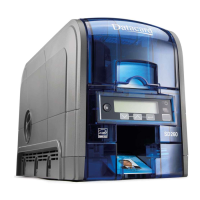
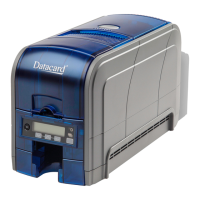
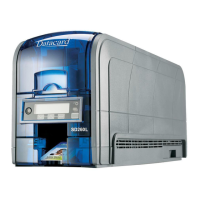
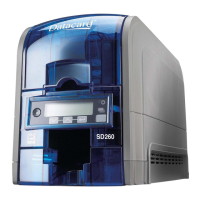
DataCard SD460 - User Manual

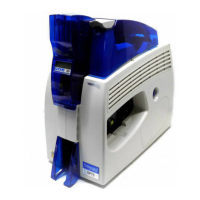
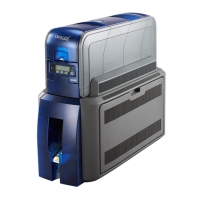
DataCard SD460
156 pages
Print Icon
To Next Page IconTo Next Page
Loading...
Datacard
®
XPS Card Printer Driver
User’s Guide
October 2016
Part No. 527280-004, Rev. A

Table of Contents

Other manuals for DataCard SD460

Questions and Answers

  • S
    Stephanie AndersonAug 16, 2025
    What to do if DataCard SD460 does not install or print when connected to a remote network via VPN?
    • V
      vincentbeardAug 16, 2025
      If your DataCard Printer doesn't install or print while your PC is connected to a remote network using VPN Client software, you can either configure your VPN software to allow local network connections or disconnect the VPN Client software from the network.
  • J
    Jennifer JohnsonAug 18, 2025
    Why is my DataCard SD460 Printer not installing when the USB cable is already connected?
    • T
      Troy TorresAug 18, 2025
      When installing a DataCard Printer on a PC via USB for the first time, the installation must be initiated from the driver CD or the downloaded Card Printer Driver. Connect the USB cable only when prompted during the installation process, not before.
  • Z
    Zachary HolmesAug 21, 2025
    What to do if DataCard SD460 Printer does not install when the USB cable is connected?
    • C
      Christine VelazquezAug 21, 2025
      If a previous installation attempt of your DataCard Printer was unsuccessful, the Device Manager might still have an entry for the printer. Before reinstalling, remove the printer entry from the Device Manager.
  • T
    tony41Aug 25, 2025
    What to do if I get an error message that the USB is not detected on my DataCard SD460?
    • J
      Jill HarrisAug 26, 2025
      If you receive an error message stating that the USB is not detected, it means the USB installer timed out before a printer was detected. Remove the Card Printer Driver from the Device Manager before reinstalling the printer.
  • S
    Susan LevyAug 27, 2025
    Why does my DataCard SD460 have a temporary communication problem?
    • J
      Joseph AndersonAug 27, 2025
      Temporary communication problems with your DataCard Printer may be due to several factors. Check the following: USB extension cables can cause communication problems. The recommended USB cable is 6-ft. (2 meters) long and rated for USB 2.0 data transmission. If you are using a USB hub, a self-powered hub is recommended.
  • A
    Anthony NormanAug 31, 2025
    What to do if the cable is loose on my DataCard SD460 Printer?
    • K
      Katrina AveryAug 31, 2025
      If the cable is loose on your DataCard Printer, reconnect the USB cable to the ports on the PC and the printer. Power the printer off, and then back on. If the PC and printer still do not communicate, restart the PC.
  • C
    colinkentSep 3, 2025
    What to do if the data cable of my DataCard SD460 Printer is damaged or frayed?
    • W
      William BrownSep 3, 2025
      If the data cable is damaged or frayed, power off the DataCard printer. If you have a spare cable, replace the damaged one. Otherwise, contact your service provider to order a new data cable.
  • S
    Sarah ColemanSep 6, 2025
    What to do if the network cable is loose on my DataCard Printer?
    • C
      Connie BentleySep 6, 2025
      If the network cable is loose, reconnect the data cable to the network port and the printer, ensuring it's securely snapped in. Then, restart the printer.
  • C
    Carol MartinSep 9, 2025
    Why is the PC USB port not communicating with the DataCard SD460 Printer USB port?
    • R
      Richard JacobsSep 9, 2025
      Power management on the PC has shut down USB communication.
  • M
    Melanie KaneSep 12, 2025
    Why is the 'Print Sample Card' button not available for my DataCard Printer?
    • J
      James BradshawSep 12, 2025
      The 'Print Sample Card' button in Printer Properties is enabled when the printer and Card Printer Driver communicate normally.

Summary

About the Printer Driver

Supported Operating Systems

Lists the Windows operating systems supported by the driver.

Supported Printers

Details the specific Datacard and Entrust Datacard printer models supported.

Driver Task Overview

Explains the primary functions and tasks of the printer driver.

Printer;Driver Communications Over a Network

Describes the communication protocols and methods via a network connection.

Printer;Driver Communications Using a USB Connection

Details the communication process when connecting the printer via USB.

XPS Card Printer Driver Installation

Before You Install

Key considerations before starting the driver installation process.

Installation Overview

Steps involved in the basic installation of the driver.

Identify Your Installation Requirements

Helps determine installation needs based on usage and environment.

Prepare to Install the Card Printer Driver

Prepares the PC and printer for driver installation.

Download the Installation File (Optional)

Instructions for obtaining the driver from the website.

Start the Installation

Steps to initiate the driver installation process.

Install the Driver

Guides through the actual driver installation for USB and network.

Install Support Files

Process for installing additional driver support items.

Card Printer Driver Management Tasks

The Printer Properties Window

Provides access to printer settings and options via a dedicated window.

General Tab

Displays core printer information and general settings.

Sharing Tab

Configures network sharing options for the printer.

Ports Tab

Manages printer port configurations, including IP address setup.

Advanced Tab

Contains advanced printer settings and configuration options.

Color Management Tab

Allows adjustment of color output and printing preferences.

Security Tab

Sets permissions and access controls for printer usage.

Printer Status Tab

Shows real-time status, port type, and printer information.

Card Counts Tab

Tracks the number of cards processed and counts for different outcomes.

Supplies Tab

Displays the status and details of installed printer supplies.

About Tab

Provides driver version information and copyright details.

Uninstall the Card Printer Driver

Outlines the procedures for removing the driver from the system.

Uninstall the Card Printer Driver Without the Driver Installation Media

Specific steps for uninstallation when installation media is unavailable.

Card Design Tasks

Change a Card Design

Covers modifications to card layout, components, and visual elements.

Design Tasks in Windows Printing Preferences

Details how to configure card printing settings through Windows preferences.

Printer Setup for Rewritable Cards

Guides on configuring the printer and driver for rewritable card functionality.

Card Design for UV Ribbon

Explains how to incorporate UV fluorescent panels for card security.

Escapes

Covers the use of special commands to control printer operations and features.

Magnetic Stripe Fonts

Details how to use specific fonts for formatting magnetic stripe data.

Installation Troubleshooting

Troubleshoot the Card Printer Driver Installation

Provides solutions for common issues preventing successful driver installation.

USB Installation Troubleshooting

Addresses specific problems encountered during the USB installation process.

Network Installation Troubleshooting

Resolves issues that may occur during network printer installation.

Use Advanced Troubleshooting Tools

Introduces advanced tools and methods for diagnosing printer problems.

Windows Printer Sharing

Installation

Steps for installing and setting up printer sharing for Windows.

Set Up the Host PC for Printer Sharing

Configuration steps for the host PC to enable printer sharing.

Install the Card Printer Driver on the Client PC

Instructions for installing the driver on client computers for shared access.

Windows Server 2008 and 2012 Printer Sharing

Windows Server 2008 or 2012, 64-bit Installation

Guides the installation of the driver on Windows Server OS.

Set Up the Host PC for Printer Sharing

Configures the host PC for printer sharing on Windows Server OS.

Install the Card Printer Driver on the Client PC

Installs the driver on client PCs for shared access on Windows Server OS.

Tactile Identifier Mark Conversion

DataCard SD460 Specifications

General IconGeneral
ColorYes
Card size85.6 x 53.98 mm
Card typesMagnetic stripe (ISO 7811), PVC, Smart card
Print technologyDye-sublimation/Resin Thermal transfer
Duplex print speed (color)200 card/h
DisplayLCD
CertificationcULus, FCC, I.C., CE, Ctick, VCCI, RoHS, WEEE, CCC, KCC
Product colorBlack, Blue
Internal memory128 MB
Built-in barcodes1D, 2D
Total input capacity100 sheets
AC input voltage100 - 240 V
AC input frequency50 - 60 Hz
Wi-FiNo
USB version2.0
Ethernet interface typeFast Ethernet
Storage temperature (T-T)-15 - 60 °C
Operating temperature (T-T)15 - 35 °C
Storage relative humidity (H-H)10 - 90 %
Operating relative humidity (H-H)20 - 80 %
Weight and Dimensions IconWeight and Dimensions
Weight13600 g
Dimensions (WxDxH)589 x 270 x 513 mm

Related product manuals