EasyManua.ls Logo

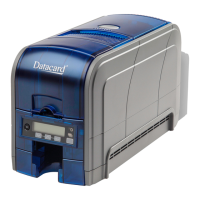
DataCard SD160 - User Manual

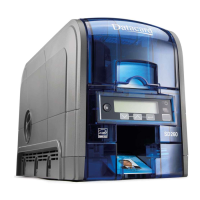
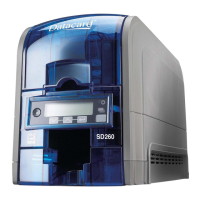
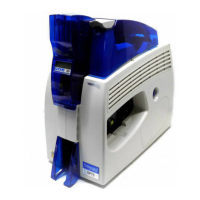
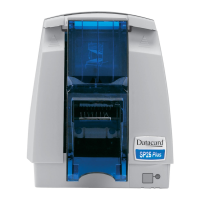
DataCard SD160
156 pages
Print Icon
To Next Page IconTo Next Page
Loading...
Datacard
®
XPS Card Printer Driver
User’s Guide
October 2016
Part No. 527280-004, Rev. A

Table of Contents

Other manuals for DataCard SD160

Questions and Answers

  • C
    caseybanksAug 17, 2025
    What to do if DataCard SD160 Printer does not install or print when connected to a remote network via VPN?
    • J
      Johnny JordanAug 17, 2025
      If your DataCard Printer doesn't install or print while your PC is connected to a remote network using VPN Client software, you can either configure your VPN software to allow local network connections or disconnect the VPN Client software from the network.
  • M
    mayomeganAug 20, 2025
    Why is my DataCard SD160 not installing when the USB cable is already connected?
    • L
      Laura DouglasAug 20, 2025
      When installing a DataCard Printer on a PC via USB for the first time, the installation must be initiated from the driver CD or the downloaded Card Printer Driver. Connect the USB cable only when prompted during the installation process, not before.
  • J
    James BishopAug 22, 2025
    What to do if DataCard Printer does not install when the USB cable is connected?
    • J
      Juan RobersonAug 22, 2025
      If a previous installation attempt of your DataCard Printer was unsuccessful, the Device Manager might still have an entry for the printer. Before reinstalling, remove the printer entry from the Device Manager.
  • B
    Brandon PowellAug 25, 2025
    What to do if I get an error message that the USB is not detected on my DataCard SD160 Printer?
    • M
      Michael WeaverAug 26, 2025
      If you receive an error message stating that the USB is not detected, it means the USB installer timed out before a printer was detected. Remove the Card Printer Driver from the Device Manager before reinstalling the printer.
  • K
    Kathleen McdowellAug 28, 2025
    Why does my DataCard SD160 Printer have a temporary communication problem?
    • A
      Ashley CrawfordAug 28, 2025
      Temporary communication problems with your DataCard Printer may be due to several factors. Check the following: USB extension cables can cause communication problems. The recommended USB cable is 6-ft. (2 meters) long and rated for USB 2.0 data transmission. If you are using a USB hub, a self-powered hub is recommended.
  • B
    Brandon LeeAug 30, 2025
    What to do if the cable is loose on my DataCard SD160 Printer?
    • A
      Allen HernandezAug 31, 2025
      If the cable is loose on your DataCard Printer, reconnect the USB cable to the ports on the PC and the printer. Power the printer off, and then back on. If the PC and printer still do not communicate, restart the PC.
  • M
    Mary WiseSep 2, 2025
    What to do if the data cable of my DataCard SD160 Printer is damaged or frayed?
    • K
      kaitlinshepherdSep 2, 2025
      If the data cable is damaged or frayed, power off the DataCard printer. If you have a spare cable, replace the damaged one. Otherwise, contact your service provider to order a new data cable.
  • C
    Christina PrattSep 5, 2025
    What to do if the network cable is loose on my DataCard Printer?
    • P
      Philip CarterSep 5, 2025
      If the network cable is loose, reconnect the data cable to the network port and the printer, ensuring it's securely snapped in. Then, restart the printer.
  • D
    Donald FigueroaSep 7, 2025
    Why is the PC USB port not communicating with the DataCard SD160 USB port?
    • M
      Michael CruzSep 8, 2025
      Power management on the PC has shut down USB communication.
  • E
    Ernest SmallSep 10, 2025
    Why is the 'Print Sample Card' button not available for my DataCard Printer?
    • S
      Shannon HurleySep 10, 2025
      The 'Print Sample Card' button in Printer Properties is enabled when the printer and Card Printer Driver communicate normally.

Summary

Chapter 2: XPS Card Printer Driver Installation

Chapter 3: Card Printer Driver Management Tasks

The Printer Properties Window

Explains how to access and use the printer properties window for configuration.

Chapter 4: Card Design Tasks

Chapter 5: Installation Troubleshooting

Troubleshoot the Card Printer Driver Installation

Addresses common issues preventing successful driver installation.

USB Installation Troubleshooting

Provides solutions for problems encountered with USB connections during installation.

Appendix A: Windows Printer Sharing

Appendix B: Windows Server 2008 and 2012 Printer Sharing

Set Up the Host PC for Printer Sharing

Explains printer sharing setup procedures for Windows Server environments.

Install the Card Printer Driver on the Client PC

Guides client PC installation for shared printing from Windows Server.

DataCard SD160 Specifications

General IconGeneral
Print TechnologyDye Sublimation
Print Resolution300 dpi
ConnectivityUSB 2.0
Power Requirements100-240 VAC, 50/60 Hz
Card Capacity100 cards input hopper, 25 cards output hopper
Card SizeCR80 (85.6 mm x 54 mm)
Operating System SupportWindows 7, Windows 8, Windows 10
Card Thickness0.020" to 0.030" (0.51 mm to 0.76 mm)
Print SpeedUp to 150 cards per hour (YMCKT)

Related product manuals