EasyManua.ls Logo

DataLocker Sentry K350 - User Manual

DataLocker Sentry K350
30 pages
Print Icon
To Next Page IconTo Next Page
Loading...
Sentry K350 hardware encrypted USB flash drive - User Guide
User Guide
Sentry K350
FIPS 140-2 level 3
Common Critera Certified
Encrypted USB Flash Drive
© 2021 DataLocker Inc. All rights reserved. 1
Question and Answer IconNeed help?

Do you have a question about the DataLocker Sentry K350 and is the answer not in the manual?

Summary

At A Glance

Introduction to Sentry K350

Overview of the DataLocker Sentry K350 hardware encrypted USB flash drive and its features.

Device Operation and Updates

Details on the K350's encryption engine, authentication, and how to update device software and documentation.

About the Sentry K350

Information on the K350's FIPS 140-2 Level 3 and Common Criteria certification, security posture, and warranty.

Getting Started

Initial Setup and Password Creation

Step-by-step guide to powering on the device and creating a secure password.

Connecting and Usage Best Practices

Instructions for connecting the device, basic operation, and best practices for password, battery, and IP67 rating.

K350 Features and Configurations

Connect Selection Menu

Options for connecting the device to a host, including Connect, Read-Only, Boot Mode, and Menu access.

Accessing the Configuration Menu

Navigating to the Configuration Menu to manage device settings and login modes.

Login Mode Selection

Details on ADMIN and USER login modes and their respective menu options and capabilities.

Password and User Management

Procedures for changing passwords, setting user profiles, and managing password length.

SafeConsole Integration

Enabling and registering the K350 with SafeConsole for centralized management and features.

Self Destruct and Zeroize Drive

Configuring automatic data destruction upon failed attempts and securely erasing all drive data.

Password Strength and Auto-Lock

Enabling strong password requirements, setting password length, and configuring auto-lock time.

Read-Only Mode and Keypad Preference

Enforcing read-only access and customizing keypad input order for password entry.

Registering Your K350 to SafeConsole

Using a SafeConsole Managed Device

Unlocking in SafeConsole Mode

Accessing the secure volume of a SafeConsole registered K350.

Locking Your Managed K350

Manually or automatically locking the device to prevent unauthorized access.

Standalone Logins

Requesting and using standalone logins for access on computers without SafeConsole.

Password Reset

Procedure for resetting a forgotten password using a recovery password from SafeConsole.

Unlocking in Read-Only Mode

Unlocking the device in a read-only state to prevent file modification or malware infection.

Changing the Unlock Message

Customizing the text displayed on the Unlocker Screen when the device is unlocked.

Scanning for Malware

Using the built-in malware scanner to detect and quarantine threats on the device.

Quarantined File Management

Options for restoring or deleting files detected as malware by the scanner.

ZoneBuilder and Reformatting

Creating trusted computer zones and reformatting the device using the DataLocker Control Panel.

Sanitize Drive

Securely erasing all data and encryption keys on the drive while retaining SafeConsole connection.

Device Information

Viewing device details such as serial number, firmware version, capacity, and certifications.

Formatting Your K350

Selecting the Correct File System

Guidance on choosing appropriate file systems like exFAT, FAT32, or NTFS for the K350.

Formatting on Windows

Step-by-step instructions for reformatting the K350 drive using Windows Disk Management.

Formatting on macOS

Instructions for reformatting the K350 drive using Disk Utility on macOS.

Linux Compatibility and Configuration

Product Specifications

Getting Help

Document Version

Notices and Legal Information

Disclaimer

Statement regarding liability for technical errors and use of the manual content.

Patents

Information and link regarding patents associated with DataLocker products.

FCC Information

Compliance statement and guidelines for the device regarding FCC rules and interference.

Overview

The Sentry K350 is a hardware-encrypted USB flash drive designed for secure data storage, featuring FIPS 140-2 Level 3 and Common Criteria cPP certifications. This device prioritizes data security through robust encryption and a range of administrative controls, making it suitable for environments with strict portable storage security requirements.

Function Description

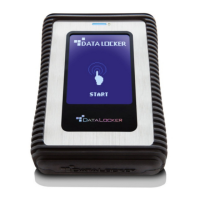
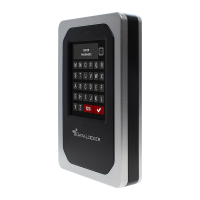
The Sentry K350 utilizes a hardware encryption engine to encrypt and decrypt data stored on the device. When powered on, users authenticate with a password via the onboard system to enable encryption and access data. Upon locking, powering off, or disconnecting the device, data is stored in an encrypted state. The device features a screen that streamlines setup and operation, providing clear instructions and menu navigation. It supports both administrator and user roles, allowing for differentiated access and control over device settings and data. For enhanced security, the K350 can be centrally managed via SafeConsole, which adds layers of organizational control, audit logging, anti-malware services, and remote password reset capabilities. The device is designed to be platform-independent, offering 100% compatibility with various operating systems, including Windows, macOS, and Linux.

Important Technical Specifications

  • Capacity: Available in 32GB, 128GB, and 256GB. Note that advertised capacity is approximate, as some space is reserved for onboard software.
  • Speed (USB 3.2):
    • Read: 150MB/s
    • Write: 100MB/s
  • Speed (USB 2.0):
    • Read: 40MB/s
    • Write: 20MB/s
    • Speed varies with host hardware, software, file system, and usage.
  • Dimensions: 100mm (L) x 20mm (W) x 11mm (D)
  • Weight: Approximately 1.24 oz / 35 Gram
  • Water Resistance: IP67-rated. The device must be completely dry before connecting to a computer.
  • Operating System Compatibility: Windows, macOS, Linux. For SafeConsole managed devices, Windows 7+ is required. Standalone logins are necessary for use on macOS and Linux with managed devices.
  • Operating Temperature: 0°C - 45°C
  • Storage Temperature: -20°C - 60°C
  • Long Term Storage Temperature (More than 1 week): -20°C - 40°C
  • Interface: USB A 3.2
  • Warranty: 3 years Limited
  • Certifications: FIPS 140-2 Level 3 certified and Common Criteria cPP certified.

Usage Features

  • Getting Started: Users initiate the device by pressing the power button for 3 seconds, then create and confirm a password following on-screen instructions. Passwords must be a minimum of 8 characters and are recommended to include a combination of letters, numbers, and special characters. Linear and repetitive passwords are not supported.
  • Connect Selection Menu: After unlocking, users can choose to:
    • CONNECT: Connect to the host computer for normal data access.
    • READ-ONLY: Connect the device storage as read-only to prevent data modification.
    • BOOT MODE: Boot an installed operating system from the device storage.
    • MENU: Access the Configuration Menu for device settings.
  • Login Modes: Supports ADMIN and USER login modes. The ADMIN mode provides full configuration control, while the USER mode has a limited feature set.
  • Keypad Preference: Administrators can set the keypad to prioritize alphabetical characters (e.g., ABC2) over numbers (e.g., 2ABC) for password entry, encouraging more complex passwords.
  • SafeConsole Management: When managed by SafeConsole, the device offers additional options like SAFECONSOLE (for unlocking in managed mode) and STANDALONE (for temporary logins on systems without management system control, if allowed by the administrator).
  • Standalone Logins: Allows access to the Secure Volume on any computer supporting removable storage without the Windows Unlocker application. The number of allowed standalone logins is defined by the SafeConsole administrator.
  • Read-Only Mode: Can be globally enforced by administrators or selected by users for individual logins. This prevents malware infection and unauthorized file modification, displaying "Read-Only Mode" in the DataLocker Control Panel.
  • Unlock Message: Customizable text displayed on the Unlocker Screen, useful for adding classification labels or company policies.
  • File System Formatting: The K350 comes pre-formatted as exFAT but can be reformatted to other file systems (FAT32, NTFS) to accommodate different operating systems or remove file size restrictions. This is required after a Zeroize Drive or brute-force data Self Destruct.
  • Linux Compatibility: For optimal performance on Linux or Unix-based systems, using at least the Linux 2.6.31 Kernel (implementing xHCI for USB 3.0) is recommended. The device can be manually mounted and formatted using terminal commands (fdisk, mkfs.ext4, e2label).

Maintenance Features

  • Updating Your Device: Software and documentation updates are available from the DataLocker website.
  • Battery Management: The K350 draws 50mA from the USB port to charge its integrated Lithium-Ion battery. If the battery is low, it should be charged for 30 minutes before use. The device can also be unlocked using only USB power if battery issues occur.
  • Change Password: Users and administrators can change their current login passwords through the Configuration Menu.
  • Set User: Administrators can enable or disable a user role, which creates a separate user unlock password and a limited feature set for the user. This feature is not available if SafeConsole is enabled.
  • Self Destruct: An administrator-configurable feature to prevent brute-force attacks. It sets a threshold for incorrect password attempts (default 10, configurable up to 50). Upon reaching the limit, the device can either:
    • Destroy Data (default): Wipes data, encryption keys, and passwords, requiring re-initialization.
    • Destroy Device: Permanently kills the device, making it unusable and un-initializable.
  • Zeroize Drive: Allows administrators to delete all data, remove user and administrator passwords, and wipe/regenerate the Data Encryption Key (DEK). This action is permanent and requires re-initialization and reformatting.
  • Strong Password Enforcement: Administrators can enable a policy requiring passwords to include at least one letter, one number, and one special character.
  • Password Length: Administrators can set the minimum required password length between 8 and 64 characters. A "Default" option resets it to 8.
  • Auto-Lock Time: Configurable from 10 to 720 minutes, this feature automatically locks the device after a period of inactivity.
  • Password Reset (Managed Devices): For SafeConsole managed devices, a recovery password can be sent by the administrator if a password is forgotten. Each recovery code is single-use and requires unlocking in SafeConsole Mode with a valid connection to generate a new one.
  • Malware Scanner: If enabled by a SafeConsole administrator, the device automatically scans for and quarantines malware using McAfee® anti-virus definitions. It updates automatically and reports detected threats. Quarantined files remain encrypted on the device and can be restored or deleted by the user.
  • ZoneBuilder: A SafeConsole feature that allows administrators to create a Trusted Zone of computers, restricting device access to specific machines. Users can trust their accounts within the Control Panel.
  • Sanitize: Securely erases the contents of the encrypted drive by deleting the encryption key, while retaining the connection to SafeConsole. This action is permanent and prevents the need for re-registration.
  • Device Information: Provides details such as QR Code Serial Number, Alpha-numeric Serial Number, Firmware Version, Capacity, Certification Logos, and Patent Information, accessible before unlocking or through the DataLocker Control Panel after unlocking.

DataLocker Sentry K350 Specifications

General IconGeneral
BrandDataLocker
ModelSentry K350
CategoryStorage
LanguageEnglish

Related product manuals