Sentry K350 hardware encrypted USB flash drive - User Guide
Registering Your K350 to SafeConsole
Before registering your drive to SafeConsole, make sure SafeConsole is enabled on your K350.
For more information, see Enabling SafeConsole. The registration process will begin by allowing
the device to communicate with the SafeConsole server. The steps needed to register a K350 to
SafeConsole will depend on the policies that your SafeConsole administrator is enforcing. Not all
options will be shown.
A SafeConsole Connection Token will be needed. The SafeConsole Connection Token is obtained
by the SafeConsole administrator through the Quick Connect Guide and is usually sent via email.
Users without access to a Management Server, please contact sales: sales@datalocker.com /
+1(913)310-9088
1. Power on and unlock. Select Connect. Your K350 will show a “Waiting. . . ” prompt.
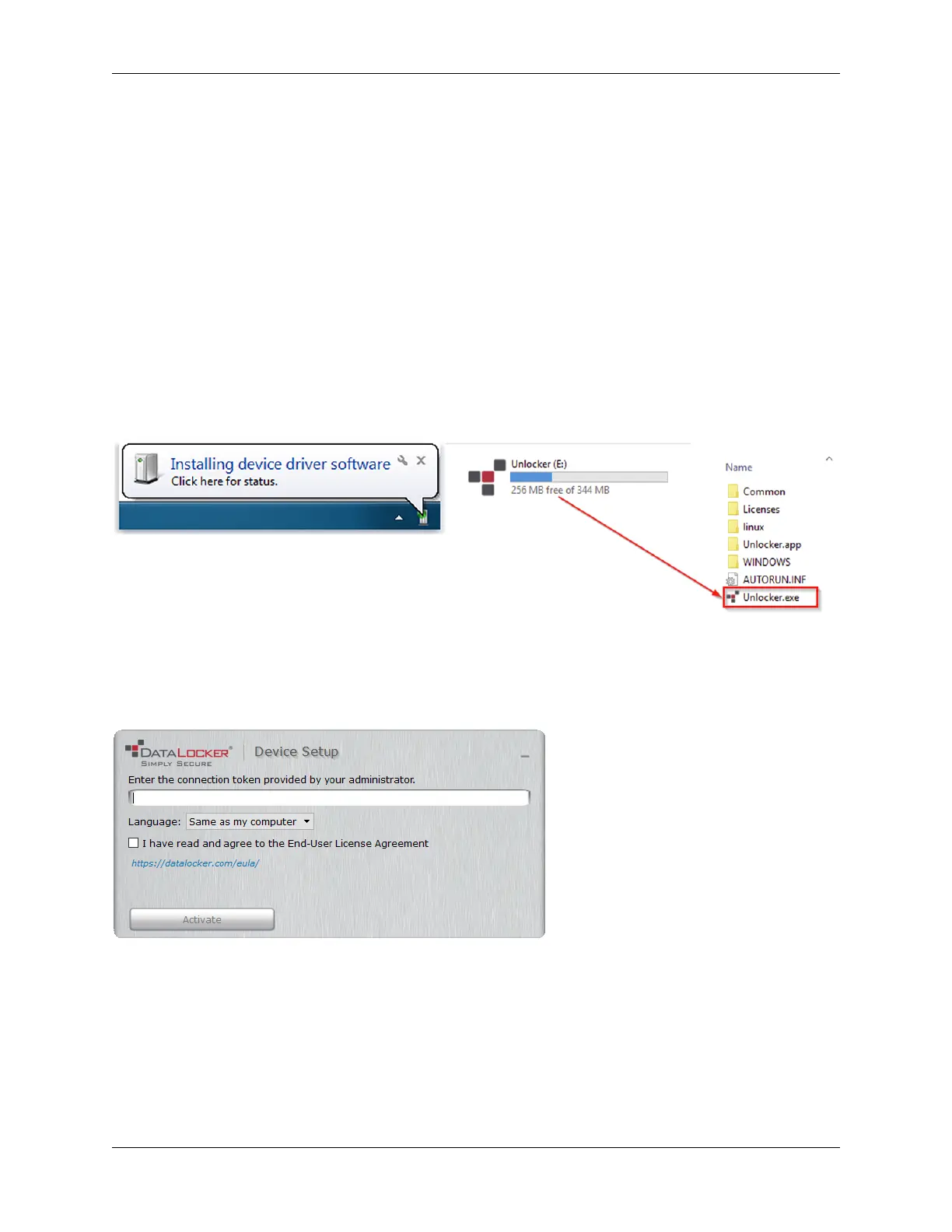
2. On your computer, double-click the “Unlocker” CD drive under “Devices and Drives”.
3. Upon launch, the “Device Setup” screen should appear.
4. Enter the SafeConsole Connection Token provided by your SafeConsole administrator and
confirm the EULA. Click Activate.
5. Your device will connect to the SafeConsole server.
6. Optionally Enabled Policies - These policies may or may not be enabled by your SafeConsole
administrator. They will appear during device registration if they have been enabled.
© 2021 DataLocker Inc. All rights reserved. 14



 To Next Page