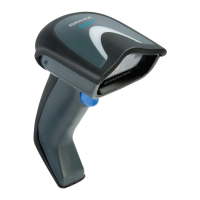
EasyManua.ls Logo

Datalogic Gryphon I GD4500 - User Manual

Datalogic Gryphon I GD4500
356 pages
Print Icon
To Next Page IconTo Next Page
Loading...
L
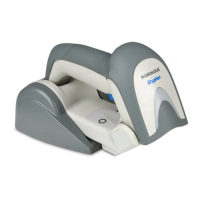
Gryphon™ 2D Family
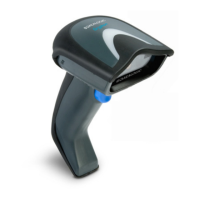
Gryphon I GD/GBT/GM4500
PRODUCT REFERENCE GUIDE
General Purpose Handheld
Area Imager Bar Code Reader

Table of Contents

Other manuals for Datalogic Gryphon I GD4500

Questions and Answers

  • A
    Amanda CaseyAug 7, 2025
    What to do if Datalogic Gryphon I GD4500 LED is on but barcode doesn't decode?
    • E
      Eric HoldenAug 7, 2025
      If the LED is on, but the bar code doesn't decode, it could be due to several reasons: * The reader might not be programmed for the correct bar code type. In this case, ensure the reader is programmed to read the type of bar code scanned. * The bar code label may be unreadable. Check the label to ensure it is not defaced. You can also try scanning another bar code type. * The distance between the reader and the bar code might be incorrect. Try moving the reader closer to or further from the bar code.
  • H
    Heather GonzalezAug 12, 2025
    Why Datalogic Barcode Reader does nothing when I pull the scan button?
    • R
      Robert SandersAug 12, 2025
      If nothing happens when you pull the scan button on your Datalogic Barcode Reader, the issue might be due to: * No power to the reader. Check the system power and ensure the power supply is connected. * Loose interface or power cables. Make sure all cable connections are secure.
  • R
    Russell JordanAug 17, 2025
    What to do if Datalogic Gryphon I GD4500 Barcode Reader LED is on, but the barcode does not decode?
    • D
      Dr. Susan ThompsonAug 17, 2025
      If the LED is on but your Datalogic Barcode Reader isn't decoding, there could be a few reasons. First, the reader might not be programmed to read that specific type of barcode, so ensure it is properly configured. Second, the barcode label itself might be damaged or unreadable; check for any damage and try a different barcode. Finally, the distance between the reader and the barcode could be off; try moving the reader closer or further away from the barcode.
  • C
    Cheryl LuceroAug 22, 2025
    Why nothing happens when I pull the scan button on my Datalogic Gryphon I GD4500?
    • C
      Cody KellyAug 22, 2025
      If nothing happens when you pull the scan button on your Datalogic Barcode Reader, the issue is likely related to power or connectivity. First, check the system power to ensure the imager is receiving power and that the power supply is properly connected. Second, make sure all interface and power cable connections are secure, as loose cables can prevent the device from functioning.
  • C
    cfieldsAug 27, 2025
    How to fix Datalogic Gryphon I GD4500 that decodes but doesn't transmit to host?
    • A
      Abigail MejiaAug 27, 2025
      If the bar code is decoded but not transmitted to the host, the Datalogic Barcode Reader may not be programmed for the correct host type. To resolve this, scan the appropriate host type bar code.
  • A
    Annette AvilaSep 1, 2025
    How to fix Datalogic Barcode Reader that decodes but does not transmit to the host?
    • S
      Shirley Fleming DVMSep 1, 2025
      If your Datalogic Barcode Reader decodes the barcode but doesn't transmit it to the host, the imager might not be programmed for the correct host type. Scan the appropriate host type barcode to resolve this.

Summary

CHAPTER 1. INTRODUCTION

BATTERY SAFETY

Details essential safety precautions for handling and using the reader's battery pack.

PROGRAMMING THE READER

Outlines methods for configuring reader settings, including bar codes and Aladdin utility.

CHAPTER 2. SETUP

SETTING UP THE GRYPHON GD4500 READER

Steps for connecting the reader to a host via various interface cables.

CONNECT HOST INTERFACE

Details on connecting the reader using RS-232, Keyboard Wedge, and USB interfaces.

SETTING UP THE GRYPHON GBT;GM4500 READER

Select the Interface Type

Instructions for choosing the correct communication interface for the reader.

REPLACING THE BATTERY PACK

LINKING THE READER

Link Datalogic Devices to Base

Procedure to link a wireless reader to its base station for communication.

Link Reader as HID device to a Bluetooth host

Steps to connect the reader to a Bluetooth host using the Human Interface Device (HID) profile.

INTERFACE SELECTION

CONFIGURING THE INTERFACE

CUSTOMIZING CONFIGURATION SETTINGS

Using the Programming Bar Codes

How to use bar codes in the manual to reconfigure reader features.

Datalogic Aladdin Utility

Using the Aladdin software for reader configuration and firmware upgrades.

Resetting the Product Configuration to Defaults

CONFIGURATION | RS-232 INTERFACE

Scan Mode

Stand;Base Detection Behavior

CONFIGURATION | 1 D SYMBOLOGIES

DISABLE ALL SYMBOLOGIES

Scans a label to disable all barcode symbologies simultaneously.

CONFIGURATION | 2 D SYMBOLOGIES

CONFIGURATION | POWER MANAGEMENT

CONFIGURATION | WIRELESS FEATURES

CHAPTER 4. REFERENCES

SCANNING FEATURES

Detailed explanations of various scanning feature settings.

CHAPTER 5. MESSAGE FORMATTING

TROUBLESHOOTING

APPENDIX A. TECHNICAL SPECIFICATIONS

GD4500 TECHNICAL SPECIFICATIONS

Detailed physical, optical, electrical, and environmental characteristics of the GD4500.

COMMON READING CHARACTERISTICS

Data on reading performance and resolution for SR and HD models.

GBT;GM4500 TECHNICAL SPECIFICATIONS

DECODING CAPABILITIES

APPENDIX B. STANDARD DEFAULTS

Table 34 Standard Defaults

Lists common configuration settings, default values, and page references.

Datalogic Gryphon I GD4500 Specifications

General IconGeneral
TypeHandheld Barcode Reader
ModelGryphon I GD4500
Print Contrast Ratio (Minimum)30%
Motion ToleranceUp to 1.5 m/s
Drop Specification1.5 m
IP RatingIP52
ConnectivityUSB, RS-232, Keyboard Wedge
Humidity5% to 95% (non-condensing)
Power Supply5 VDC
Product TypeBarcode Scanner
Barcode TypesCode 39, Code 128, UPC/EAN
Decode Capability1D Barcodes
Storage Temperature-20 to 70 °C / -4 to 158 °F

Related product manuals