89 GS R Filling or inverting a rectangle in page mode
90 GS S Selecting 2-D barcode cell size
91 GS T Selecting the print direction in page mode
92 GS U Selecting standard mode
93 GS W Setting the print area width
94 GS X Drawing a rectangular box with selected thickness in page
mode
95 GS Z Printing the non blank page area only in page mode
96 GS \ Specifying the relative vertical position in page mode
97 GS ^ Executing macro
98 GS c Setting the Real Time Clock
99 GS f Setting the font of HRI characters of the barcode
100 GS h Setting the height of the barcode
101 GS k Printing a barcode
102 GS p Settings for 2D barcode PDF417
103 GS q Selecting the height of the module of 2D barcode PDF417
104 GS w Selecting the horizontal size (Scale factor) of the barcode
105 GS x Direct text print in page mode
106 FS ! Specifying printing mode of two-byte text data
107 FS & Selecting two-byte text mode (JIS or GB2312)
108 FS - Selecting/Canceling underline mode for two-byte text mode
109 FS . Canceling two-byte text mode
110 FS C Selecting Shift-JIS mode (Japanese version only)
111 FS S Specifying character spacing for two-byte text mode
112 FS W Selecting double size characters for two-byte text mode
113 ESC y WAN WAN
5.11 Connecting Device
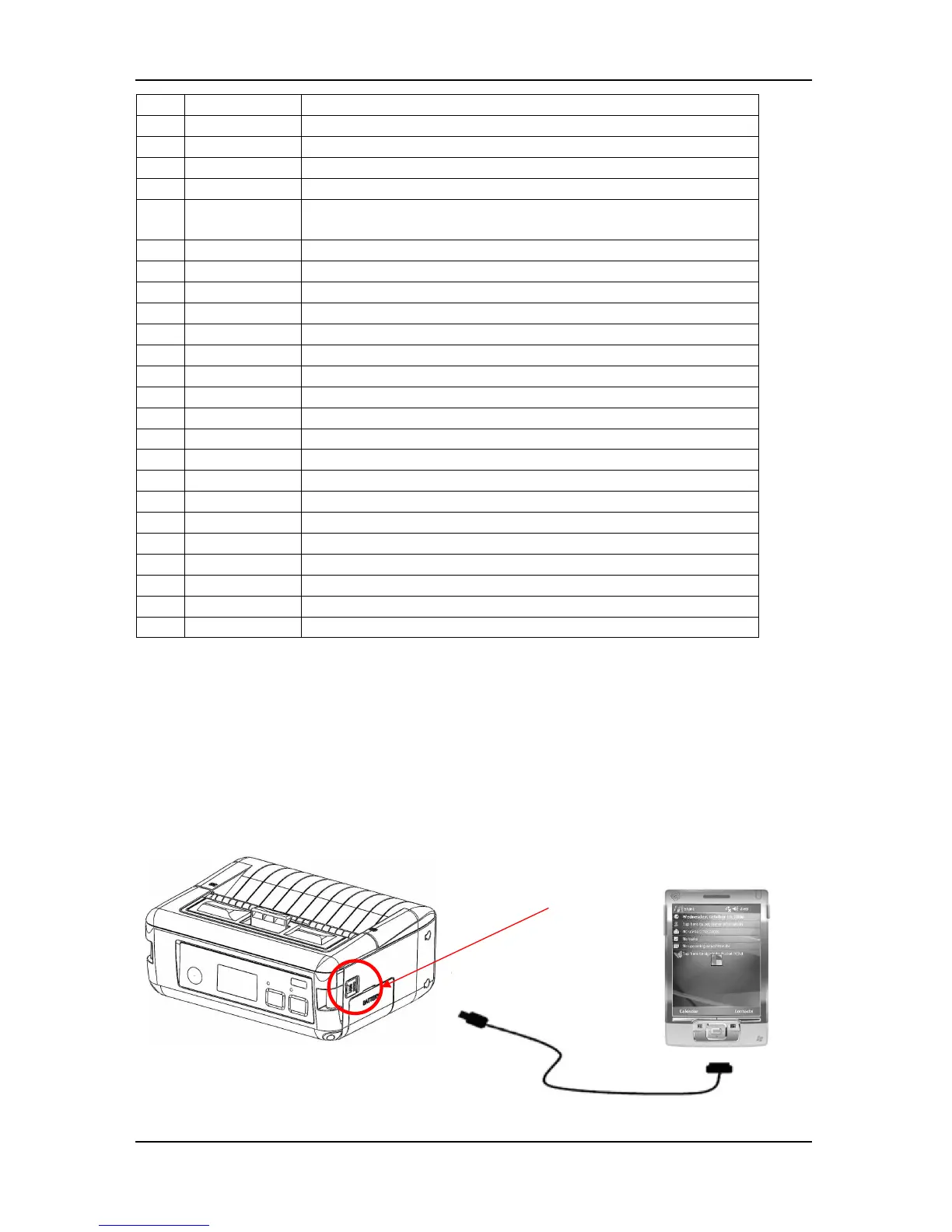
The DPP-450 is designed to use different methods of communications. Care
must be taken to ensure that the DPP-450 USB/RS 232 connector and PDA &
Smartphone connector are not accidentally damaged. The figures below show how to
attach the different device to the DPP-450.
USB ( Cabled ) Version:
Connect the DPP-450 using Mini USB cable is shown in the figure below.
USB/RS 232
connector



 To Next Page