Editing and Combining Designs
48
Editing Window
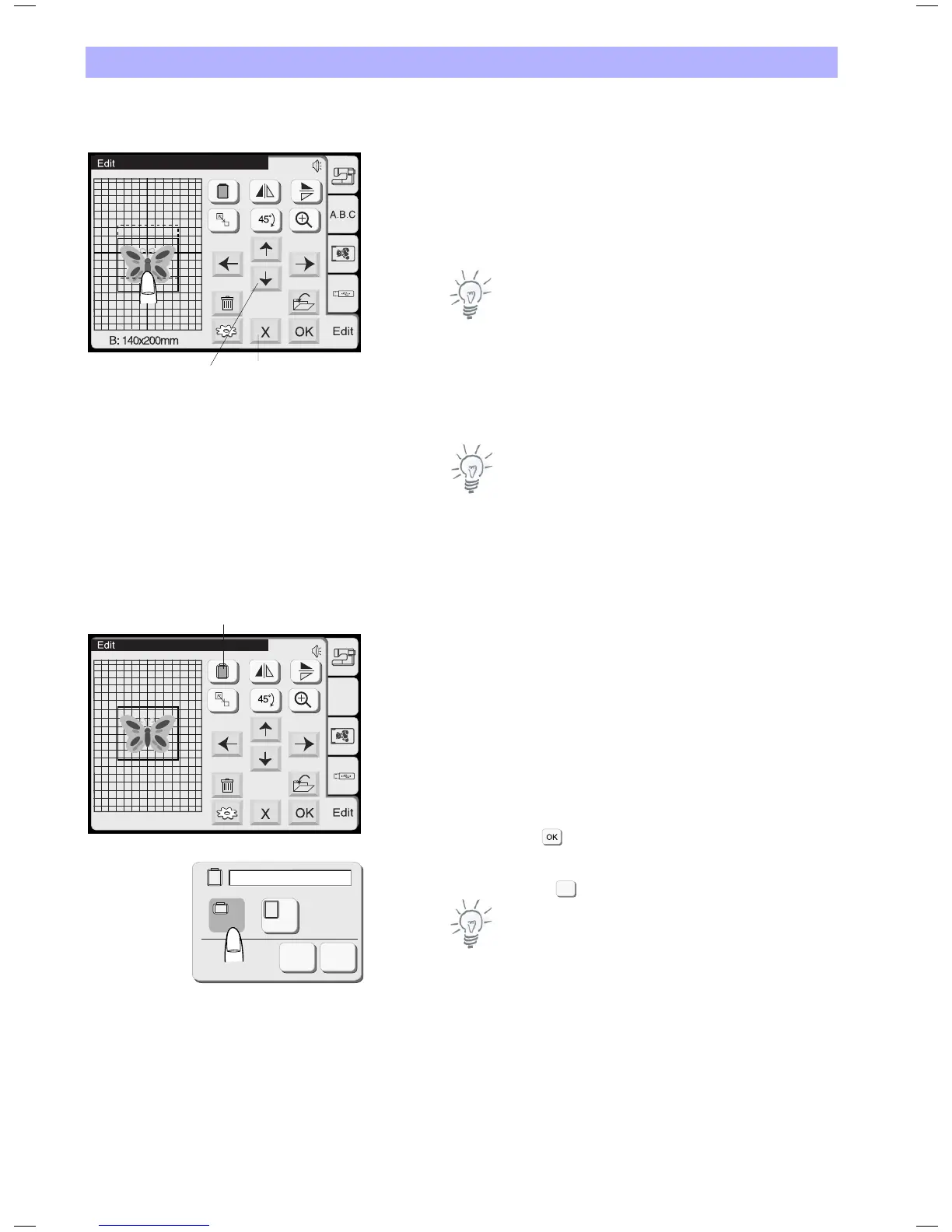
1 Position keys
Move the selected design with the Position keys to the desired
location.
The carriage will not move when you press the Position keys since
the design position is just moved relatively to the hoop.
Note:
The Position keys look exactly the same as the Jog keys but the
function is different. To move the carriage, use the Jog keys.
Drag-and-Drop Moving of the Selected Design
To move the pattern in the Editing Window, touch and drag the
pattern to a desired location with your fingertip.
Note:
Do not drag the pattern on the screen with a sharp pointed object.
2 Close key
Press this key to cancel editing and the screen will return to the last
Pattern Selection Window.
3 Hoop selection key
In the Editing Window, you can select the appropriate hoop.
Press this key to open the Hoop Selection Window.
Select the desired hoop from 3 options available.
Hoop A (Standard) / F (Option): 126 x 110 mm (5.0 x 4.3")
Hoop B (Standard): 140 x 200 mm (5.5 x 7.9")
Hoop C (Option): 50 x 50 mm (2.0 x 2.0")
Press the OK key and the Editing Window for the selected hoop
will open.
Press the close key to return to the default setting (Hoop B).
Note:
Only the hoops which will fit the current design are shown for
selection
1
2
B: 140x200mm
A.B.C
3
C
A(F)
B
OK
A(F): 126 x 110mm
X
X


 To Next Page