5. Press the Continue button .
NOTE: The printer reprints the pages that caused the paper jam.
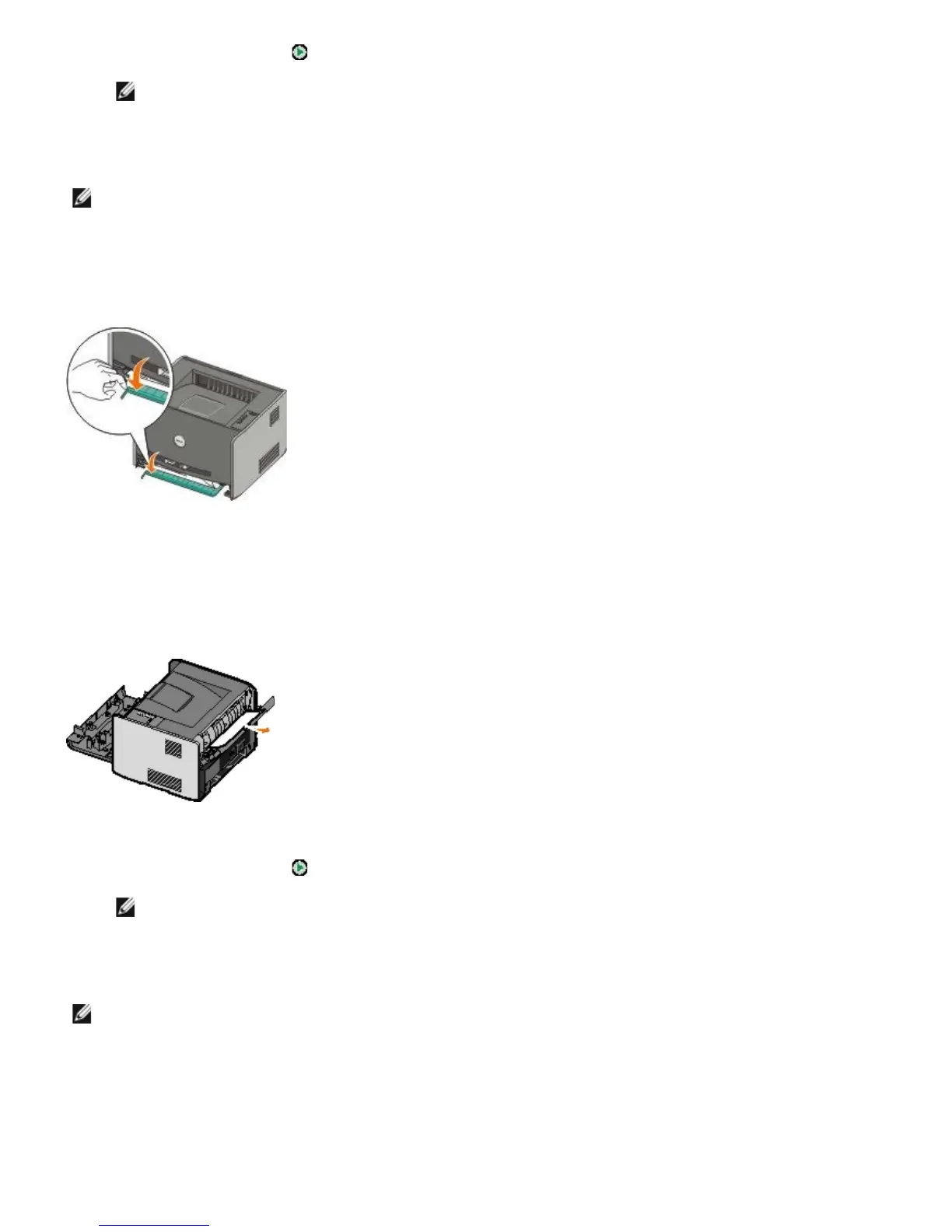
234 Paper Jam — Check Duplex
There is a paper jam in the duplex unit, but the printer cannot identify the location.
1. Remove Tray 1.
2. Press down the lever on the automatic duplex unit.
3. Remove any jammed paper.
4. Replace Tray 1.
5. Open the rear exit.
6. Remove any jammed paper.
7. Close the rear exit.
8. Press the Continue button
.
NOTE: The printer reprints the pages that caused the paper jam.
235 Duplex Paper Jam — Unsupported Size
There is a paper jam at the output bin because the paper used was too narrow for the duplex unit.
1. Open the rear exit.
NOTE: This message appears only if the printer has an automatic duplex unit.
NOTE: This message appears only if the printer has an automatic duplex unit.



 To Next Page