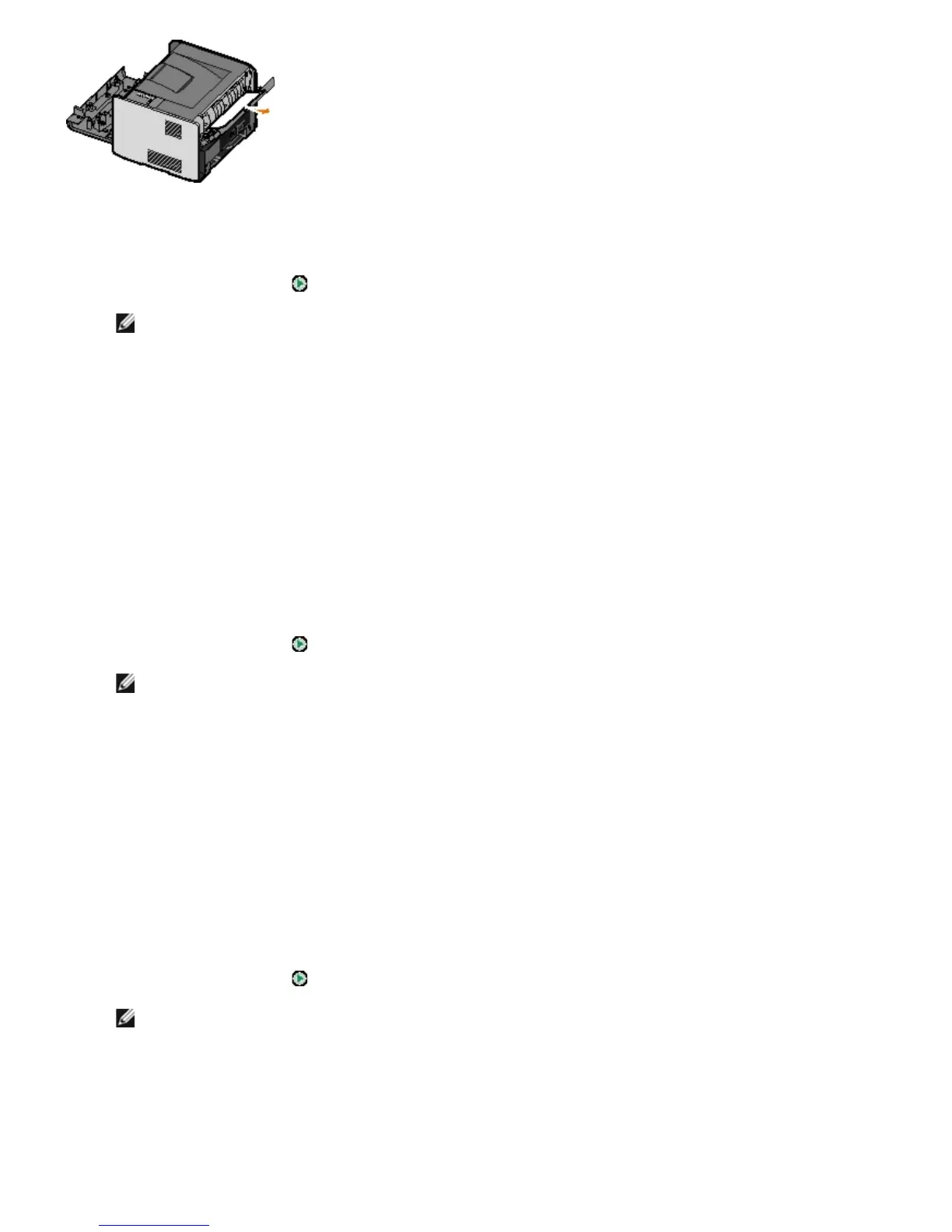
2. Remove the jammed paper.
3. Close the rear exit.
4. Press the Continue button
.
NOTE: The printer reprints the pages that caused the paper jam.
5. Replace the narrow paper in Tray 1 with a wider paper.
6. Send your print job to the printer again.
241 Paper Jam — Check Tray 1
There is a paper jam in Tray 1.
1. Remove Tray 1.
2. Remove the jammed paper.
3. Replace Tray 1.
4. Press the Continue button
.
NOTE: The printer reprints the pages that caused the paper jam.
242 Paper Jam — Check Tray 2
There is a paper jam in Tray 2.
1. Remove Tray 2.
2. Remove the jammed paper.
3. If you did not see any jammed paper when you removed Tray 2, remove Tray 1 and then remove any jammed
paper.
4. Replace both paper trays.
5. Press the Continue button
.
NOTE: The printer reprints the pages that caused the paper jam.
251 Paper Jam — Check Manual Feeder
There is a paper jam at the manual feeder.
1. Remove the jammed paper from the manual feeder.



 To Next Page