The followin
table contains
eneral information about common
monitor
roblems
ou mi
ht encounter.
COMMON
SYMPTOMS
WHAT YOU
EXPERIENCE
POSSIBLE SOLUTIONS
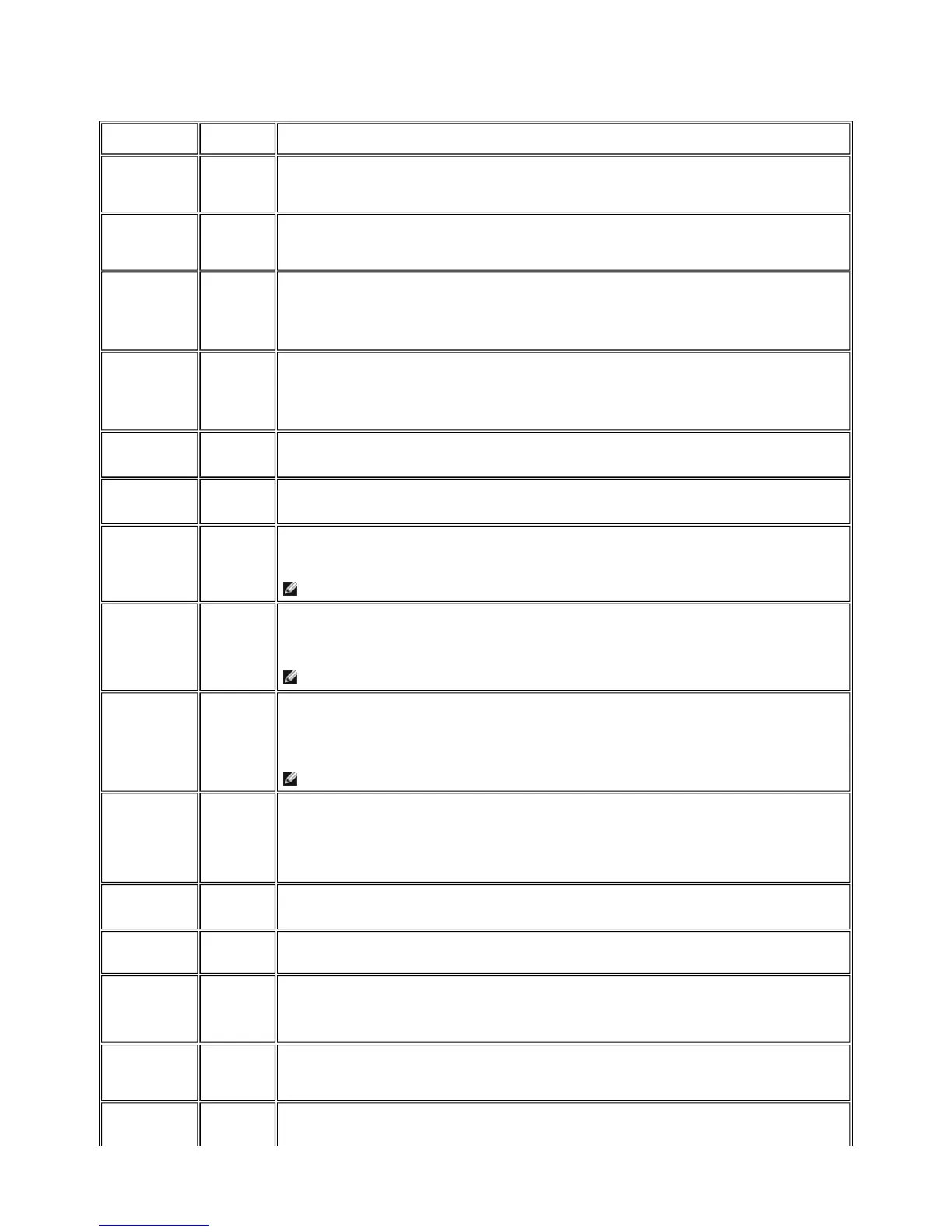
No Video/ Power
LED off
No picture z Check connection integrity at both ends of the video cable
z Electric outlet verification
z Ensure power button depressed fully
No Video/ Power
LED on
No picture or
no brightness
z Increase brightness & contrast controls via OSD
z Perform monitor self-test feature check
z Check for bent or broken pins
Poor Focus Picture is
fuzzy, blurry
or ghosting
z Auto Adjust via OSD
z Adjust Phase and Pixel Clock controls via OSD
z Eliminate video extension cables
z Perform monitor reset
z Lower video resolution or increase font size
Shaky/Jittery
Video
Wavy picture
or fine
movement
z Auto Adjust via OSD
z Adjust Phase and Pixel Clock controls via OSD
z Perform monitor reset
z Check environmental factors
z Relocate and test in another room
Missing Pixels LCD screen
has spots
z Cycle power on-off
z These are pixels that are permanently off and is a natural defect that occurs in LCD technology
Stuck-on Pixels LCD screen
has bright
spots
z Cycle power on-off
z These are pixels that are permanently on and is a natural defect that occurs in LCD technology
Brightness
Problems
Picture too
dim or too
bright
z Perform monitor reset on "Factory Reset"
z Auto Adjust via OSD
z Adjust brightness & contrast controls via OSD
NOTE: When using '2: DVI-D', the contrast adjustment is not available.
Geometric
Distortion
Screen not
centered
correctly
z Perform monitor reset on "Display Reset"
z Auto Adjust via OSD
z Adjust brightness & contrast controls via OSD
z Ensure monitor is in proper video mode
NOTE: When using '2: DVI-D', the positioning adjustments are not available.
Horizontal/Vertical
Lines
Screen has
one or more
lines
z Perform monitor reset on "Display Reset"
z Auto Adjust via OSD
z Adjust Phase and Pixel Clock controls via OSD
z Perform monitor self-test feature check and determine if these lines are also in self-test mode
z Check for bent or broken pins
NOTE: When using '2: DVI-D', the Pixel Clock and Phase adjustments are not available.
Sync Problems Screen is
scrambled or
appears torn
z Perform monitor reset on "Display Reset"
z Auto Adjust via OSD
z Adjust Phase and Pixel Clock controls via OSD
z Perform monitor self-test feature check to determine if scrambled screen appears in self-test mode
z Check for bent or broken pins
z Boot up in the "safe mode"
LCD Scratched Screen has
scratches or
smudges
z Turn monitor off and clean the screen
z For cleaning instruction, see Caring for Your Monitor.
Safety Related
Issues
Visible signs
of smoke or
sparks
z Do not perform any troubleshooting steps
z Monitor needs to be replaced
Intermittent
Problems
Monitor
malfunctions
on & off
z Ensure monitor is in proper video mode
z Ensure video cable connection to computer and to the flat panel is secure
z Perform monitor reset on "Factory Reset"
z Perform monitor self-test feature check to determine if the intermittent problem occurs in self-test mode
Missing Color Picture
missing color
z Perform monitor self-test feature check
z Check connection integrity at both end of the video cable
z Check for bent or broken pins
Wrong Color Picture color
not good
z Change the color to "PC Custom Color" or "MAC Custom Color"
z Adjust R/G/B value of "PC Custom Color" or "MAC Custom Color"
Pa
e 2 of 6Documentation
12/10/2007htt
://su
ort.dell.com/su
ort/edocs/monitors/2407WFP/en/solve.htm







 To Next Page