35
echnical Documentation\Dell Headset\User Guide\4-75x4-
75section3_computer.fm
DELL CONFIDENTIAL – PRELIMINARY 2/15/07 – FOR PROOF ONLY
Template Last Updated - 10/13/2005
Connecting with your Computer
Using the Windows Bluetooth™ Setup Wizard
1
Double-click the
My Bluetooth Places
icon on your desktop.
2
Right-click on the
Dell BH200
icon and choose
Connect
Stereo Headphones
or
Connect Hands-free Headset with
Microphone
. For more information on the difference
between these two modes, see "Dell BH200 Bluetooth
Profiles" on page 17.
NOTE: If you do not see the Dell BH200 icon, click Bluetooth >
Search for Devices.
NOTE: If you choose Connect Hands-free Headset with
Microphone, you will hear a ringing tone. Press the Multi-
function key once to accept the connection.
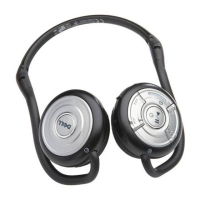
Re-connecting
When your headset is turned off and then on again, it is only
necessary to press the
Multi-function key
once. This will re-
establish the connection to either music or phone mode.


 To Next Page