Dell E1913S/E1913/E2213 Monitor User's Guide
file:///K|/Dell/E1913/Dell%20E1913(S)%20E2213%20E-DOC%20Source/en/ug/operate.htm[2012-3-19 16:22:04]
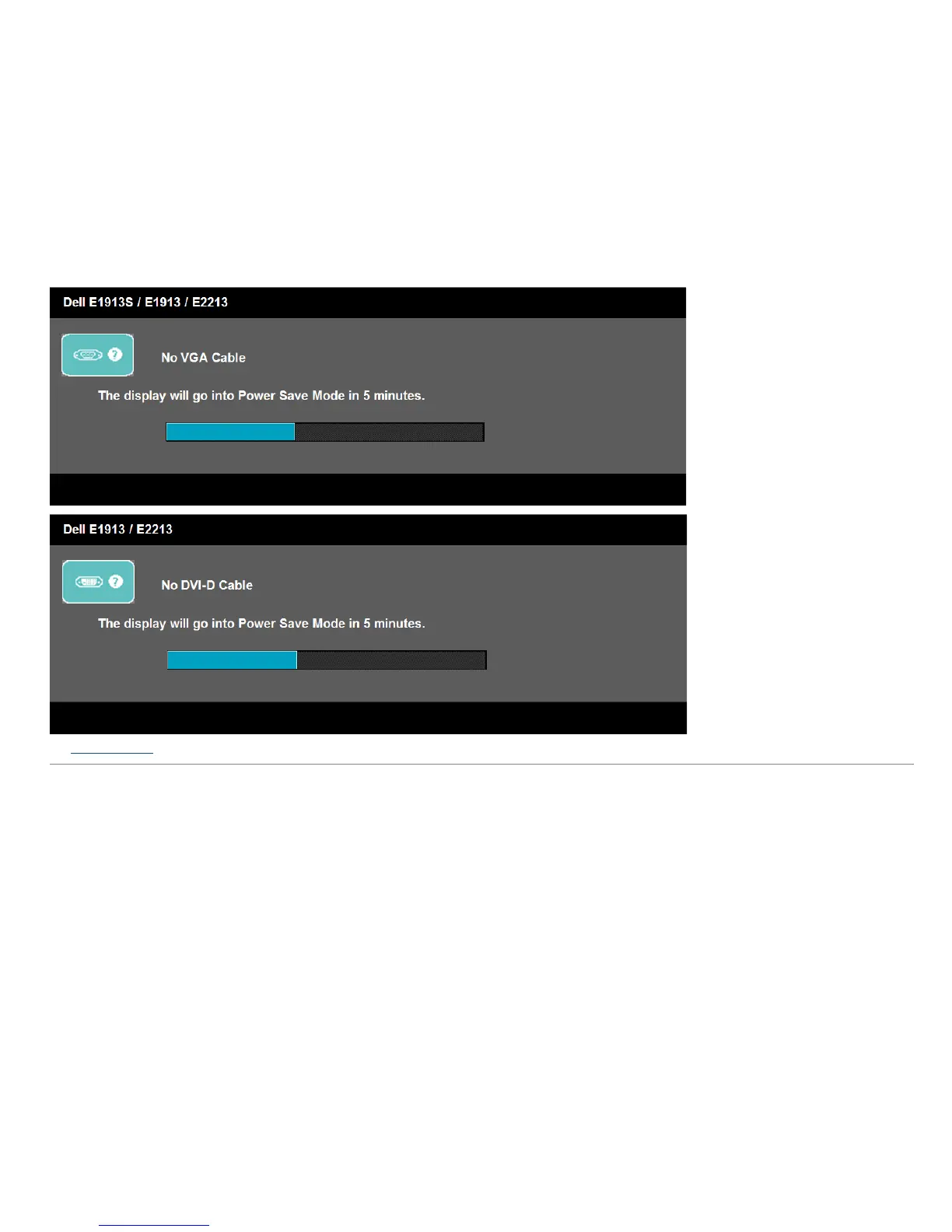
If VGA or DVI cable is not connected, a floating dialog box as shown below appears. The monitor will enter Power Save Mode after 5 minutes if left at this state.
See Solving Problems for more information.
Setting the Maximum Resolution
To set the Maximum resolution for the monitor:
Windows Vista® , Windows® 7:
1. Right-click on the desktop and select Personalization.
2. Click Change Display Settings.
3. Move the slider-bar to the right by pressing and holding left-mouse button and adjust the screen resolution to 1280 x 1024 (for E1913S) or 1440 x 900 (for E1913) or
1680 x 1050 (for E2213).
4. Click OK.
If you do not see 1280 x 1024 (for E1913S) or 1440 x 900 (for E1913) or 1680 x 1050 (for E2213) as an option, you may need to update your graphics driver. Depending on
your computer, complete one of the following procedures.



 To Next Page