EasyManua.ls Logo

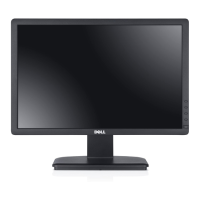
Dell E1914H - User Manual

Dell E1914H
73 pages
Print Icon
To Next Page IconTo Next Page
Loading...
User‘s Guide
Dell E1914H
Dell E2014H
Model No.: E1914H / E2014H
Regulatory model: E1914Hc/ E1914Hf/ E2014Hc/ E2014Hf

Table of Contents

Other manuals for Dell E1914H

Questions and Answers

  • V
    Vanessa CervantesSep 1, 2025
    Why is my Dell E1914H video shaky or jittery?
    • L
      Lisa JeffersonSep 1, 2025
      To resolve shaky or jittery video on your Dell monitor, try the following steps: Perform Auto Adjust via the OSD. Adjust the Phase and Pixel Clock controls via the OSD. Reset the monitor to Factory Settings. Check for any environmental factors that might be causing interference. Relocate the monitor and test it in another room.
  • M
    Maria LuceroSep 12, 2025
    What to do if I cannot adjust my Dell E1914H with the front panel buttons?
    • M
      mayojeffreySep 13, 2025
      If you cannot adjust the Dell monitor with the buttons on the front panel, turn off the monitor, unplug the power cord, plug it back in, and then turn on the monitor.
  • J
    Jon GardnerAug 31, 2025
    How to fix a Dell E1914H Monitor with no video and power LED off?
    • N
      Nathan OlsonAug 31, 2025
      If your Dell monitor displays no video and the power LED is off, ensure the video cable connecting the monitor and computer is properly connected and secure. Also, verify the power outlet is functioning correctly by testing it with other electrical equipment. Make sure the power button is fully depressed, and check the LED Button option under Energy Setting in the On-Screen Display (OSD) menu.
  • J
    joannagreenSep 15, 2025
    How to improve focus on a Dell monitor?
    • C
      Christopher Yates DDSSep 15, 2025
      To improve poor focus on your Dell monitor, perform Auto Adjust via the OSD. You can also adjust the Phase and Pixel Clock controls via the OSD. Try eliminating any video extension cables. Resetting the monitor to its factory settings might also help. Ensure that the video resolution is set to the correct aspect ratio (16:9).
  • C
    Cindy ColonSep 14, 2025
    How to fix a Dell E1914H Monitor with no video and the power LED off?
    • M
      Michelle DavisSep 14, 2025
      If your Dell monitor shows no video and the power LED is off, ensure the video cable connecting the monitor and the computer is properly connected and secure. Also, verify that the power outlet is functioning properly by testing it with other electrical equipment. Make sure the power button is fully depressed, and check the LED Button option under Energy Setting in the OSD menu.
  • S
    Stacey McconnellSep 22, 2025
    What to do in case of safety-related issues with Dell E1914H Monitor?
    • D
      daniel00Sep 22, 2025
      If you are experiencing safety-related issues with your Dell monitor, do not attempt any troubleshooting steps. Contact Dell immediately for assistance.
  • A
    Anthony GonzalezAug 27, 2025
    How to resolve brightness problems on a Dell E1914H Monitor?
    • E
      Erin GriffinAug 27, 2025
      To resolve brightness problems on your Dell monitor, try resetting the monitor to its factory settings. You can also perform Auto Adjust via the OSD or manually adjust the brightness and contrast controls through the OSD.
  • B
    Brittany GonzalesAug 27, 2025
    What to do if Dell E1914H has no video but power LED is on?
    • M
      Manuel ScottAug 27, 2025
      If your Dell monitor displays no video but the power LED is on, try the following: Increase the brightness and contrast controls via the OSD (On-Screen Display). Perform a monitor self-test feature check. Inspect the video cable connector for bent or broken pins. Ensure that the correct input source is selected via the Input Source Select menu. Lastly, run the built-in diagnostics.
  • A
    Amanda GilmoreAug 26, 2025
    How to fix no sound on my Dell E1914H?
    • R
      Rebecca ShahAug 26, 2025
      If you're not getting any sound from your Dell monitor, plug the audio line-in cable into the computer’s audio out jack. Set all volume controls to their maximum and ensure that the mute option is not enabled. Play some audio content on the computer (example, audio CD, or MP3). Turn the Power/Volume knob on the Soundbar clockwise to a higher volume setting. Clean and reseat the audio line-in plug. Test the Soundbar using another audio source (For example: portable CD player, MP3 player).
  • G
    Glenda PowersAug 25, 2025
    What to do if there is no sound from my Dell E1914H Monitor's soundbar?
    • G
      George BrownAug 26, 2025
      To address issues with no sound for a system where the Soundbar draws power from an AC adapter, turn the Power/Volume knob on the Soundbar clockwise to the middle position and check if the power indicator (white LED) on the front of the Soundbar is illuminated. Confirm that the power cable from the Soundbar is plugged into the adapter.

Summary

Dell Display Manager (DDM) Guide

Monitor Hardware and Specifications

Technical Specifications Overview

Covers power management, pin assignments, panel, resolution, electrical, and preset modes.

Setting Up Your Monitor

Dual Monitor Setup and Display Styles

Configuring multiple displays and selecting display styles in Windows.

Operating Your Monitor

On-Screen Display (OSD) Menu Navigation

How to access and use the monitor's OSD menu for settings.

Troubleshooting Common Issues

Diagnostic Tools and Self-Test Procedures

Using built-in diagnostics and self-test features to identify monitor issues.

Common Monitor Problems and Solutions

Addressing frequent symptoms like no video, poor focus, and screen jitter.

Dell E1914H Specifications

General IconGeneral
Screen Size18.5 inches
Resolution1366 x 768
Panel TypeTN
Refresh Rate60 Hz
Aspect Ratio16:9
Brightness200 cd/m²
Response Time5 ms
ConnectivityVGA
Viewing Angle90° (H) / 65° (V)
Power Consumption14W (typical)
Weight2.60 kg
Contrast Ratio600:1 (typical)

Related product manuals