EasyManua.ls Logo

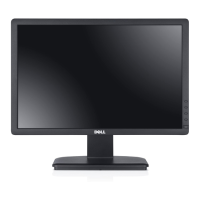
Dell E1914H - User Manual

Dell E1914H
73 pages
Print Icon
To Next Page IconTo Next Page
Loading...
User‘s Guide
Dell E1914H
Dell E2014H
Model No.: E1914H / E2014H
Regulatory model: E1914Hc/ E1914Hf/ E2014Hc/ E2014Hf

Table of Contents

Other manuals for Dell E1914H

Questions and Answers

  • M
    michael29Aug 25, 2025
    Why doesn't the picture fill the entire screen on my Dell E1914H Monitor?
    • S
      stephen46Aug 25, 2025
      To resolve the issue of the picture not filling the entire screen on your Dell monitor, be aware that due to different video formats (aspect ratio) of DVDs, the monitor may not display in full screen. You can also run the built-in diagnostics.
  • G
    Glenda PowersAug 25, 2025
    What to do if there is no sound from my Dell E1914H Monitor's soundbar?
    • G
      George BrownAug 26, 2025
      To address issues with no sound for a system where the Soundbar draws power from an AC adapter, turn the Power/Volume knob on the Soundbar clockwise to the middle position and check if the power indicator (white LED) on the front of the Soundbar is illuminated. Confirm that the power cable from the Soundbar is plugged into the adapter.
  • A
    Amanda GilmoreAug 26, 2025
    How to fix no sound on my Dell E1914H?
    • R
      Rebecca ShahAug 26, 2025
      If you're not getting any sound from your Dell monitor, plug the audio line-in cable into the computer’s audio out jack. Set all volume controls to their maximum and ensure that the mute option is not enabled. Play some audio content on the computer (example, audio CD, or MP3). Turn the Power/Volume knob on the Soundbar clockwise to a higher volume setting. Clean and reseat the audio line-in plug. Test the Soundbar using another audio source (For example: portable CD player, MP3 player).
  • B
    Brittany GonzalesAug 27, 2025
    What to do if Dell E1914H has no video but power LED is on?
    • M
      Manuel ScottAug 27, 2025
      If your Dell monitor displays no video but the power LED is on, try the following: Increase the brightness and contrast controls via the OSD (On-Screen Display). Perform a monitor self-test feature check. Inspect the video cable connector for bent or broken pins. Ensure that the correct input source is selected via the Input Source Select menu. Lastly, run the built-in diagnostics.
  • A
    Anthony GonzalezAug 27, 2025
    How to resolve brightness problems on a Dell E1914H Monitor?
    • E
      Erin GriffinAug 27, 2025
      To resolve brightness problems on your Dell monitor, try resetting the monitor to its factory settings. You can also perform Auto Adjust via the OSD or manually adjust the brightness and contrast controls through the OSD.
  • J
    jacquelinehoodAug 28, 2025
    How to troubleshoot intermittent problems with a Dell E1914H?
    • A
      Angela MitchellAug 28, 2025
      If you're experiencing intermittent problems with your Dell monitor, ensure that the video cable connecting the monitor to the computer is properly connected and secure. Try resetting the monitor to its factory settings. Additionally, perform a monitor self-test feature check to see if the intermittent problem occurs in self-test mode.
  • G
    Gabriela ConnerAug 29, 2025
    How to fix distorted sound on a Dell E1914H Monitor?
    • K
      Katherine JonesAug 29, 2025
      If you are experiencing distorted sound from your Dell monitor's soundbar, clear any obstructions between the Soundbar and the user. Confirm that the audio line-in plug is completely inserted into the jack of the sound card. Set all Windows volume controls to their midpoints and decrease the volume of the audio application. Turn the Power/Volume knob on the Soundbar counter-clockwise to a lower volume setting. Clean and re-seat the audio line-in plug. Troubleshoot the computer’s sound card and test the Soundbar using another audio source. Avoid using an audio cable extension or audio jack converter.
  • W
    williamharrisonAug 30, 2025
    Why is there no sound on my Dell E1914H?
    • D
      Douglas SchaeferAug 30, 2025
      If there is no sound coming from your Dell monitor, plug the audio line-in cable into the computer’s audio out jack. Set all volume controls to their maximum and ensure that the mute option is not enabled. Play some audio content on the computer. Turn the Power/Volume knob on the Soundbar clockwise to a higher volume setting. Clean and reseat the audio line-in plug. Test the Soundbar using another audio source.
  • G
    Gary HaynesAug 23, 2025
    How to solve brightness problems on a Dell monitor?
    • A
      Angela LeeAug 25, 2025
      If you are experiencing brightness problems with your Dell monitor, you can try the following: Reset the monitor to its factory settings. Use the Auto Adjust feature via the OSD. Adjust the brightness and contrast controls via the OSD.
  • J
    Jade BryanAug 31, 2025
    What to do if my Dell E1914H has no video but the power LED is on?
    • J
      Jennifer MartinezAug 31, 2025
      If your Dell monitor shows no video but the power LED is on, try the following: Increase the brightness and contrast controls via the OSD. Perform a monitor self-test feature check. Inspect the video cable connector for bent or broken pins. Ensure the correct input source is selected via the Input Source Select menu. Run the built-in diagnostics.

Summary

Dell Display Manager (DDM) Guide

Monitor Hardware and Specifications

Technical Specifications Overview

Covers power management, pin assignments, panel, resolution, electrical, and preset modes.

Setting Up Your Monitor

Dual Monitor Setup and Display Styles

Configuring multiple displays and selecting display styles in Windows.

Operating Your Monitor

On-Screen Display (OSD) Menu Navigation

How to access and use the monitor's OSD menu for settings.

Troubleshooting Common Issues

Diagnostic Tools and Self-Test Procedures

Using built-in diagnostics and self-test features to identify monitor issues.

Common Monitor Problems and Solutions

Addressing frequent symptoms like no video, poor focus, and screen jitter.

Dell E1914H Specifications

General IconGeneral
Screen Size18.5 inches
Resolution1366 x 768
Panel TypeTN
Refresh Rate60 Hz
Aspect Ratio16:9
Brightness200 cd/m²
Response Time5 ms
ConnectivityVGA
Viewing Angle90° (H) / 65° (V)
Power Consumption14W (typical)
Weight2.60 kg
Contrast Ratio600:1 (typical)

Related product manuals