Back to Contents Page
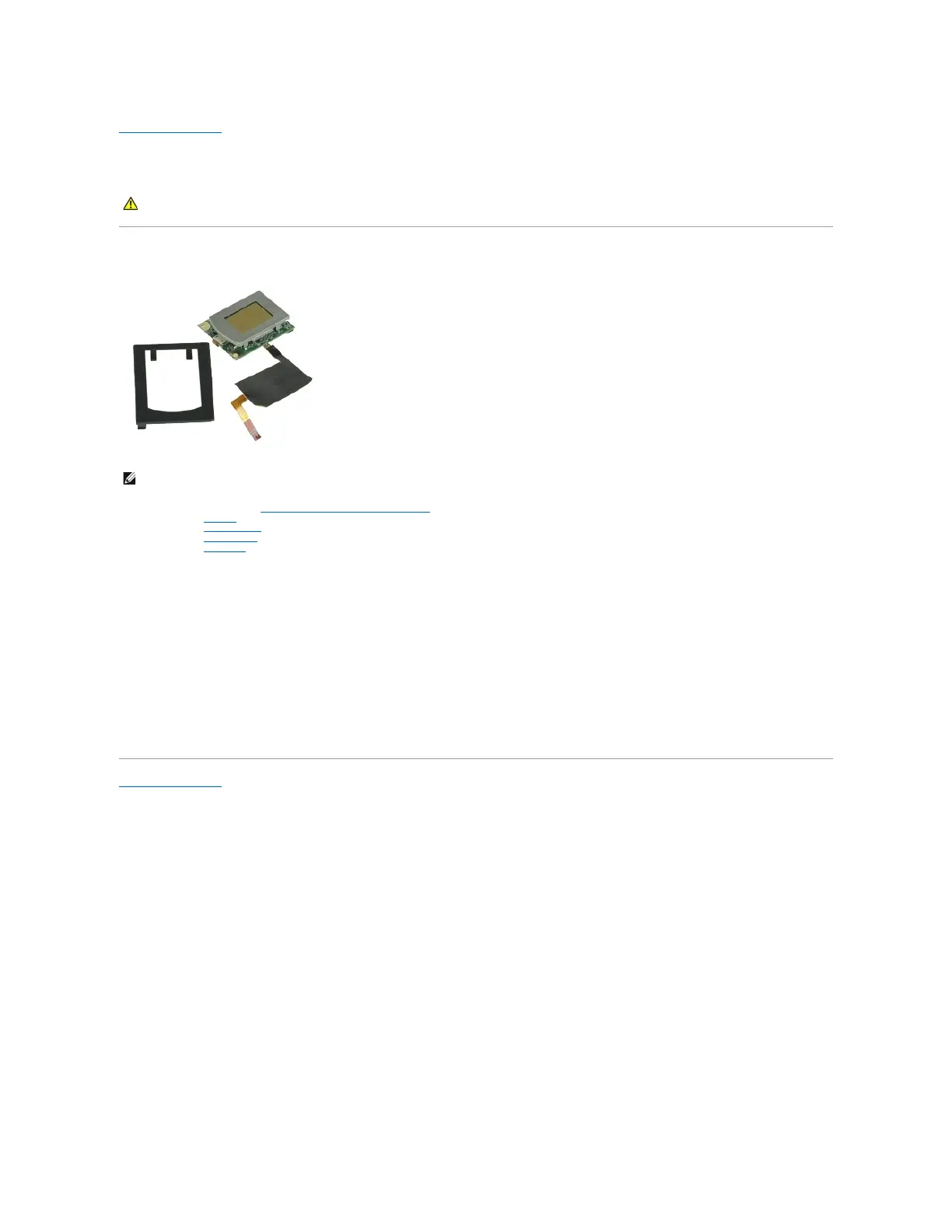
Fingerprint Reader
Dell™Latitude™E6510ServiceManual
Removing the Fingerprint Reader
1. Follow the procedures in Before Working Inside Your Computer.
2. Remove the battery.
3. Remove the access panel.
4. Remove the optical drive.
5. Remove the keyboard.
6. Loosen the captive screw (labeled 'F') that secures the fingerprint reader to the computer.
7. Open the clip that secures the fingerprint data cable and disconnect it from the system board.
8. Push the fingerprint reader from the back of the computer to remove the fingerprint reader from the computer.
Replacing the Fingerprint Reader
To replace the fingerprint reader, perform the above steps in reverse order.
Back to Contents Page
WARNING: Before working inside your computer, read the safety information that shipped with your computer. For additional safety best
practices information, see the Regulatory Compliance Homepage at www.dell.com/regulatory_compliance.


 To Next Page