EasyManua.ls Logo

Dell Latitude E6400 XFR - User Manual

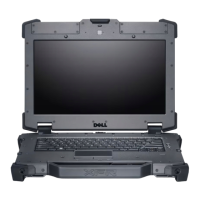
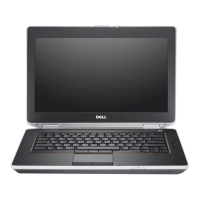
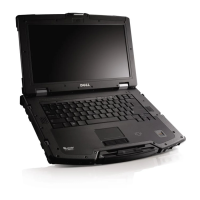
Dell Latitude E6400 XFR
81 pages
Print Icon
To Next Page IconTo Next Page
Loading...
www.dell.com | support.dell.com
Dell™ Latitude™ E6420 XFR
Service Manual

Table of Contents

Other manuals for Dell Latitude E6400 XFR

Questions and Answers

  • N
    Nicole PhillipsAug 19, 2025
    What to do if my Dell Laptop says 'NOT ENOUGH MEMORY OR RESOURCES'?
    • C
      Christy BarkerAug 19, 2025
      If your Dell Laptop displays a 'NOT ENOUGH MEMORY OR RESOURCES' error, try closing all open windows and then reopen the program you wish to use. If that doesn't work, restarting your computer might restore the necessary resources. After restarting, run the program you want to use first.
  • G
    Gregory BarnettAug 21, 2025
    What to do if my Dell Latitude E6400 XFR Laptop displays 'A REQUIRED .DLL FILE WAS NOT FOUND'?
    • B
      Brian LopezAug 21, 2025
      To resolve the 'A REQUIRED .DLL FILE WAS NOT FOUND' error on your Dell Laptop, you can try to reinstall the program. For Windows XP: go to Start, Control Panel, Add or Remove Programs, and then Programs and Features. Select the program and click Uninstall. For Windows Vista: go to Start, Control Panel, Programs, and then Programs and Features. Select the program and click Uninstall. Refer to the program's documentation for reinstallation instructions.
  • C
    Corey OchoaAug 23, 2025
    What to do if my Dell Latitude E6400 XFR says 'drive letter :\ IS NOT ACCESSIBLE. THE DEVICE IS NOT READY'?
    • B
      Brett BellAug 23, 2025
      If your Dell Laptop displays the error 'drive letter :\ IS NOT ACCESSIBLE. THE DEVICE IS NOT READY', it means the drive can't read the disk. Try inserting a disk into the drive and try again.
  • O
    Oscar WatsonAug 26, 2025
    What to do if my Dell Latitude E6400 XFR displays 'INSERT BOOTABLE MEDIA'?
    • T
      tammyfranklinAug 26, 2025
      If your Dell Laptop shows 'INSERT BOOTABLE MEDIA', insert a bootable floppy disk, CD, or DVD into the appropriate drive.
  • J
    John Hess PhDAug 27, 2025
    What to do if my Dell Latitude E6400 XFR displays 'NON-SYSTEM DISK ERROR'?
    • J
      Jason DavidsonAug 27, 2025
      If your Dell Laptop shows a 'NON-SYSTEM DISK ERROR', remove the floppy disk from the floppy drive and then restart your computer.
  • F
    fergusonmaryAug 29, 2025
    What to do if my Dell Laptop system failed on hard drive initialization?
    • J
      Jeffrey BrownAug 29, 2025
      If your Dell Laptop system failed on hard drive initialization, reseat the hard drive.
  • E
    Emily VanceSep 1, 2025
    What to do if my Dell Latitude E6400 XFR failed in Option ROM initialization?
    • J
      Joshua PruittSep 1, 2025
      If your Dell Laptop system failed in Option ROM initialization, and you've recently added new hardware, try removing or reseating it.
  • A
    Andrew WilliamsSep 3, 2025
    Why is my Dell Latitude E6400 XFR Laptop not detecting memory modules?
    • L
      lowerobertSep 3, 2025
      If your Dell Laptop is not detecting memory modules, and if you have multiple modules installed, remove all but one, and then restart your computer. If it starts normally, add the other modules back one at a time until you identify the faulty module, or reinstall all modules without error. If available, install working memory of the same type into your computer.
  • A
    Adriana RichardsSep 5, 2025
    What to do if a memory failure has occurred on my Dell Latitude E6400 XFR Laptop?
    • G
      Gregory HolmesSep 5, 2025
      If a memory failure occurs on your Dell Laptop after the memory modules are detected, and if you have multiple modules installed, remove all but one, and then restart your computer. If it starts normally, add the other modules back one at a time until you identify the faulty module, or reinstall all modules without error. If available, install working memory of the same type into your computer.
  • N
    Nicholas VargasSep 7, 2025
    What to do if the memory failed to initialize on my Dell Latitude E6400 XFR?
    • M
      Misty RichSep 7, 2025
      If the memory on your Dell Laptop failed to initialize, and if you have multiple modules installed, remove all but one, and then restart your computer. If it starts normally, add the other modules back one at a time until you identify the faulty module, or reinstall all modules without error. If available, install working memory of the same type into your computer.

Summary

Working on Your Computer

Before Working on Your Computer

Provides essential safety guidelines and preparatory steps before servicing.

Recommended Tools

Lists the tools required for performing maintenance procedures.

After Working on Your Computer

Details the steps to follow after completing component replacement procedures.

Bottom Access Panel

Removing the Bottom Access Panel

Steps to remove the bottom access panel for internal component access.

Replacing the Bottom Access Panel

Procedure for reinstalling the bottom access panel.

Fan Assembly

Removing the Fan Assembly

Instructions for safely removing the cooling fan assembly.

Replacing the Fan Assembly

Steps for installing a new cooling fan assembly.

Processor Module

Removing the Processor Module

Instructions for safely removing the processor module.

Replacing the Processor Module

Steps for installing a new processor module.

Memory

Removing a Memory Module

Procedure for detaching a memory module from its socket.

Replacing a Memory Module

Steps for installing a new memory module.

Keyboard

Removing the Keyboard

Instructions for safely removing the keyboard.

Replacing the Keyboard

Steps for installing a new keyboard.

Display Assembly

Removing the Display Assembly

Procedure for detaching the entire display assembly.

Replacing the Display Assembly

Steps for installing a new display assembly.

Palm Rest

Removing the Palm Rest

Instructions for safely removing the palm rest.

Replacing the Palm Rest

Steps for installing a new palm rest.

Hard Drive

Removing the Hard Drive

Procedure for detaching the hard drive.

Replacing the Hard Drive

Steps for installing a new hard drive.

System Board Assembly

Removing the System Board Assembly

Instructions for safely removing the system board.

Replacing the System Board Assembly

Steps for installing a new system board.

System Setup

Setup Overview

Provides an overview of the system setup utility and its capabilities.

System Setup Menu

Describes the various menu options available within the System Setup program.

Diagnostics

Battery Status Lights

Explains the meaning of different battery status light indicators.

Device Status Lights

Describes the function of various device status lights on the computer.

Contacting Dell

Dell Latitude E6400 XFR Specifications

General IconGeneral
ProcessorIntel Core 2 Duo
StorageUp to 250GB HDD or 128GB SSD
Warranty3-year limited warranty
Display14.1-inch WXGA (1280x800)
RAMUp to 8GB DDR2
GraphicsIntel GMA 4500MHD
Operating SystemWindows Vista, Windows XP
Rugged FeaturesMIL-STD-810F
ChipsetIntel GM45 Express Chipset
WirelessWi-Fi 802.11a/g/n, Bluetooth 2.1
ConnectivityGigabit Ethernet, Modem
PortsVGA
Card SlotsSmart Card Reader
Battery6-cell or 9-cell Lithium Ion
NetworkingGigabit Ethernet
SecurityTrusted Platform Module (TPM), Fingerprint Reader, Smart Card Reader

Related product manuals