
EasyManua.ls Logo

Dell Lightning - User Manual

Dell Lightning
103 pages
Print Icon
To Next Page IconTo Next Page
Loading...
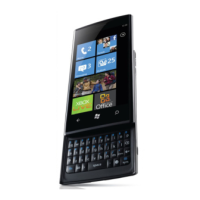
Dell™ Lightning
User's Manual
COMMENT

Questions and Answers

  • M
    mgibsonAug 20, 2025
    What to do if my Dell Lightning Cell Phone has poor reception?
    • L
      Larry BlackAug 20, 2025
      If your Dell Cell Phone has poor reception, it could be due to a weak network signal at your location, such as in a basement or near a tall building. Wireless transmissions might not effectively reach it, so try moving to a location where you can receive a better network signal. Alternatively, the network might be busy, especially during peak times. In this case, avoid using the phone at these times, or wait a short while and try again. It is also possible that you are too far away from a base station. You can request a service area map from your service provider.
  • A
    Amanda BerryAug 22, 2025
    How to fix a SIM card error on a Dell Lightning Cell Phone?
    • G
      Gregory DillonAug 22, 2025
      If your Dell Cell Phone shows a SIM card error, it could be due to several reasons. First, the SIM card might be malfunctioning or damaged, in which case you should take it to your service provider for testing. Second, the SIM card might be inserted improperly; make sure it is correctly inserted. Finally, dirt or dust on the SIM card’s metal contacts could be the issue. Try cleaning the metal contacts with a soft, dry cloth.
  • T
    thomas99Aug 25, 2025
    What to do if my Dell Lightning is unable to connect to the Internet?
    • K
      Kurt DouglasAug 25, 2025
      If your Dell Cell Phone is unable to connect to the Internet, ensure your phone is not in airplane mode by going to Start > Menu > Settings > System > Airplane Mode and turning it off. Also, verify that you are within your network’s service area by checking with your service provider. Poor signal strength can also prevent internet connection, so move to an open space or closer to a window if you are inside a building.
  • T
    Tammy GonzalezAug 26, 2025
    Why can't I make outgoing calls on my Dell Cell Phone?
    • B
      Barbara MarshallAug 27, 2025
      If you cannot make outgoing calls on your Dell Cell Phone, first ensure that a valid SIM card is installed in your phone. Next, check your signal strength; move to an open space or closer to a window if you are inside a building. Also, verify that your phone is not in airplane mode by going to Start > Menu > Settings > System > Airplane Mode and turning it off.
  • A
    Angel ChenAug 28, 2025
    What to do if my Dell Lightning battery does not charge?
    • S
      Savannah DouglasAug 28, 2025
      If the battery of your Dell Cell Phone isn't charging, the battery or charger might be damaged. In this case, contact the dealer. Another possibility is that the phone’s temperature is too low (below 0°C) or too high (above 45°C). Try adjusting the charging environment to avoid extreme temperatures. Also, check the connectors to make sure they are properly connected, as poor contact between the battery and charger can prevent charging.
  • S
    Stanley ValentineAug 30, 2025
    Why can't I send or receive text messages on my Dell Cell Phone?
    • J
      Justin LesterAug 30, 2025
      If you are unable to send or receive text messages on your Dell Cell Phone, first check if your phone is in airplane mode. If it is, disable airplane mode by going to Start > Menu > Settings > System > Airplane Mode and turning it off. Also, ensure that the signal strength is sufficient. If the signal is weak, try moving to a different location for better reception.
  • M
    Mark WalkerAug 31, 2025
    What to do if my Dell Cell Phone is unable to send or receive multimedia messages?
    • M
      Margaret RosalesSep 1, 2025
      If your Dell Cell Phone is unable to send or receive multimedia messages, verify that airplane mode is off by going to Start > Menu > Settings > System > Airplane Mode and turning it off. Ensure you have subscribed to the MMS service from your service provider. Check your network connection and confirm with your network service provider that your MMS settings are configured correctly. Also, check if there is enough space on your phone memory; delete unnecessary data to free up space if needed.
  • H
    Holly NunezSep 2, 2025
    Why can't I answer incoming calls on my Dell Cell Phone?
    • M
      Michael MillerSep 2, 2025
      If you cannot answer incoming calls on your Dell Cell Phone, it could be due to a poor signal. Try moving to an open space, or if you are inside a building, move closer to a window. Also, check if your phone is in airplane mode. If so, disable it by going to Start > Menu > Settings > System > Airplane Mode and turning it off.
  • G
    galvarezSep 4, 2025
    What to do if my Dell Lightning Cell Phone has shortened standby time?
    • C
      Christine DavidsonSep 4, 2025
      If your Dell Cell Phone has a shortened standby time, it could be affected by your service provider’s system configuration. Also, the battery might be depleted, especially in high-temperature environments. Consider using a new battery. If you are unable to connect to the network, the phone will continue sending out signals to locate a base station, which consumes battery power. Try changing your location to one where the network is accessible, or temporarily turn off your phone.
  • R
    Ronnie BennettSep 6, 2025
    What to do if my Dell Lightning Cell Phone is unable to send or receive e-mail?
    • J
      Jonathan HarringtonSep 6, 2025
      If your Dell Cell Phone is unable to send or receive e-mail, check your network connection and confirm with your e-mail service provider that your e-mail settings have been configured correctly. The issue might be due to an improperly configured Internet connection or e-mail setting.

Summary

Setting Up Your Dell Lightning

Getting Your Phone Ready for Use

Instructions for preparing the phone for initial use, including removing the back cover.

Turning On Your Phone

Steps to power on the Dell Lightning phone for the first time.

First-Time Setup

Guide through the initial software configuration process after the first boot.

Getting to Know Your Dell Lightning

Touch Screen Gestures

Explains various touch gestures for navigating and controlling the phone.

Physical QWERTY Keyboard

Details on using the physical keyboard for text input.

Start Screen

Describes the main home screen and its customizable tiles.

Application List

Overview of where to find all installed applications.

Communicating With People Using Your Dell Lightning

Setting Up E-mail and Social Networking Accounts

Guide to configuring email and social media accounts on the device.

Using E-mail

Instructions for sending, receiving, and managing emails.

Messaging

Steps for composing, sending, and receiving text messages.

Internet

Browsing the Internet

Instructions for using the web browser.

Using Maps

Guide to using the mapping application for navigation.

Marketplace

Information on downloading applications and content.

Customizing Your Dell Lightning

Display settings

Options for changing the phone's visual appearance.

Connectivity settings

Managing network connections like Wi-Fi and cellular data.

Applications

Camera

Instructions for using the phone's camera to take photos and videos.

Playing Music and Video Using Zune

Guide to using the Zune software for media playback.

Calendar

Managing events and appointments.

Troubleshooting

Call-related problems

Solutions for issues with making or receiving calls.

System problems

Troubleshooting general phone system issues like battery and power.

Messaging problems

Troubleshooting text, multimedia, and email issues.

Internet problems

Addressing issues with internet connectivity.

Dell Lightning Specifications

General IconGeneral
BrandDell
ModelLightning
CategoryCell Phone
LanguageEnglish

Related product manuals