EasyManua.ls Logo

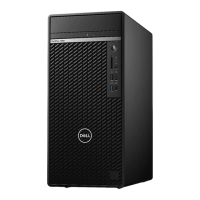
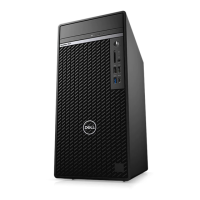
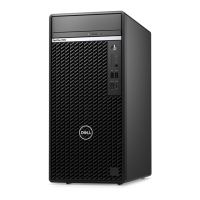
Dell OptiPlex 5090 Tower - User Manual

Dell OptiPlex 5090 Tower
85 pages
Print Icon
To Next Page IconTo Next Page
Loading...
OptiPlex 5090 Tower
Service Manual
Regulatory Model: D29M
Regulatory Type: D29M003
August 2021
Rev. A02

Table of Contents

Questions and Answers

  • J
    joshuagutierrezAug 19, 2025
    What to do if my Dell Desktop has a CPU failure?
    • T
      Teresa CarrollAug 19, 2025
      If your Dell Desktop is experiencing a CPU failure, start by running the Dell Support Assist/Dell Diagnostics tool. If the problem continues, the next step is to replace the system board.
  • M
    mgonzalezAug 20, 2025
    What to do if my Dell OptiPlex 5090 Tower Desktop has a System board failure (included BIOS corruption or ROM error)?
    • T
      terryschwartzAug 21, 2025
      If your Dell Desktop is experiencing a system board failure, which includes BIOS corruption or a ROM error, try flashing the latest BIOS version. If the problem persists after that, replace the system board.
  • K
    Kenneth BrandtAug 23, 2025
    What to do if my Dell OptiPlex 5090 Tower has no memory/RAM detected?
    • C
      Chase JonesAug 23, 2025
      If your Dell Desktop isn't detecting memory/RAM, first confirm that the memory module is installed properly. If the issue continues, try replacing the memory module.
  • C
    Charles HoltAug 26, 2025
    What to do if my Dell OptiPlex 5090 Tower Desktop has Memory/RAM failure?
    • C
      Chris UnderwoodAug 26, 2025
      If your Dell Desktop is experiencing a memory/RAM failure, begin by resetting the memory module. If the problem persists, consider replacing the memory module.
  • E
    Elizabeth GregoryAug 28, 2025
    What to do if my Dell Desktop has System board / Chipset Error / Clock failure / Gate A20 failure / Super I/O failure / Keyboard controller failure?
    • M
      Melissa DavenportAug 28, 2025
      If your Dell Desktop is showing a system board, chipset, clock, Gate A20, Super I/O, or keyboard controller failure, flash the latest BIOS version. If the problem continues, replace the system board.
  • J
    jacqueline64Aug 30, 2025
    What to do if my Dell OptiPlex 5090 Tower Desktop has BIOS Recovery image not found?
    • B
      Bruce SmithAug 30, 2025
      If your Dell Desktop indicates that the BIOS Recovery image is not found, flash the latest BIOS version. If the issue persists, replace the system board.
  • B
    Brandon TapiaSep 1, 2025
    What to do if my Dell OptiPlex 5090 Tower has BIOS Recovery image found but invalid?
    • A
      Alec ZimmermanSep 1, 2025
      If your Dell Desktop reports that the BIOS Recovery image was found but is invalid, flash the latest BIOS version. If the problem continues, replace the system board.
  • M
    meganhernandezSep 4, 2025
    What to do if my Dell OptiPlex 5090 Tower Desktop has Invalid memory installed?
    • B
      boltonadrianaSep 4, 2025
      If your Dell Desktop indicates that invalid memory is installed, reset the memory module.
  • M
    Michael MurilloSep 6, 2025
    What to do if my Dell Desktop has CMOS battery failure?
    • B
      Beth LynchSep 6, 2025
      If your Dell Desktop is experiencing a CMOS battery failure, reset the CMOS battery connection. If the problem persists, replace the RTS battery.
  • B
    brownjenniferSep 8, 2025
    What to do if my Dell OptiPlex 5090 Tower Desktop has PCI or Video card/chip failure?
    • A
      ashleyaustinSep 8, 2025
      If your Dell Desktop is experiencing a PCI or video card/chip failure, replace the system board.

Summary

Working Inside Your Computer

Safety Instructions

General safety guidelines for working inside the computer.

Before Working Inside Your Computer

Steps to prepare before starting any internal computer work.

Safety Precautions

Specific safety measures and precautions to follow.

Electrostatic Discharge (ESD) Protection

Explains ESD and how to protect components from it.

ESD Field Service Kit

Details the components and use of an ESD field service kit.

Transporting Sensitive Components

Guidelines for safely transporting sensitive computer parts.

After Working Inside Your Computer

Steps to complete after finishing internal computer procedures.

Removing and Installing Components

Recommended Tools

Lists the tools required for component removal and installation.

Screw List

Provides a list of screws used for different components.

Major Components of Your System

Visual overview and identification of major internal computer parts.

Side Cover

Instructions for removing and installing the computer's side panel.

Front Bezel

Instructions for removing and installing the front bezel.

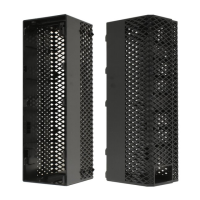
Fan Shroud

Information about the fan shroud and its components.

Hard-Drive Assembly

Procedures for handling hard drive assemblies.

Solid-State Drive

Procedures for handling M.2 Solid State Drives.

Memory Module

Instructions for removing and installing memory modules.

SD Card Reader (Optional)

Instructions for handling the optional SD card reader.

Processor Fan and Heat-Sink Assembly

Procedures for removing and installing the CPU cooler.

Processor

Instructions for removing and installing the CPU.

Graphics Card

Instructions for removing and installing a graphics card.

Graphical Processing Unit

Procedures for handling a powered GPU.

Coin-Cell Battery

Instructions for replacing the CMOS battery.

WLAN Card

Procedures for removing and installing the Wireless LAN card.

Slim Optical Drive

Instructions for removing and installing the slim optical drive.

Speaker

Instructions for removing and installing the internal speaker.

Power Button

Procedures for removing and installing the power button assembly.

Power-Supply Unit

Instructions for removing and installing the power supply.

Intrusion Switch

Procedures for removing and installing the chassis intrusion switch.

Optional I;O Modules (Type C; HDMI;VGA;DP;Serial)

Instructions for handling optional I/O modules.

System Board

Procedures for removing and installing the motherboard.

Software

Drivers and Downloads

Information on obtaining and installing drivers and software.

System Setup

Boot Menu and Navigation

Accessing boot menu and navigating system setup options.

Boot Sequence and System Information

Configuring boot order and viewing system information.

System Setup Options: Boot Configuration

Settings related to boot modes and secure boot.

System Setup Options: Integrated Devices

Settings for integrated hardware like audio, USB, and storage.

System Setup Options: Power and Security

Power management and security settings within the BIOS.

System Setup Options: Passwords

Managing system and BIOS passwords.

System Setup Options: Update and Recovery

BIOS update and system recovery configurations.

System Setup Options: System Management

Settings for service tags, Wake-on-LAN, and AMT.

System Setup Options: Performance and Virtualization

CPU performance and virtualization technology settings.

Updating the BIOS

Updating the BIOS in Windows

Guide to updating the BIOS from within the Windows operating system.

Updating the BIOS Using the USB Drive in Windows

Guide to updating BIOS using a USB drive.

Troubleshooting

SupportAssist Diagnostics and LED Behavior

Running hardware diagnostics and interpreting LED codes.

Recovering the Operating System

Procedures for OS recovery using Dell tools.

Backup Media and Recovery Options

Recommendations for creating backup and recovery media.

WiFi Power Cycle

Procedure to resolve WiFi connectivity issues by power cycling devices.

Drain Residual Flea Power (Perform Hard Reset)

Steps to perform a hard reset to drain residual power.

Getting Help and Contacting Dell

Self-Help Resources

List of resources for obtaining help and information.

Contacting Dell

Information on how to contact Dell support.

Dell OptiPlex 5090 Tower Specifications

General IconGeneral
BrandDell
ModelOptiPlex 5090 Tower
CategoryDesktop
LanguageEnglish

Related product manuals