Steps
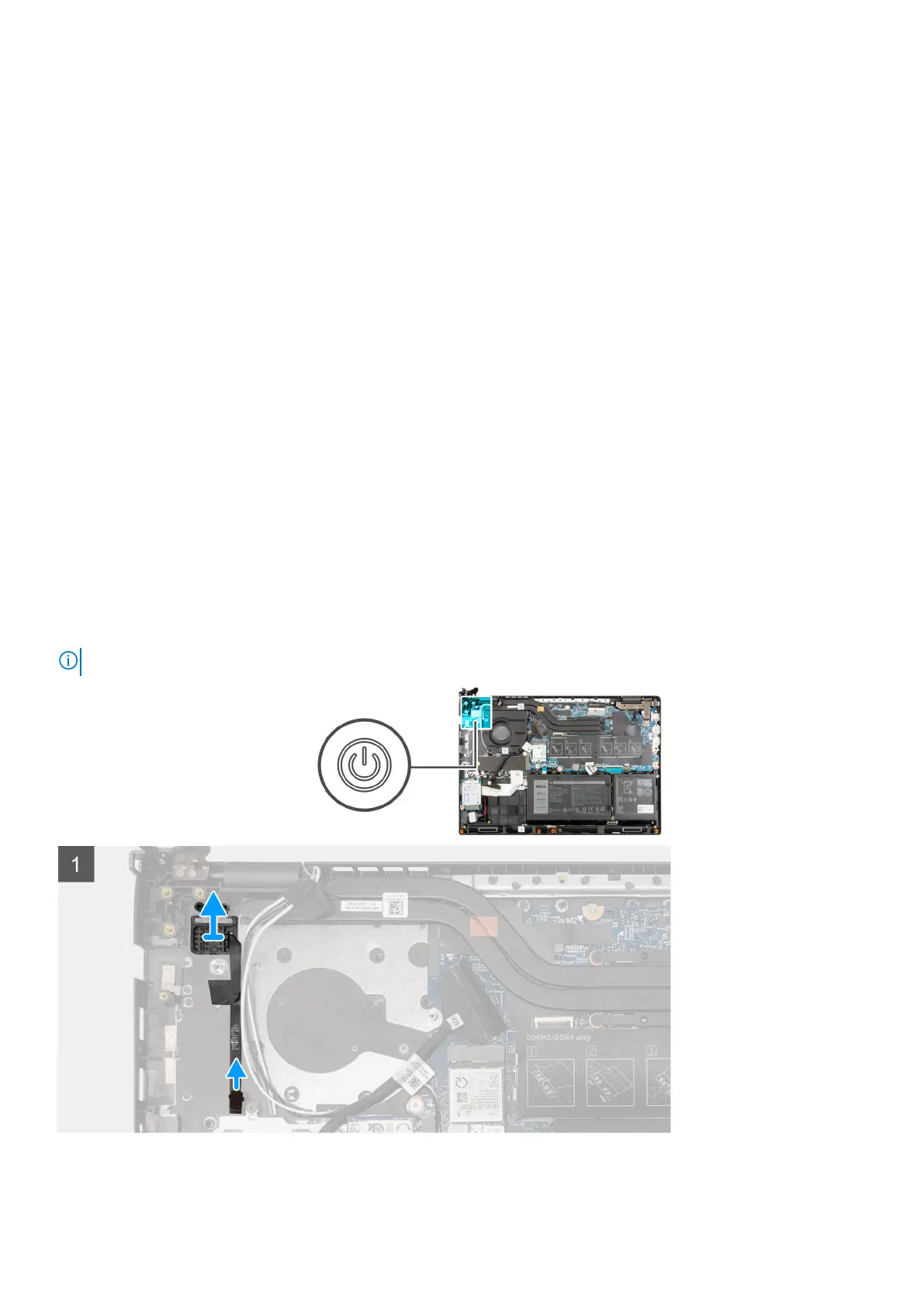
1. Affix the power button cable with adhesive backing.
2. Align and place the power button with fingerprint reader into the slot on the palmrest assembly.
Next steps
1. Install the ethernet port.
2. Install the I/O board.
3. Install the base cover.
4. Exit the service mode
5. Install the SIM card tray for 4G LTE enabled systems.
6. Install the microSD-card.
7. Follow the procedure in after working inside your computer.
System board
Removing the system board
Prerequisites
1. Follow the procedure in before working inside your computer.
2. Remove the microSD-card.
3. Remove the SIM card tray for 4G LTE enabled systems.
4. Remove the base cover.
5. Remove the battery.
6. Remove the memory module.
7. Remove the M.2 SSD.
8. Remove the hard-disk drive for systems shipped with hard-disk drive.
9. Remove the WLAN card.
10. Remove the heatsink assembly.
Removing and installing components
75



 To Next Page