Steps
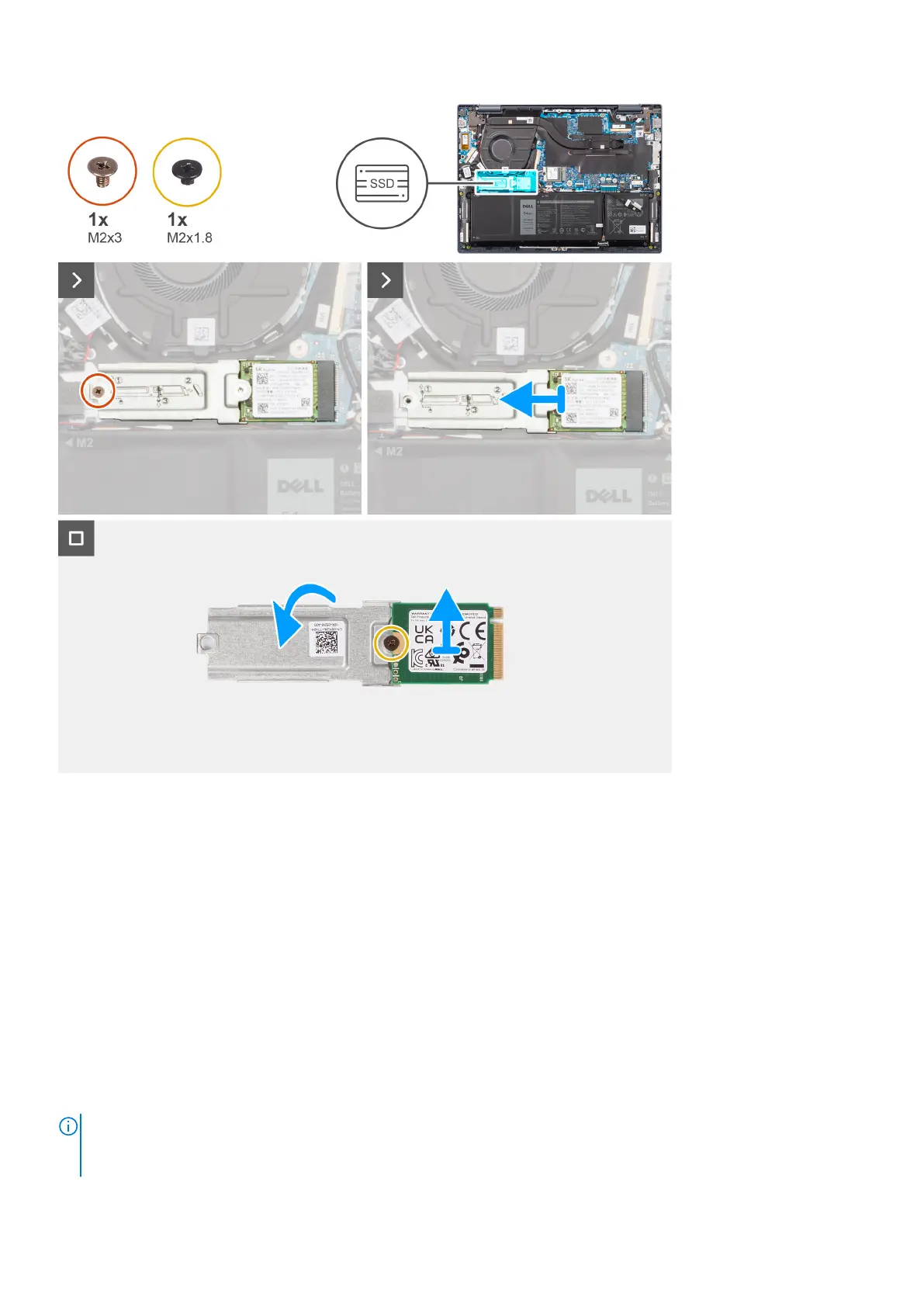
1. Remove the screw (M2x3) that secures the M.2 2230 solid-state drive bracket to the palm-rest and keyboard assembly.
2. Slide and remove the M.2 2230 solid-state drive bracket, along with the M.2 2230 solid-state drive, from the M.2 card slot
on the system board.
3. Turn over the M.2 2230 solid-state drive bracket.
4. Remove the screw (M2x1.8) that secures the M.2 2230 solid-state drive to the M.2 2230 solid-state drive bracket.
5. Lift the M.2 2230 solid-state drive off the M.2 2230 solid-state drive bracket.
Installing the M.2 2230 solid-state drive
Prerequisites
If you are replacing a component, remove the existing component before performing the installation procedure.
About this task
NOTE:
The M.2 solid-state drive installed on your computer depends on the configuration ordered. The M.2 slot supports
one of the following solid-state drives:
● M.2 2230 solid-state drive
40 Removing and installing Customer Replaceable Units (CRUs)



 To Next Page