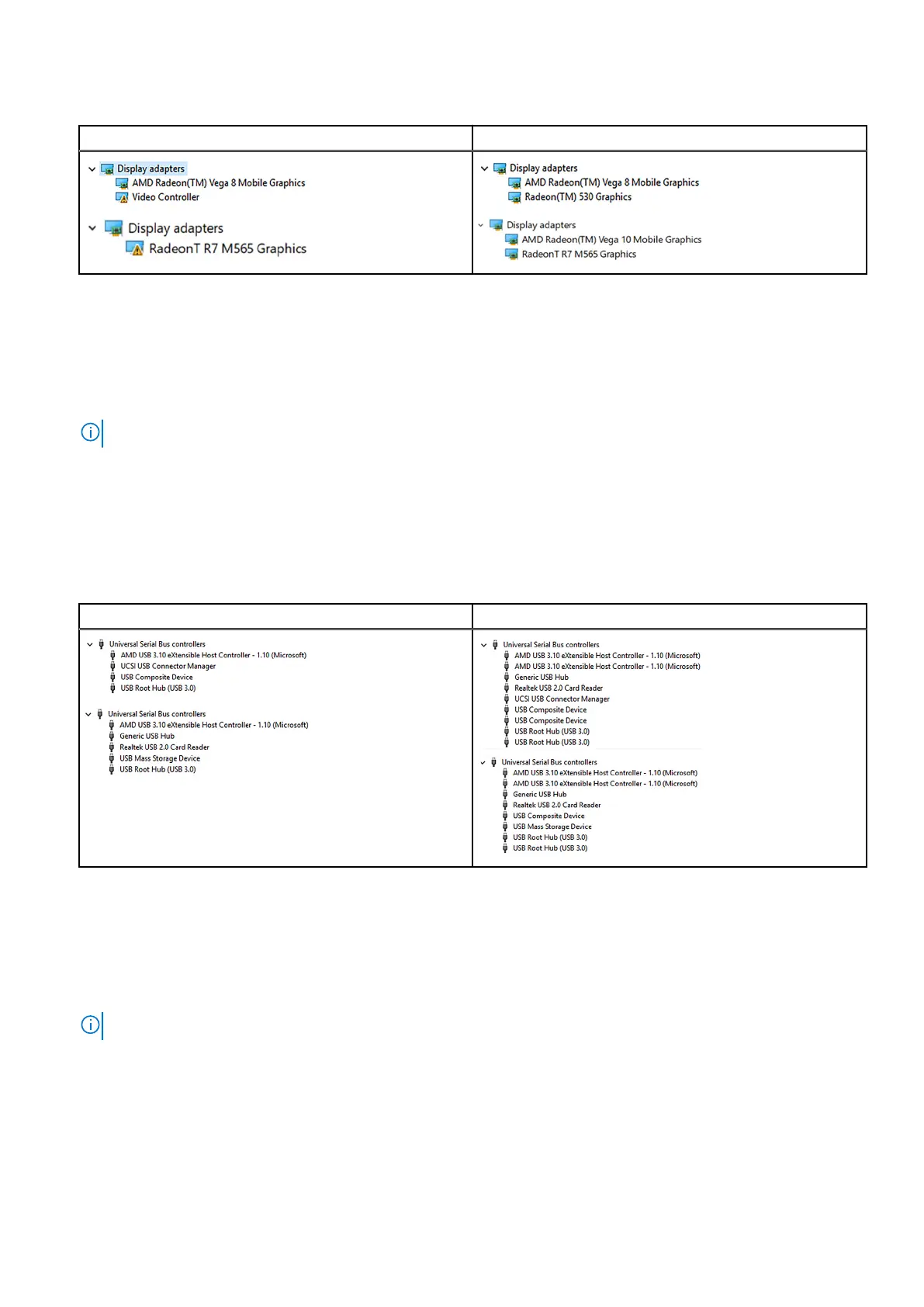
Table 4. Display adapter in device manager
Before driver installation After driver installation
Downloading the USB 3.0 driver
1. Turn on your computer.
2. Go to www.dell.com/support.
3. Click Product support enter the Service Tag of your computer, and then click Submit.
NOTE: If you do not have the Service Tag, use the auto-detect feature or manually browse for your computer model.
4. Click Drivers & downloads > Find it myself.
5. Scroll down the page and expand Chipset.
6. Click Download to download the USB 3.0 driver for your computer.
7. After the download is complete, navigate to the folder where you saved the USB 3.0 driver file.
8. Double-click the driver file icon and follow the instructions on screen.
Table 5. Identifying USB 3.0 driver in device manager
Before driver installation After driver installation
Downloading the Wi-Fi driver
1. Turn on your computer.
2. Go to www.dell.com/support.
3. Click Product support enter the Service Tag of your computer, and then click Submit.
NOTE: If you do not have the Service Tag, use the auto-detect feature or manually browse for your computer model.
4. Click Drivers & downloads > Find it myself.
5. Scroll down the page, and expand Network.
6. Click Download to download the Wi-Fi driver for your computer.
7. After the download is complete, navigate to the folder where you saved the Wi-Fi driver file.
8. Double-click the driver file icon and follow the on-screen instructions to install the driver.
Downloading drivers
73



 To Next Page