Operating your monitor │ 41
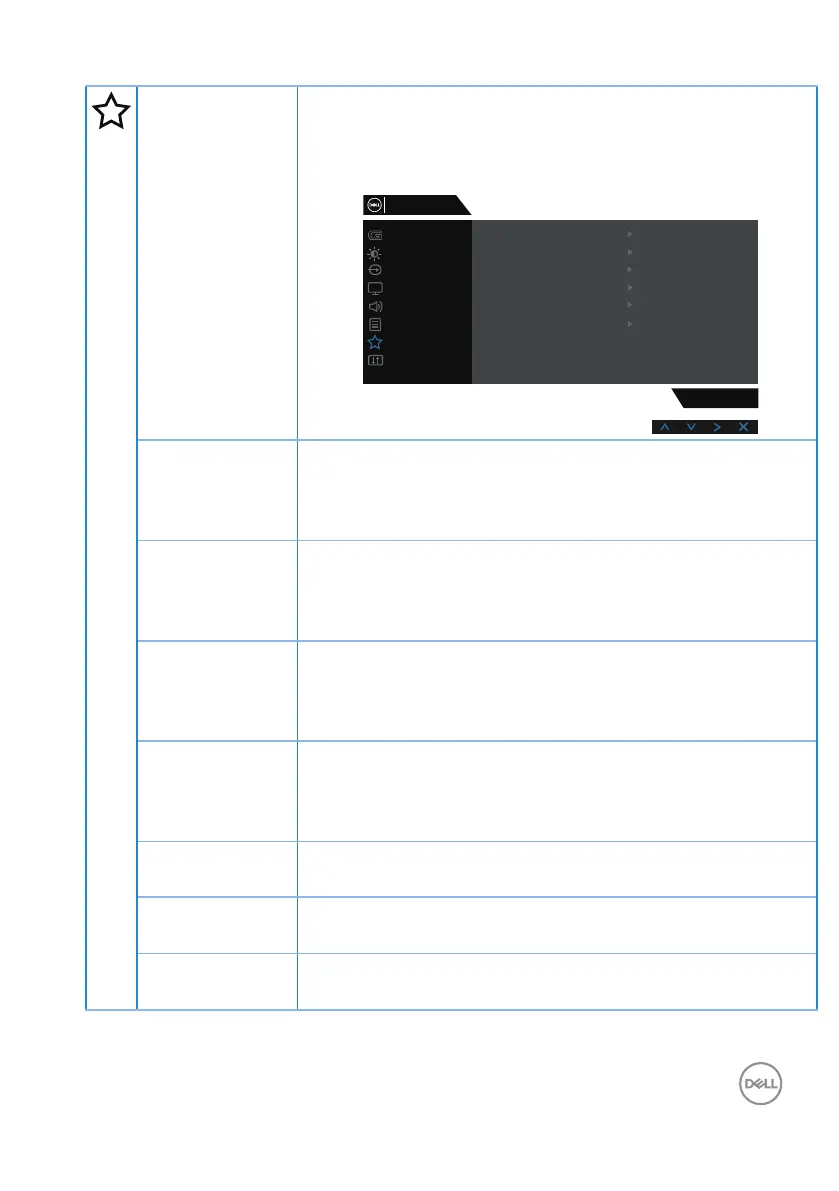
Personalize Users can choose a feature from Shortcut key 1, Shortcut
key 2, , Shortcut key 3, Shortcut key 4, Power Button LED,
USB or Reset Personalization, Preset Modes or Volume and
set it as a shortcut key.
Game
Input Source
Display
Others
Personalize
Menu
Audio
Brightness / Contrast
S3220DGF
Shortcut Key 2
Shortcut Key 3
Shortcut Key 4
Shortcut Key 1
Power Button LED
Brightness/Contrast
Preset Modes
Game Enhance Mode
Dark Stabilizer
USB
Reset Personalization
Off During Standby
On During Active
Dell 32 Gaming Monitor
Shortcut Key 1 User can select one of the following: Preset Modes, Game
Enhance Mode, Freesync, Dark Stabilizer, Brightness/
Contrast, Input Source, Aspect Ratio or Smart HDR to set
the shortcut key 1.
Shortcut Key 2 User can select one of the following: Preset Modes, Game
Enhance Mode, Freesync, Dark Stabilizer, Brightness/
Contrast, Input Source, Aspect Ratio or Smart HDR to set
the shortcut key 2.
Shortcut Key 3 User can select one of the following: Preset Modes, Game
Enhance Mode, Freesync, Dark Stabilizer, Brightness/
Contrast, Input Source, Aspect Ratio or Smart HDR to set
the shortcut key 3.
Shortcut Key 4 User can select one of the following: Preset Modes, Game
Enhance Mode, Freesync, Dark Stabilizer, Brightness/
Contrast, Input Source, Aspect Ratio or Smart HDR to set
the shortcut key 4.
Power Button
LED
Allows you to set the power LED indicator On During Active
or Off During Active to save energy.
USB Allows you to set the USB On During Standby or Off During
Standby to save energy.
Reset
Personalization
Allows you to restore shortcut key to the default setting.



 To Next Page