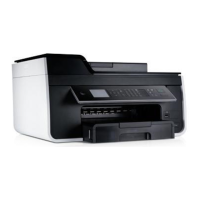
4. Wipe only the outside of the printer, making sure to remove any ink residue that has
accumulated on the paper exit tray.
NOTICE: Using a damp cloth to clean the interior may cause damage to your printer.
Damage to the printer caused by not following the correct instructions for cleaning will
not be covered under warranty.
5. Make sure the paper support and paper exit tray are dry before beginning a new print job.
ChangingtheDefaultOperatorPanelSettings
To change the default settings on the operator panel:
1. Turn on the printer.
2. Change the operator panel settings.
3. Use the left and right Arrow buttons to scroll to SETUP, and then press the Select button
.
4. Use the left and right Arrow buttons to scroll to Defaults, and then press the Select
button .
5. Use the left and right Arrow buttons to scroll to Set Defaults, and then press the Select
button .
6. Use the left and right Arrow buttons to scroll to Use Current, and then press the Select
button .
The current settings on the operator panel are saved as the new default settings.
RestoringFactoryDefaultSettings
1. Turn on the printer.
2. From the operator panel, use the left and right Arrow buttons to scroll to SETUP, and then
press the Select button .
3. Use the left and right Arrow buttons to scroll to Defaults, and then press the Select
button .
4. Use the left and right Arrow buttons to scroll to Set Defaults, and then press the Select
button .



 To Next Page