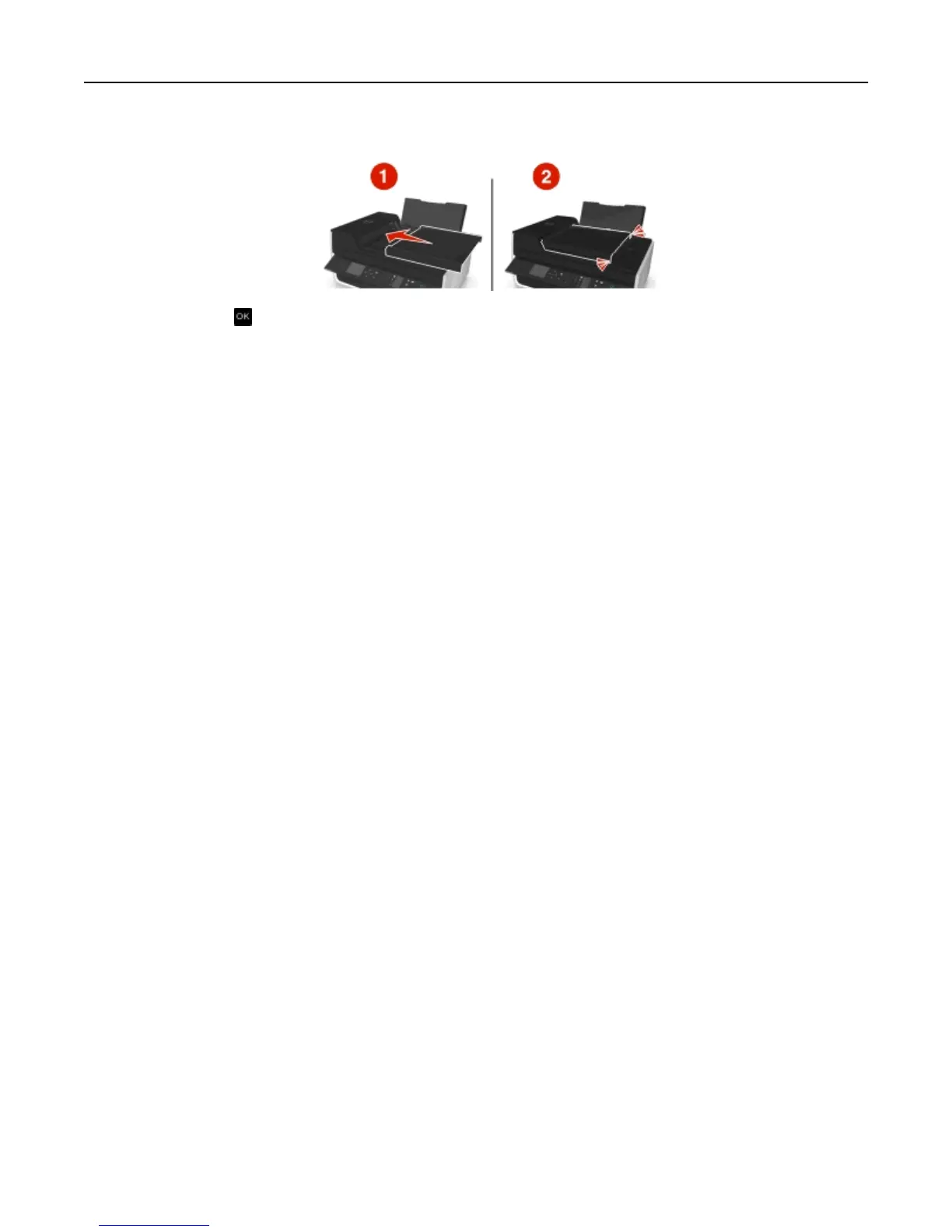
3 Reattach the ADF tray until it snaps into place.
4 Touch OK or press , depending on your printer model.
Paper or specialty media misfeeds
These are possible solutions if paper or specialty media misfeeds or skews, or if multiple sheets feed or stick together.
Try one or more of the following:
CHECK PAPER CONDITION
Use only new, unwrinkled paper.
CHECK PAPER LOADING
• Load a smaller amount of paper into the printer.
• Load paper with the print side faceup. (If you are not sure which side is the printable side, see the instructions
that came with the paper.)
• Check the loading instructions for your paper or specialty media.
REMOVE EACH PAGE AS IT IS PRINTED
ADJUST THE PAPER GUIDES TO FIT THE LOADED PAPER
Print troubleshooting
• “Poor quality at the edges of the page” on page 140
• “Streaks or lines on printed image” on page 141
• “Print speed is slow” on page 142
• “Computer slows down when printing” on page 142
Poor quality at the edges of the page
If the "Before you troubleshoot" checklist does not solve the problem, then try one or more of the following:
Troubleshooting 140












 To Next Page