EasyManua.ls Logo

Denon DCD-3520 - Page 12

Denon DCD-3520
51 pages
Print Icon
To Next Page IconTo Next Page
To Previous Page IconTo Previous Page
Loading...
12
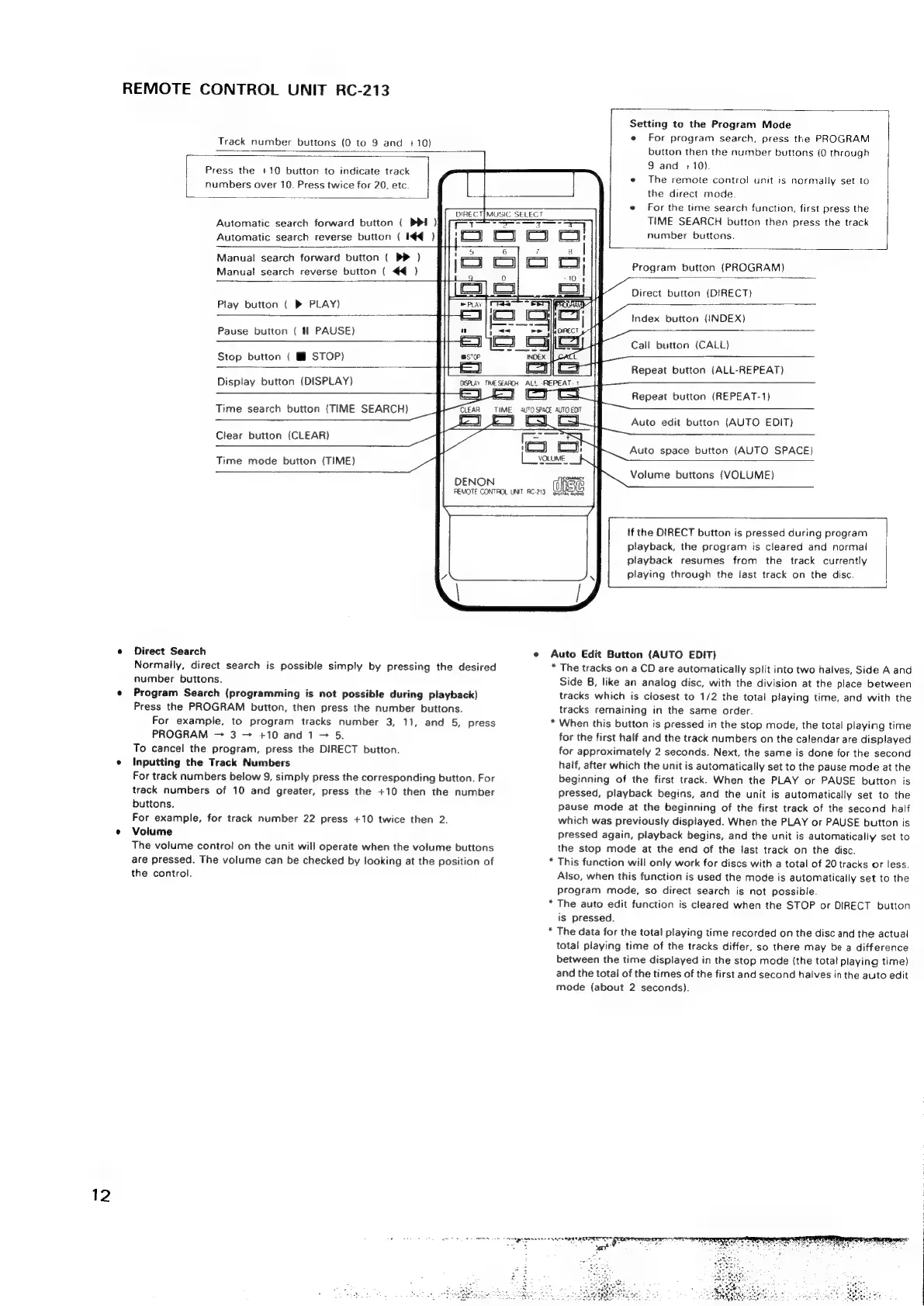
REMOTE
CONTROL
UNIT
RC-213
Track
number
buttons
(0
to
9
and
:10)
Press
the
+10
button
to
indicate
track
numbers
over
10.
Press
twice
for
20,
etc.
Setting
to
the
Program
Mode
e
For
program
search,
press
the
PROGRAM
button
then
the
number
buttons
(0
through
9
and
+10).
e
The
remote
control
unit
is
normally
set
to
the
direct
mode.
}
e
For
the
time
search
function,
first
press
the
Automatic
search
forward
button
{
DPI
)
Automatic
search
reverse
button
(
14€@
)
TIME
SEARCH
button
then
press
the
track
number
buttons.
Manual
search
forward
button
(
PP
)
Manual
search
reverse
button
(
44
)
Play
button
(
PLAY)
Pause
button
(
i!
PAUSE}
Stop
button
(
™@
STOP)
Display
button
(DISPLAY)
Time
search
button
(TIME
SEARCH)
Program
button
(PROGRAM)
Direct
button
(DIRECT)
Index
button
(INDEX)
Call
button
(CALL)
Repeat
button
(ALL-REPEAT)
Repeat
button
(REPEAT-1)
Auto
edit
button
(AUTO
EDIT)
Clear
button
(CLEAR)
Time
mode
button
(TIME)
DENON
REMOTE
CONTROL
UNIT
AC-213
Auto
space
button
(AUTO
SPACE)
Volume
buttons
(VOLUME)
Prarie
tod
e
Direct
Search
Normaily,
direct
search
is
possible
simply
by
pressing
the
desired
number
buttons.
e
Program
Search
(programming
is
not
possible
during
playback)
Press
the
PROGRAM
button,
then
press
the
number
buttons.
For
example,
to
program
tracks
number
3,
11,
and
5,
press
PROGRAM
~—
3
-
+10
and
1
5.
To
cancel
the
program,
press
the
DIRECT
button.
e
Inputting
the
Track
Numbers
For
track
numbers
below
9,
simply
press
the
corresponding
button.
For
track
numbers
of
10
and
greater,
press
the
+10
then
the
number
buttons.
For
example,
for
track
number
22
press
+10
twice
then
2.
¢
Volume
The
volume
control
on
the
unit
will
operate
when
the
volume
buttons
are
pressed.
The
volume
can
be
checked
by
looking
at
the
position
of
the
control.
If
the
DIRECT
button
is
pressed
during
program
playback,
the
program
is
cleared
and
normal
playback
resumes
from
the
track
currently
playing
through
the
last
track
on
the
disc.
Auto
Edit
Button
(AUTO
EDIT)
*
The
tracks
on
a
CD
are
automatically
split
into
two
halves,
Side
A
and
Side
B,
like
an
analog
disc,
with
the
division
at
the
place
between
tracks
which
is
closest
to
1/2
the
total
playing
time,
and
with
the
tracks
remaining
in
the
same
order.
*
When
this
button
is
pressed
in
the
stop
mode,
the
total
playing
time
for
the
first
half
and
the
track
numbers
on
the
calendar
are
displayed
for
approximately
2
seconds.
Next,
the
same
is
done
for
the
second
half,
after
which
the
unit
is
automatically
set
to
the
pause
mode
at
the
beginning
of
the
first
track.
When
the
PLAY
or
PAUSE
button
is
pressed,
playback
begins,
and
the
unit
is
automatically
set
to
the
pause
mode
at
the
beginning
of
the
first
track
of
the
second
half
which
was
previously
displayed.
When
the
PLAY
or
PAUSE
button
is
pressed
again,
playback
begins,
and
the
unit
is
automatically
set
to
the
stop
mode
at
the
end
of
the
last
track
on
the
disc.
*
This
function
will
only
work
for
discs
with
a
total
of
20
tracks
or
less.
Also,
when
this
function
is
used
the
mode
is
automatically
set
to
the
program
mode,
so
direct
search
is
not
possible.
*
The
auto
edit
function
is
cleared
when
the
STOP
or
DIRECT
button
is
pressed.
*
The
data
for
the
total
playing
time
recorded
on
the
disc
and
the
actual
total
playing
time
of
the
tracks
differ,
so
there
may
be
a
difference
between
the
time
displayed
in
the
stop
mode
(the
total
playing
time)
and
the
total
of
the
times
of
the
first
and
second
halves
in
the
auto
edit
mode
(about
2
seconds).

Related product manuals