6.11 Software update
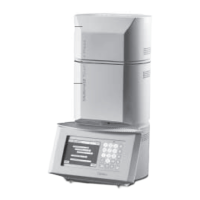
In the scope of ongoing product maintenance, we recommend always installing the newest software version for the Multimat2 Touch and
Multimat2 Touch+Press products. Please ask your field agent.
The software of the
Multimat2 Touch or Multimat2 Touch+Press is updated via the serial interface. Therefore, please connect your Multi-
mat2 with a serial cable to your PC.
01. Boot PC / Laptop
02. Open the Windows Explorer (Start/Programs/Windows Explorer).
03. Insert floppy disc or CD-ROM containing the new software. 04. Click on 3.5" Disc (A:) or CD-ROM.
05. On the right hand side of this window you should see a file called MMT_Updt.exe, which has a satellite dish as a symbol.0
06. Click on this file.
07. Choose your language from the options shown.
08. Disconnect the furnace from the mains supply (pull out the plug).
09. Re-connect the furnace to the mains supply (put the plug back in the socket).
10. The computer will now start with the data transfer (approx. 2– 3 minutes). The update is finished when “Ready!” appears in the dialogue
window of your furnace.
11. Disconnect the power cable and the serial cable from the furnace. Wait for 5 seconds, and then reconnect only the power cable.
12. The Multimat2 Touch display now shows the latest software version on the start screen.
6.12 Program sorting by name or program number (Main menu, section 4.5.1)
This function is used to sort programs by name or program number. As a helpful feature, programs are given a letter prefix for sorting
alphabetically.
Program sorting
1. Press sensor button “M”.
2. Press sensor button “Configuration”.
3. Press sensor button “Sorting” and select by name or number.
4. Press sensor button “M” until the previous program is displayed.
Note: This function can only be used with Latin characters.
6.13 Change standard drying position and steps
This function can be used to change the standard drying position and the number of steps after which the standard drying
position is reached, measured from the upper end position.
Set new drying position
1.Press the text field “Drying” (not the sensor button!) twice. A selection screen is displayed.
2. Press the sensor button “Drying position”.
3. Enter the new drying position in “mm” with the numeric sensor keypad.
4. If the drying position is lower than 100 mm, press the sensor button “Drying position” again.
Note: The drying position can be adjusted between 0 and 150 mm. 0 mm is the starting position in the selection screen.
Adjust drying steps
1. Press the sensor button “Steps”.
2. Enter number of steps with the numeric keypad.
3. Press “Arrow left”, and the program is displayed again.
Note: To permanently store the changed drying parameters, the program must be saved before the start. The new drying
parameters apply only for the changed program. All other programs remain unaffected.
Caution! We recommend not changing the default standard drying positions and steps without urgent reasons.
70


 To Next Page
 Loading...