AGE Reader mu Instructions for use
User Manual
15
6.4 Settings screen
6.4.1 Accessing the settings screen
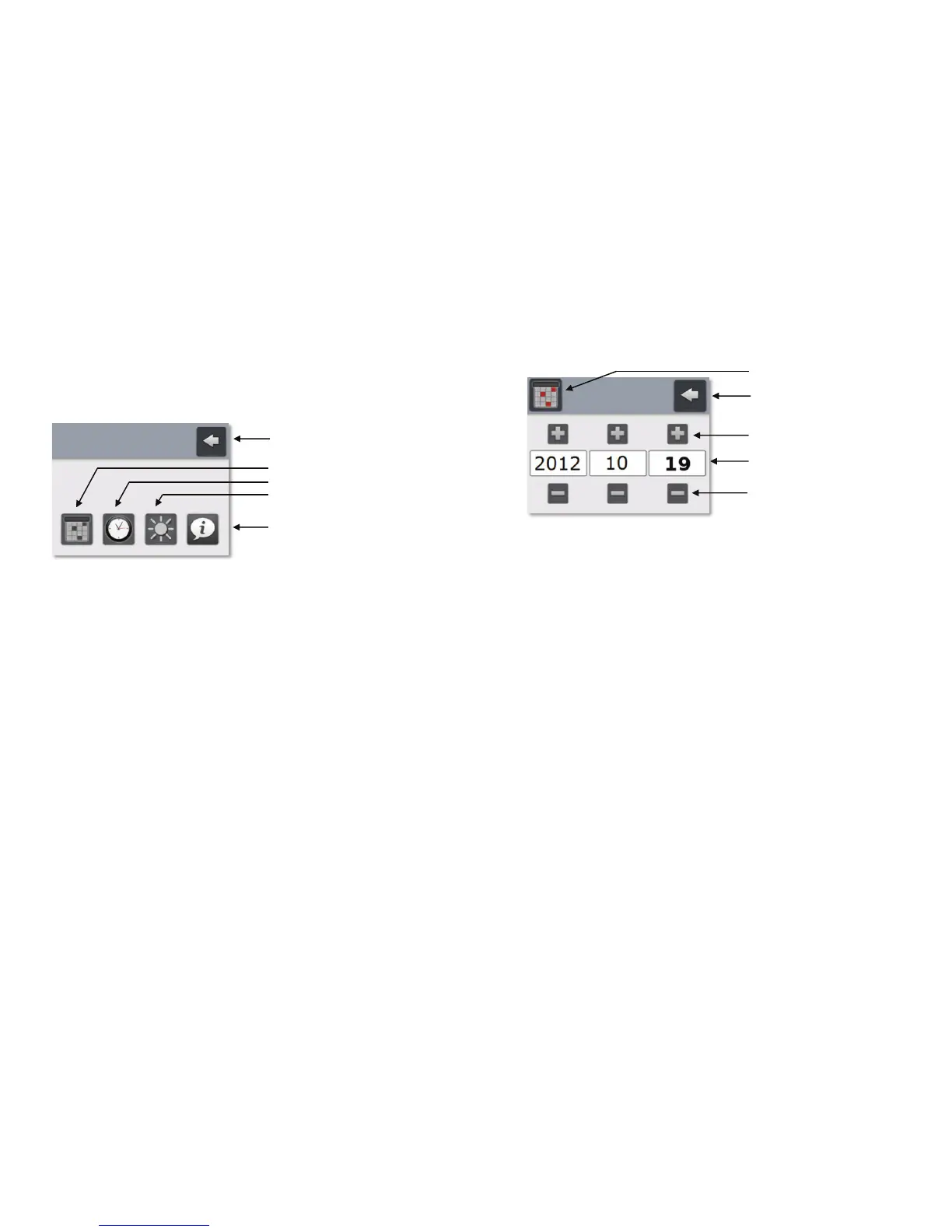
The Settings screen (figure 18) is accessible from the Main screen by pressing the
Settings button on the bottom-left of the Main screen.
Figure 18. Settings screen
Press the Return button to return to the Main screen. Four settings buttons are
available at the bottom of the Settings screen and give access to the following
screens and functionality:
Date screen: Change date and date format
Time screen: Change time and time format
Brightness screen: Change the LCD display brightness
Information screen: Show information about the AGE Reader mu
Return button
Date settings button
Time settings button
Brightness setting button
Information button
AGE Reader mu Instructions for use
User Manual
16
Date screen
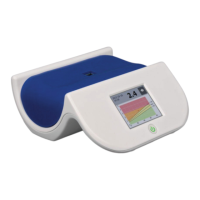
Figure 19. Date screen
The user can return to the Settings screen by pressing the Return button at the top-
right of the screen. The date format can be configured as:
YYYY-MM-DD (figure 19)
DD-MM-YYYY
MM-DD-YYYY
This can be done by pressing the Date format button repeatedly until the requested
date format is shown in the Date fields. In these Date fields the individual year,
month and day values can be recognized as follows:
The year (YYYY) is shown as a four digit number
The day (DD) is shown in bold text.
The month (MM) is shown is shown a normal (non-bold) text.
The date itself can be changed by pressing the Increment button and Decrement
button of the appropriate Date field. Any changes are immediately active.
Return button
Decrement buttons
Increment buttons
Date fields
Date format button


 To Next Page