PAPER CHANGE Basic Manual D900
8
Zona de
soporte
del papel
5. PAPER CHANGE
5.1. Paper change in the receipt printer
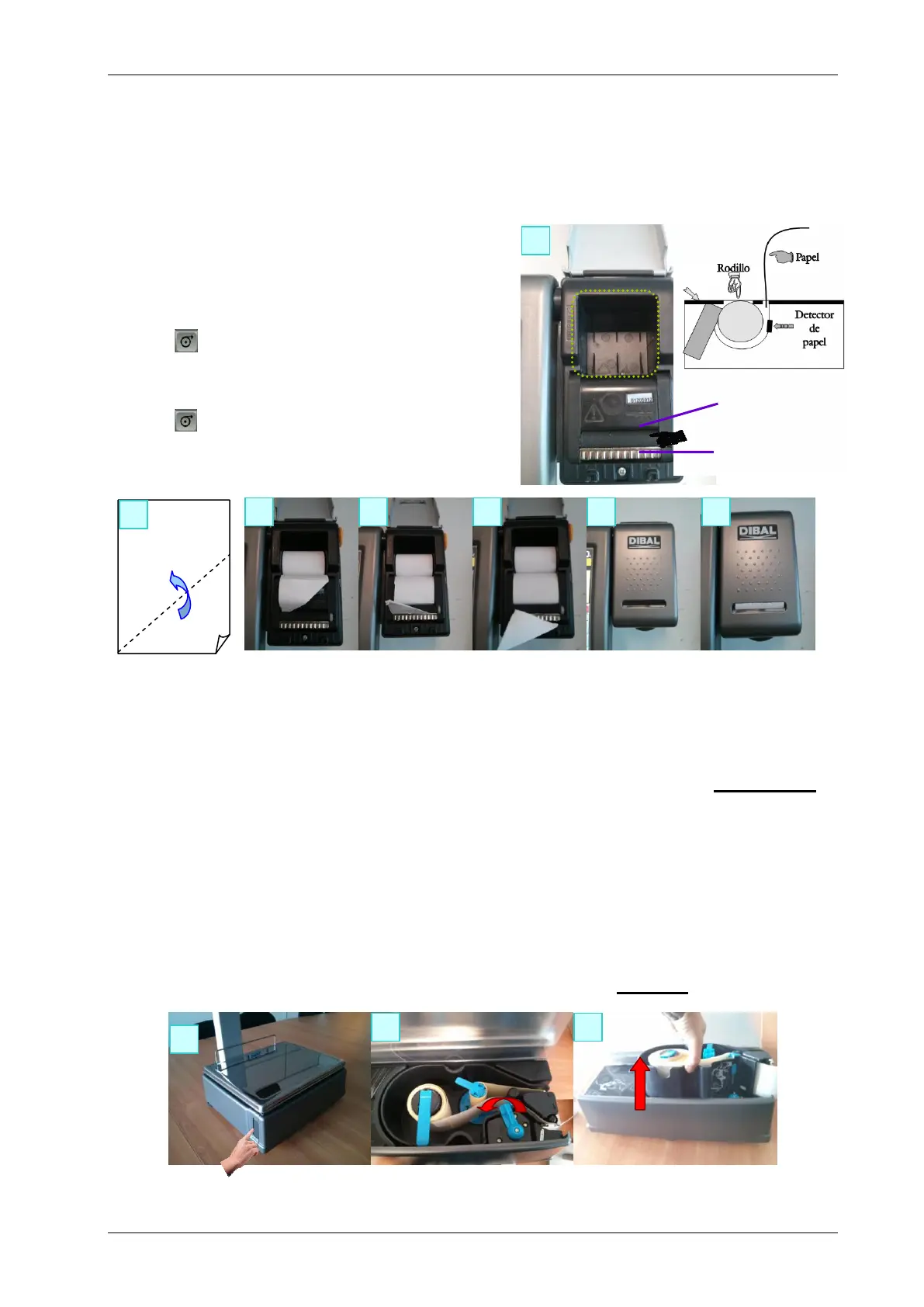
Take the following steps to change the paper in the printer:
1. Open the new roll.
2. Open the printer cover. Remove any remains of the
previous paper roll.
3. Bend the paper and insert the paper in the slot. Be
careful to insert it in the right slot as otherwise the
machine will not detect the paper.
4. Press until the paper comes out on the other side of
the roller.
5. Cut the paper.
6. Close the cover.
7. Press until the paper emerges.
5.2. Paper change in the labelling machine
5.2.1. Double body model
The scale is fitted with a cartridge system to facilitate paper change in the labelling machine.
1. Open the front cover of the machine by pressing the button located on the left side of the machine.
2. Once opened, you will see three blue levers. Turn the lever furthest on the right anti-clockwise to
release the cartridge.
3. Remove the cartridge to make the paper change.
Once you have removed the cartridge, turn the remaining two levers in order to remove the paper holder of
the old roll and remove the excess cardboard.
4. Place the new label roll in the space provided inside the cartridge, and slide the paper through as
indicated in the photo. Be sure to place the paper over the label support and align it properly with the
paper guide.
5. If the width of the label roll is less than 60 mm. place a lid on the cartridge (an optional kit) and tighten the
two levers.
6. Last of all, place the cartridge in the scale and turn the lever on the right clockwise.


 To Next Page