Chapter 3: Windows Configuration 15
DAE Playback Buffer Size
The DAE Playback Buffer Size determines the
amount of memory DAE allocates for disk buff-
ers. The optimum DAE Playback Buffer Size for
most disk operations is Level 2.
DAE Playback Buffer Size settings lower than
Level 2 may improve playback and recording
initiation speed, but may make it difficult to
play or record tracks reliably with sessions con-
taining a large number of tracks or a high den-
sity of edits, or with systems that have slower or
heavily fragmented hard drives.
DAE Playback Buffer Size settings higher than
Level 2 will allow for a higher density of edits in
a session or a higher track count when using
slower hard drives. However, a higher setting
can also cause a time lag to occur when starting
playback or recording, or longer audible time lag
while editing during playback.
To change the DAE Playback Buffer Size:
1 Choose Setup > Playback Engine.
2 From the DAE Playback Buffer pop-up menu,
select a buffer size.
3 Click OK.
Pro Tools Hardware Settings
Pro Tools lets you set the default sample rate
and clock source for your system, as well as a
range of controls specific to each type of audio
interface.
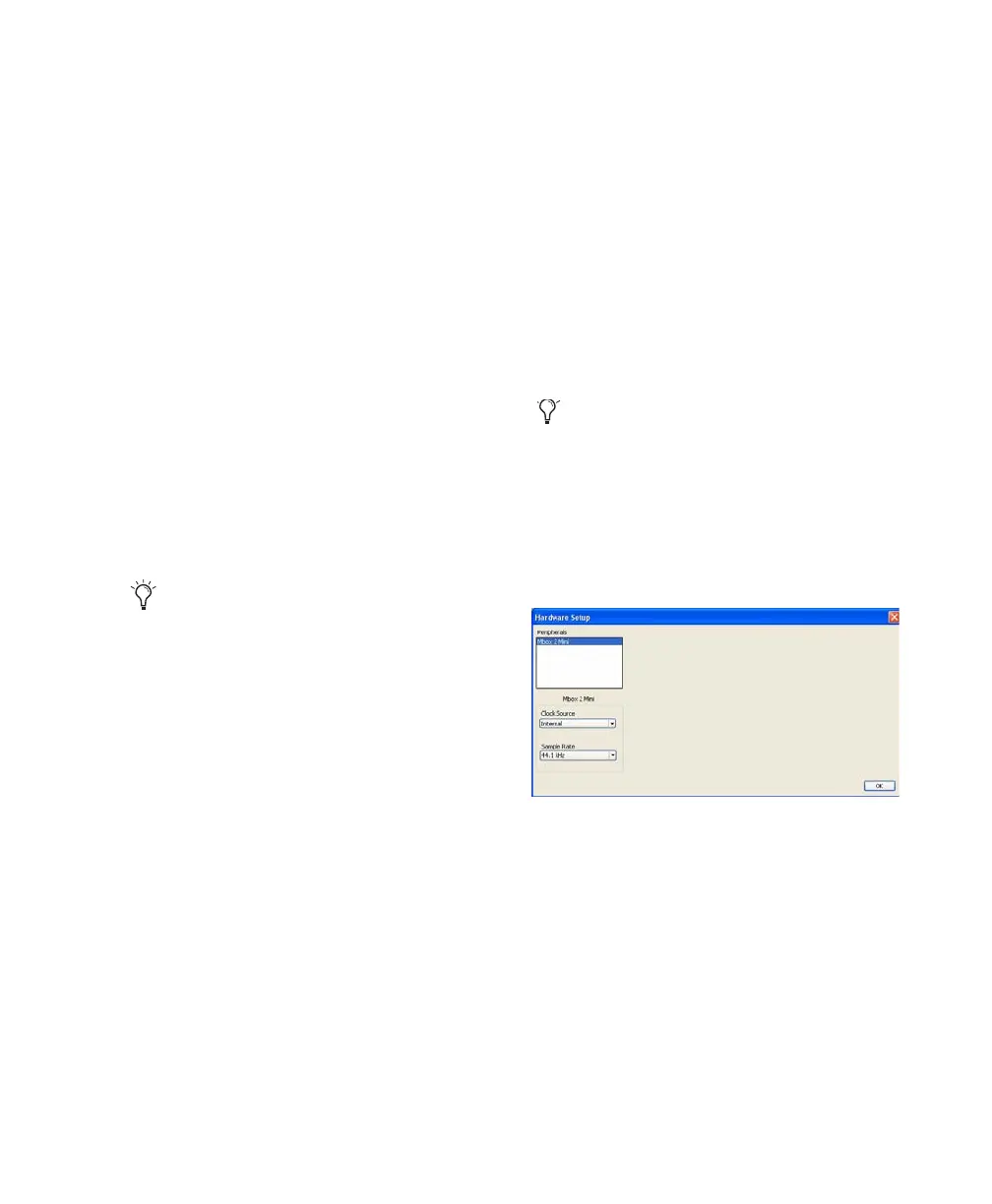
Default Sample Rate
The Sample Rate setting appears as the default
sample rate when you create a new session. (This
setting is available in the Hardware Setup dialog
only when no session is open.)
To change the default Sample Rate:
1 Choose Setup > Hardware.
2 Select the sample rate from the Sample Rate
pop-up menu.
3 Click OK.
Using a larger DAE Playback Buffer Size
leaves less system memory for other tasks.
The default setting of Level 2 is recom-
mended unless you are encountering -9073
(“Disk too slow or fragmented”) errors.
You can change the sample rate when creat-
ing a new Pro Tools session by selecting a
different sample rate in the New Session
dialog. (Refer to
the Pro Tools Reference
Guide for details.)
Hardware Setup dialog for Mbox 2 Mini


 To Next Page
 Loading...