DigiPoS Retail Active 8000
10
Using the DigiPoS Retail Active 8000
Powering on the DigiPoS Retail Active
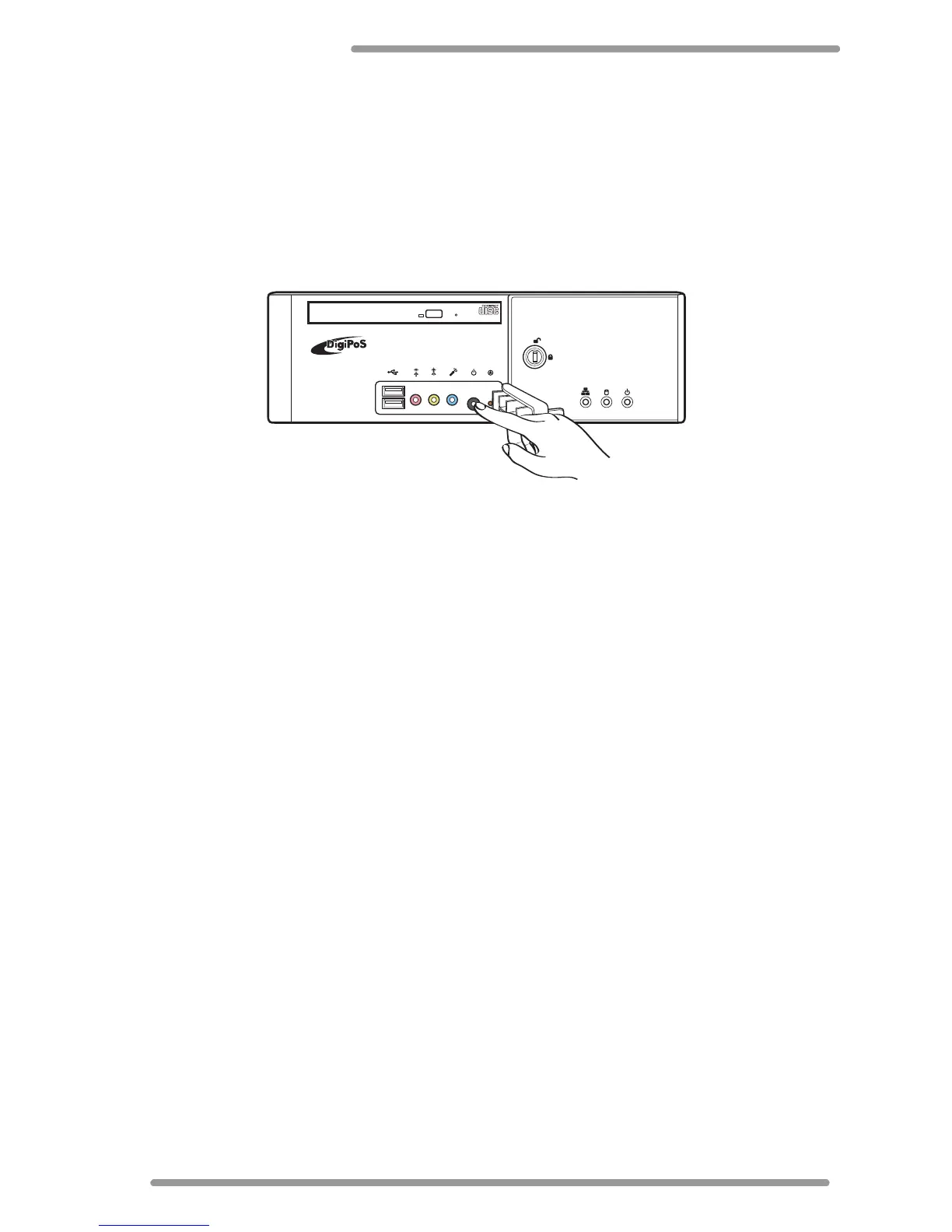
To start using your DigiPoS Retail Active, you must set up the power connections, and
examine to ensure that each piece of equipment is securely connected to its port. Then
press the power button to power on the system as shown. For detailed information on
each connection, see “Making Connections” on page 4.
Power LED
The power LED indicates the power status of the your DigiPoS Retail Active. The LED
lights green when your DigiPoS Retail Active is turned on. It lights orange when on standby
mode. See “Front Side Components” on page 2 for the location of the power LED.
HDD Status LED
Your DigiPoS Retail Active has a green HDD status LED on the front panel (“Front Side
Components” on page 2 for the location), which indicates the current HDD state. The
LED blinks when the HDD is active.
LAN Status LED
Your DigiPoS Retail Active has a LAN status LED on the front panel (“Front Side
Components” on page 2 for the location), which indicates the current network state.
The LED lights green when the link is established. It blinks orange when data transmission
is in progress.
Reset Button
If you encounter any problems or your DigiPoS Retail Active malfunctions, simply press
the reset button to restart the system. See “Front Side Components” on page 2 for the
location of the reset button.
Flash Card Bay
Your DigiPoS Retail Active supports compact flash cards for extra storage. See “Front Side
Components” on page 2 for the location of the flash card bay. See “Installing the Flash
Card” on page 14.
RETAIL ACTIVE


 To Next Page