67 | VMAX960H CORE™ Digital Video Recorder
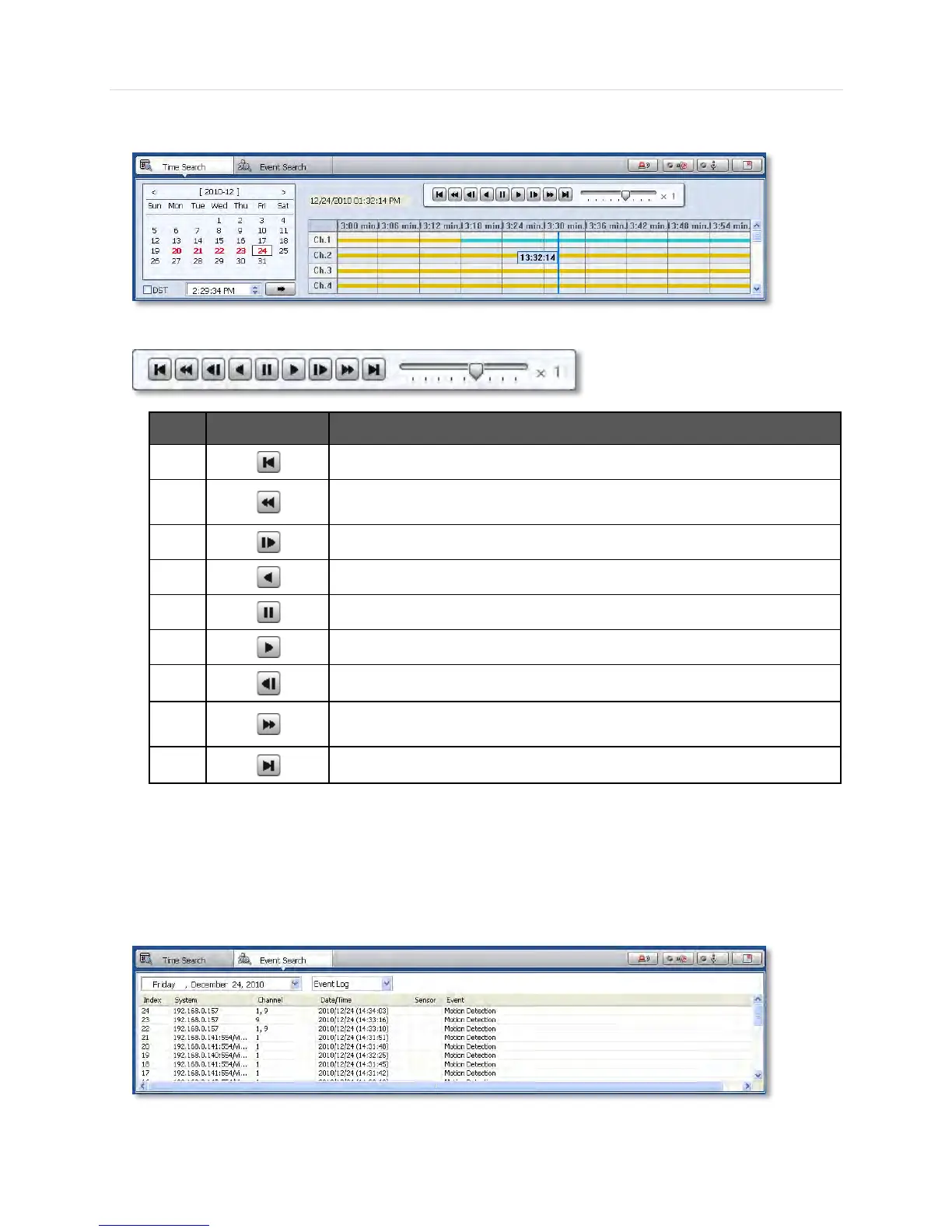
The search table displays 24 hours for the selected day. You can couple-click on a selected hour to view a detailed time
search as seen below. Detailed search is available on a 5-minute basis.
Playback Control Panel:
If pressed while in forward playback : Decrease playback speed
If pressed while in reverse playback: Increase playback speed.
If pressed while in forward playback Increase playback speed
If pressed while in reverse playback: Decrease playback speed.
Go to last data.
6.4.9 Event Search
Pivot can receive event data from DVRs that support event notifications to a remote software. See 4.4.3. Notifications for
more information. The event search has two search options: Event Log and System Log. Event Log display all event
notifications received from the DVR. The system log will show Pivot start/end, live/search, option, remote setup, image/movie
export etc.
To run the Event Search:
5. Press the ‘CMS Log’ button under the display area.



 To Next Page