10
CONTROLLING YOUR TV
Once you have successfully setup your DIRECTV Re-
mote to operate your DIRECTV Receiver, you can set it
up to control your TV. We recommend you use the on-
screen steps described on page 9, but you can also use
the manual method below:
1. Turn on the TV.
NOTE: Please read steps 2-5 completely before pro-
ceeding. Highlight or write down the codes and com-
ponent you wish to setup before moving on to step 2.
2. Locate the 5-digit code for your TV. (See pages 18-
21.)
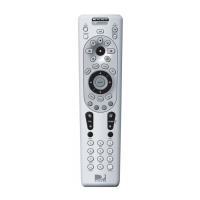
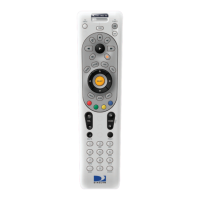
3. Slide the MODE switch to the TV position.
4. Press and hold the MUTE and SELECT keys at the
same time until the green light under the TV position
fl ashes twice, then release both keys.
5. Using the number keys enter the 5-digit code for your
brand of TV. If performed correctly, the green light
under TV fl ashed twice.
6. Aim the remote at your TV and press the PWR key
once. Your TV should turn off. If it does not turn off,
repeat steps 3 and 4, trying each code for your brand
until you fi nd the correct code.
7. Slide the MODE switch to the DIRECTV position.
Press TV POWER. Your TV should turn on.
8. For future reference, write down the working code for
your TV in the blocks below:
SETTING UP THE TV INPUT KEY
Once you have setup the DIRECTV Remote control for
your TV, you can activate the TV INPUT key so you can
change the “source”— the piece of equipment whose
signal is displayed on your TV:
1. Slide the MODE switch to the TV position.
2. Press and hold the MUTE and SELECT keys until the
green light under the TV position fl ashes twice, then
release both keys.
3. Using the number keys, enter 9-6-0. (The green light
under the TV position fl ashes twice.)
You can now change the input for your TV.
Remote Control UG-Philips.indd 10Remote Control UG-Philips.indd 10 7/26/05 11:10:51 AM7/26/05 11:10:51 AM



 To Next Page