12
SEARCHING FOR TV, AV1 OR AV2 CODES
If you were unable to fi nd the code for your brand of TV
or component, you can try a code search. This process
may take up to 30 minutes.
1. Turn on the TV or component.
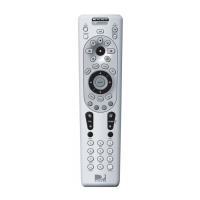
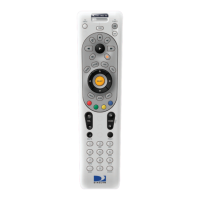
2. Slide the MODE switch to the TV, AV1 or AV2 posi-
tion, as desired.
3. Press and hold the MUTE and SELECT keys at the
same time until the green light under the selected
switch position fl ashes twice, then release both keys.
4. Enter 9-9-1 followed by one of the following 4-digits:
COMPONENT TYPE COMPONENT ID #
Satellite 0
TV 1
VCR/DVD/PVR 2
STEREO 3
5. Press PWR, or other functions (e.g. PLAY for VCR)
you want to use.
6. Point the remote at the TV or component and press
CHAN p. Repeatedly press CHAN p until the TV or
component turns off.
Note: Every time
CHAN
p is pressed the remote ad-
vances to the next code and power is transmitted to the
component.
7. When the TV or component turns off, stop press-
ing the CHAN p key. Then, press and release the
SELECT key.
NOTE: If the light fl ashes 3 times before the TV or
component responds, you’ve cycled through all codes
and the code you need is not available. You must use
the remote that came with your TV or component.
Verifying the Codes
Once you have setup the DIRECTV Universal Remote
Control using the above steps, use the following instruc-
tions to fi nd out the 5-digit code to which your compo-
nent responded:
1. Slide the MODE switch to the appropriate position.
2. Press and hold the MUTE and SELECT keys at the
same time until the green light under the selected
switch position fl ashes twice, then release both keys.
3. Enter 9-9-0. (The green light under the selected
switch position fl ashes twice.)
Remote Control UG-Philips.indd 12Remote Control UG-Philips.indd 12 7/26/05 11:10:51 AM7/26/05 11:10:51 AM



 To Next Page