Troubleshooting Tips
18
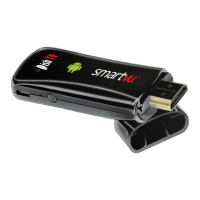
How to Reset the SmartVU+
Solution 1: Perform a Power Reset.
1. Unplug the SmartVU+ power supply from the wall socket and wait one minute.
2. Reconnect the power supply.
Solution 2: Perform a Factory Data Reset.
1. Press the Google Home button to access the Android TV Home screen.
2. Select the Settings icon in the top-right.
3. Follow the steps according to the Android TV Settings menu.
• Select Device Preferences → Reset → Reset → Erase Everything → Yes.
WARNING! Performing a Factory Data Reset will remove all customer settings on the
SmartVU+ including apps, channels, and wireless network settings.
Date/Time is incorrect
Solution: Ensure the correct Time Zone (Auckland/New Zealand) is set.
1. Press the Google Home button to access the Android TV Home screen.
2. Select the Settings icon in the top-right.
3. Follow the steps according to the Android TV Settings menu.
• Select Device Preferences → Date & Time → Set Time Zone → Set it to Auckland.
NOTE: If you’re using a special Network environment such as a VPN, the time on the
SmartVU+ may differ from the time of the location where the SmartVU+ is located.
Not connecting to Network via Wi-Fi
Solution 1: Ensure the Wi-Fi Password (Security Key) entered is correct.
Security keys are case sensitive. Be careful to use upper case and lower case correctly.
Examples of mistakes:
• I (capital i), l (lower case L) and 1 (number one).
• 0 (number zero) and O (capital o).
Solution 2: The Wi-Fi signal strength is too weak.
The SmartVU+ has a maximum optimal Wi-Fi range of 10 to 11 metres. If the signal is
weak, signal drops might be reduced by placing the SmartVU+ and the Modem/Router
closer together.
Solution 3: The SmartVU+ is too close to your Modem/Router.
If the SmartVU+ and Modem/Router are too close, communication may not work, as it
could have a detrimental affect on Wi-Fi performance. We recommend that you keep
the distance between the SmartVU+ and Modem/Router at more than 1 metre.


 To Next Page