32 33
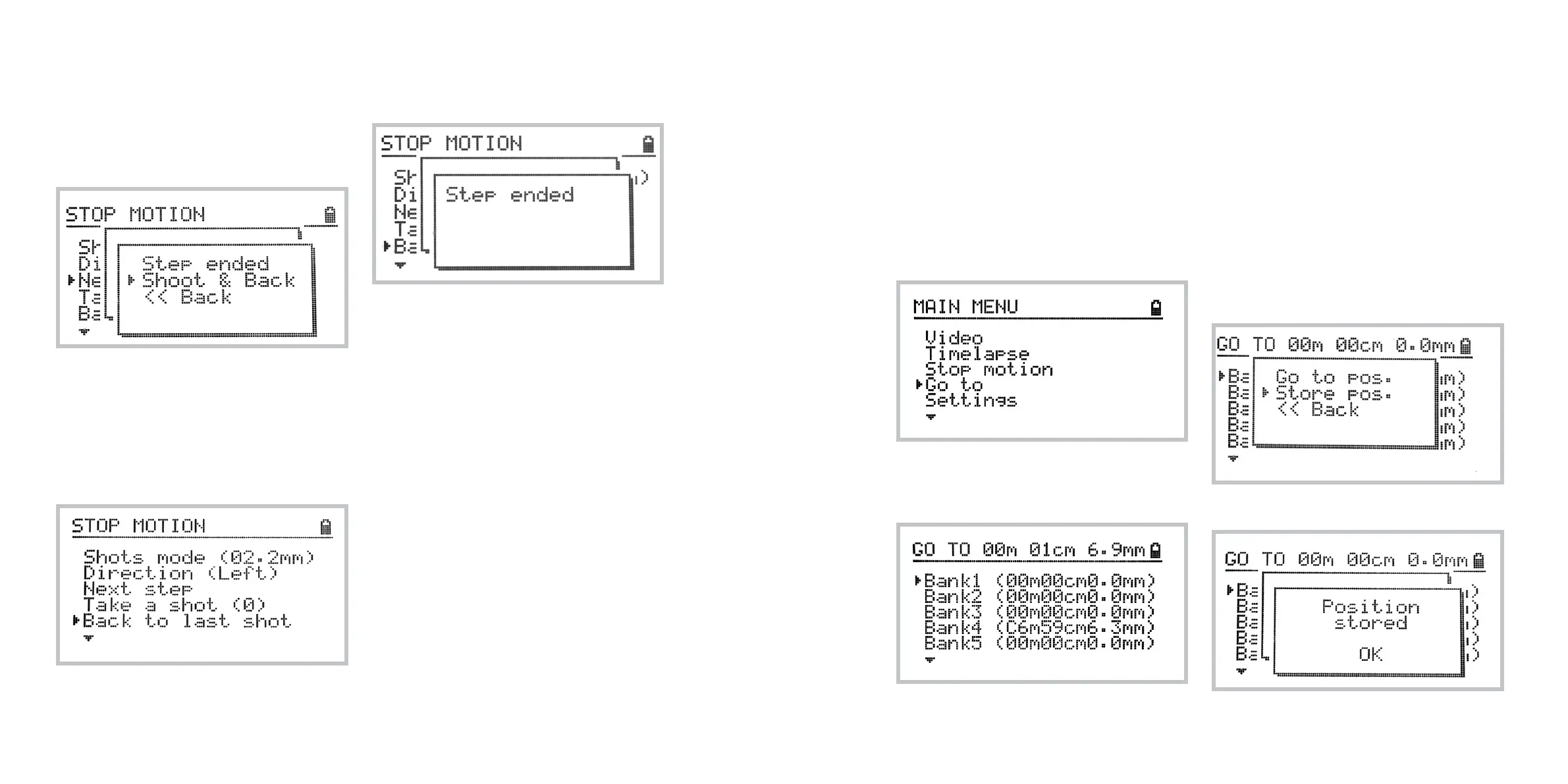
The following pop-up screen confirms that the step
has been made. You may either take a shot and go
back to the last menu (to make one shot per step
loop work easier) or go back to previous menu with-
out triggering a shot.
Moving to the last position
It is also possible to get back to the previous posi-
tion in case you need to redo the shot.
To do so, select
Home » Stop motion » Back to last shot
The following screen confirms reaching the position
of previous step:
Using Go To mode
The DitoGear™ OmniSlider is featured with 5 persist-
ent memory banks allowing storage of five dierent
positions of the trolley and recalling them easily.
Accessing Go To mode
To access Go To mode, navigate to:
Home » Go To
The following screen appears showing available
memory banks with stored positions as well as the
current position of the trolley.
Storing position in memory
In order to store a position in one of memory banks
do the following:
1 Make sure you are in the main screen of the
Go To mode listing available banks.
2 Move the trolley to the desired position
3 Select a bank of your choice and select
Store Position from the pop-up menu.
The following screen confirms that the position has
been stored.



 To Next Page