10 11
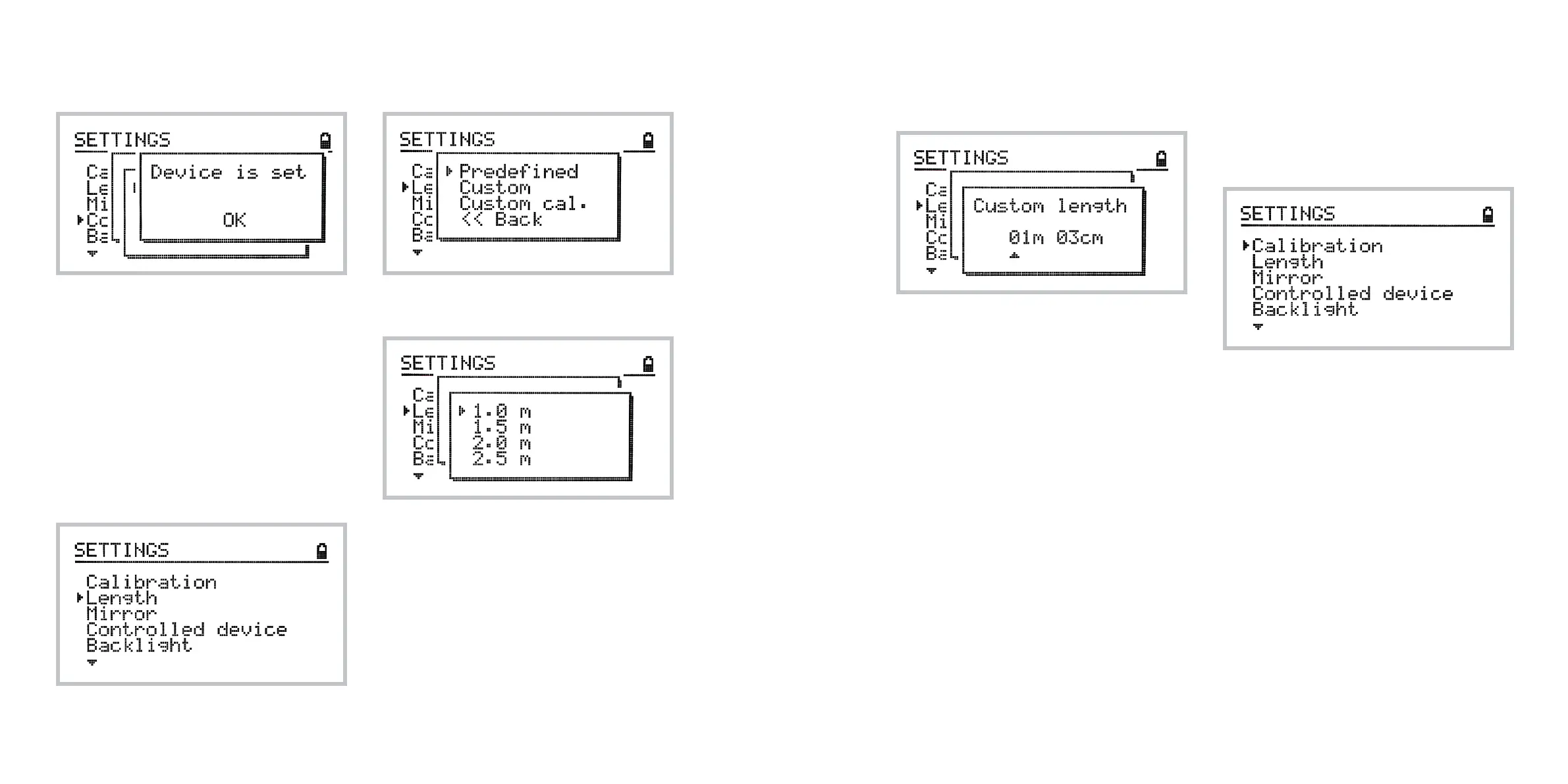
The Custom option lets you type in the length of
the track or the operating length.
The Custom Calibration option allows to define the
operating length by travelling the desired distance
using the joystick.
After selecting the Custom Calibration option, the
controller assigns the current position of the trol-
ley as the start limit of the track.
You may move the trolley to the end limit position
and confirm the length by pressing the joystick.
The distance travelled, in other words the operat-
ing track length, is displayed for your convenience.
Note: changing the length of the track always
resets the calibration of the device to the current
position of the trolley.
Calibrating the device
The DitoGear™ OmniSlider comes with an internal
position memory feature and therefore needs to be
calibrated prior to use after each power-up routine.
Basic calibration
In order to perform basic calibration (to be used in
most cases when operating horizontally), move the
trolley to the end of the track closest to the motor box
prior to turning on the device. At power up, the con-
troller assumes that the trolley is placed the starting
position; no additional calibration is required.
Using Mirror mode
If after calibrating, the trolley does not move for-
ward but stalls moving backward from the starting
position, toggle the Settings » Mirror option.
The following screen confirms your choice:
The device setting is stored in the persistent mem-
ory and thus it is required to be set only once or
when you plan on controlling another device.
Note: changing the device type may apply changes to
the track length settings, so make sure to check the
length and calibration after setting the device type.
Setting the track length
To set the track length, navigate to:
Home » Settings » Length
The following options are available:
The Predefined option allows to select one of the
predefined slider lengths (1.0m, 1.5m, 2.0m or 2.5m).



 To Next Page