VTX update Guide
All the zip file for each VTX contains HDZERO_TX.bin.
Steps to update VTX firmware:
(1) Format SD card (Choose FAT32 and Allocation Unit size to
4096 bytes);
(2) Power off VRX if it is on;
(3) Unzip content of corresponding VTX zip file onto SD-card, and
insert SD to the VRX module;
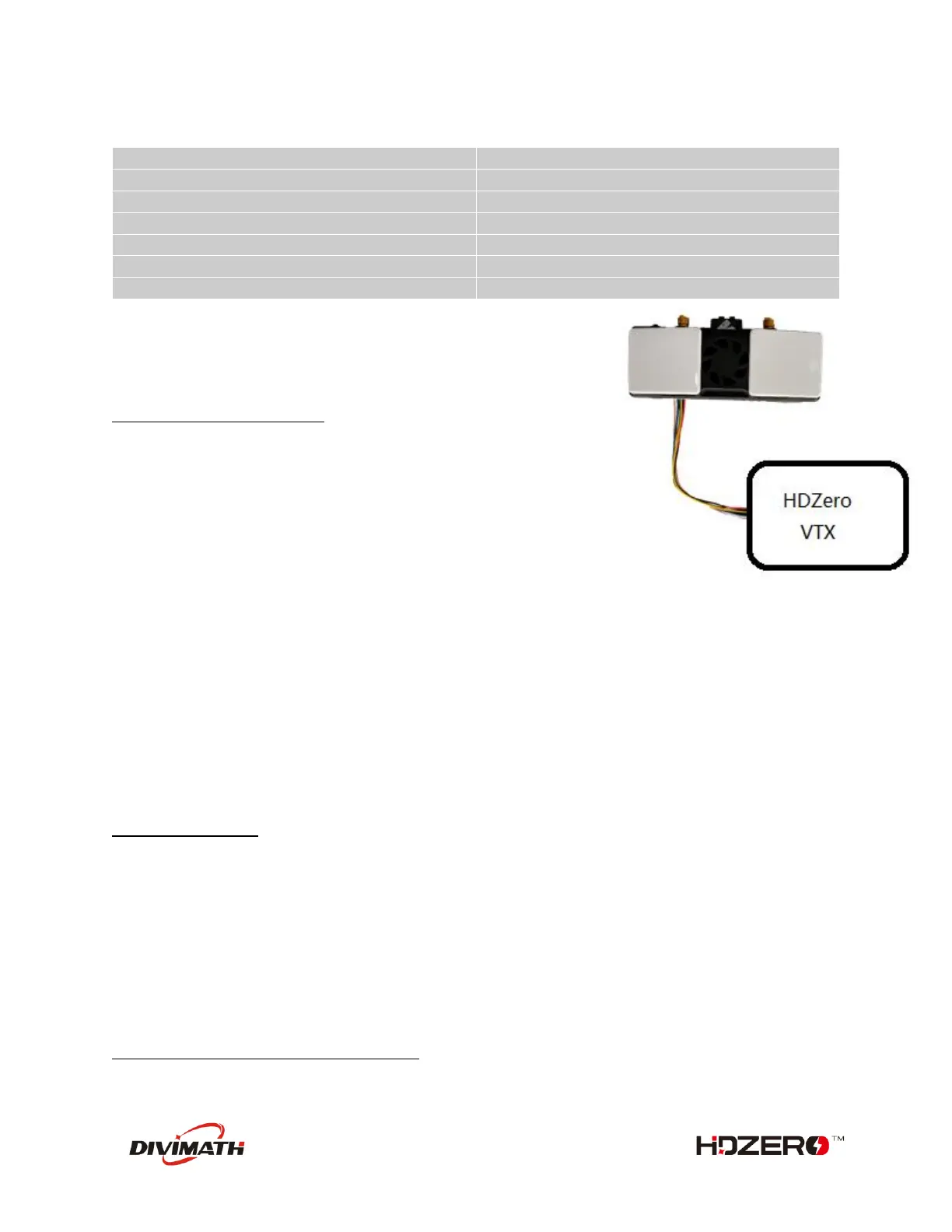
(4) Connect cable with module and VTX as shown right;
(5) Power on VRX module
(6) If “Wait to Connect VTX…” or “Check cable …”, make sure (4) is secured;
(7) If “Firmware update failed”, Repeat steps from (1);
(8) If “Firmware update successful”, VTX is updated.
(9) HDZERO_TX.bin is removed from SD card automatically.
Note: Putting an empty file named as “DONOTREMOVE.txt” file on SD card root directory will prevent
HDZERO_TX.bin from being removed. It is useful when updating multiple VTXes.
VRX update Guide
Steps to update VRX:
(1) Disconnect the cable connecting VRX and VTX, if it is connected;
(2) Unzip content of RX5.1.Revddmmyyyy.zip onto SD-card, insert SD to the module
(3) Power on VRX, and waiting for “Success”.
The firmware will be automatically deleted from SD card after updating.
Note: Do not power off VRX while updating firmware until “Update Completed”. Otherwise VRX will not
be able to boot up next time.
Steps to flush VRX in case of not booting up:
(1) Power off VRX;



 To Next Page