_____________________________________________________________________________________
61
Deleting all locking or programming media
If you have lost a locking medium, you can no longer delete this individual
locking medium (without ENiQ
®
EasyFlex or ENiQ
®
AccessManagement
Software). In this case, you must delete all closing media and create the
existing closing media again.
You only need a programming card to do this.
Please note! If you use the master card instead of the programming
card, all programming media will also be deleted.
Follow the steps below:
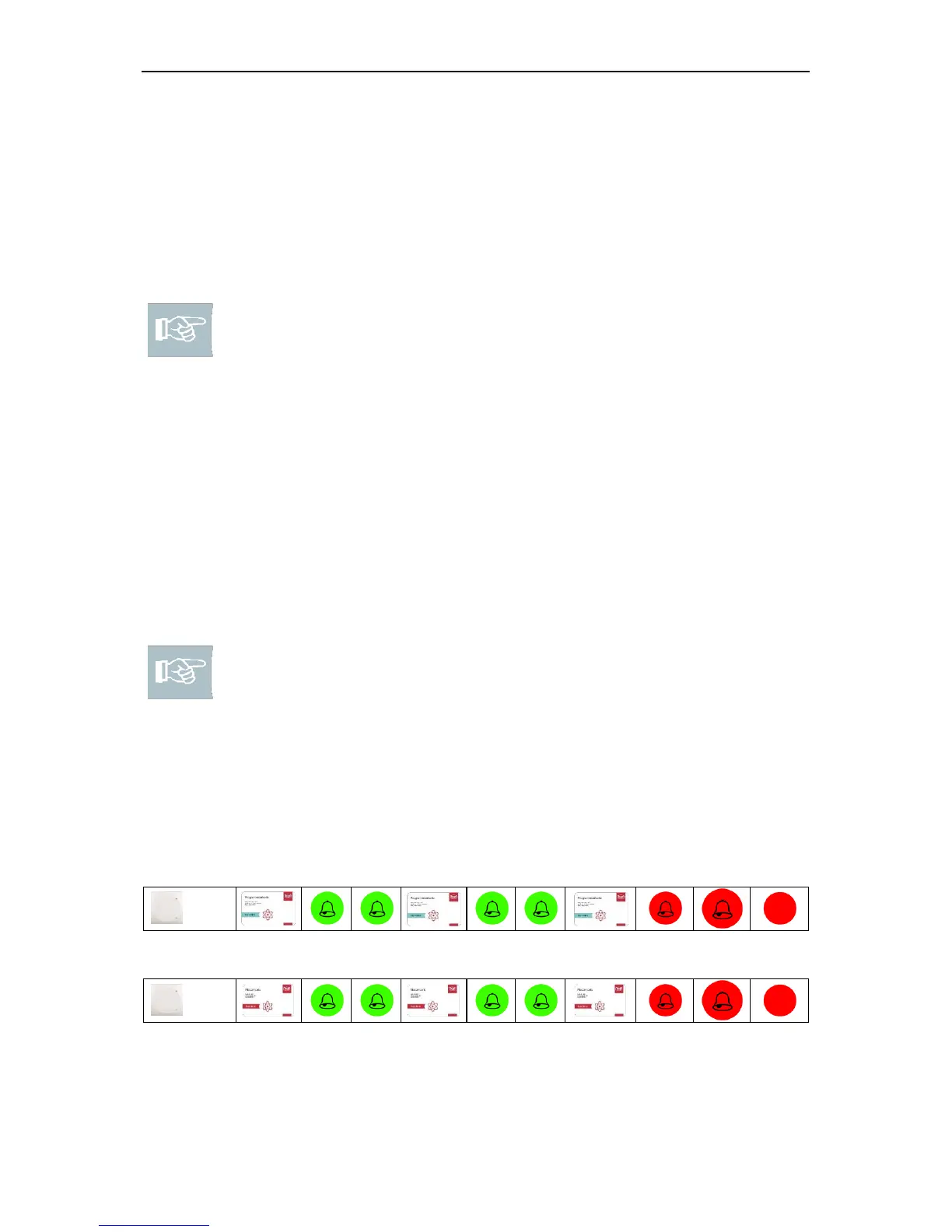
1. Hold the master or programming card flat a short distance
in front of the DOM device (controller for HiSec) and then remove the
master or programming card again. The lower LED briefly flashes green twice,
emitting an acoustic signal each time.
2. Hold the master or programming card flat a short distance in front of the DOM
device (controller for HiSec) again and then remove the master or programming
card. The upper LED flashes red once briefly and one long, emitting an acoustic
signal each time.
Please note! The signalling to any ENiQ
®
Passive Readers or external
readers connected only shows that the controller is busy. After the process
has been completed, the upper LED on the ENiQ
®
Passive Readers is lit
red again permanently. With the ENiQ
®
Module Reader, the status LED
goes off and lights up again after the process has been completed.
All locking/programming media have been deleted. After programming has been
completed, the basic state is restored. The upper LED is then lit red again
permanently.
Deleting all closing media:
Deleting all locking and programming media:



 To Next Page