3
TOUCHSCREEN NA
V
IGA
T
I
ON
MAIN
P
AGE
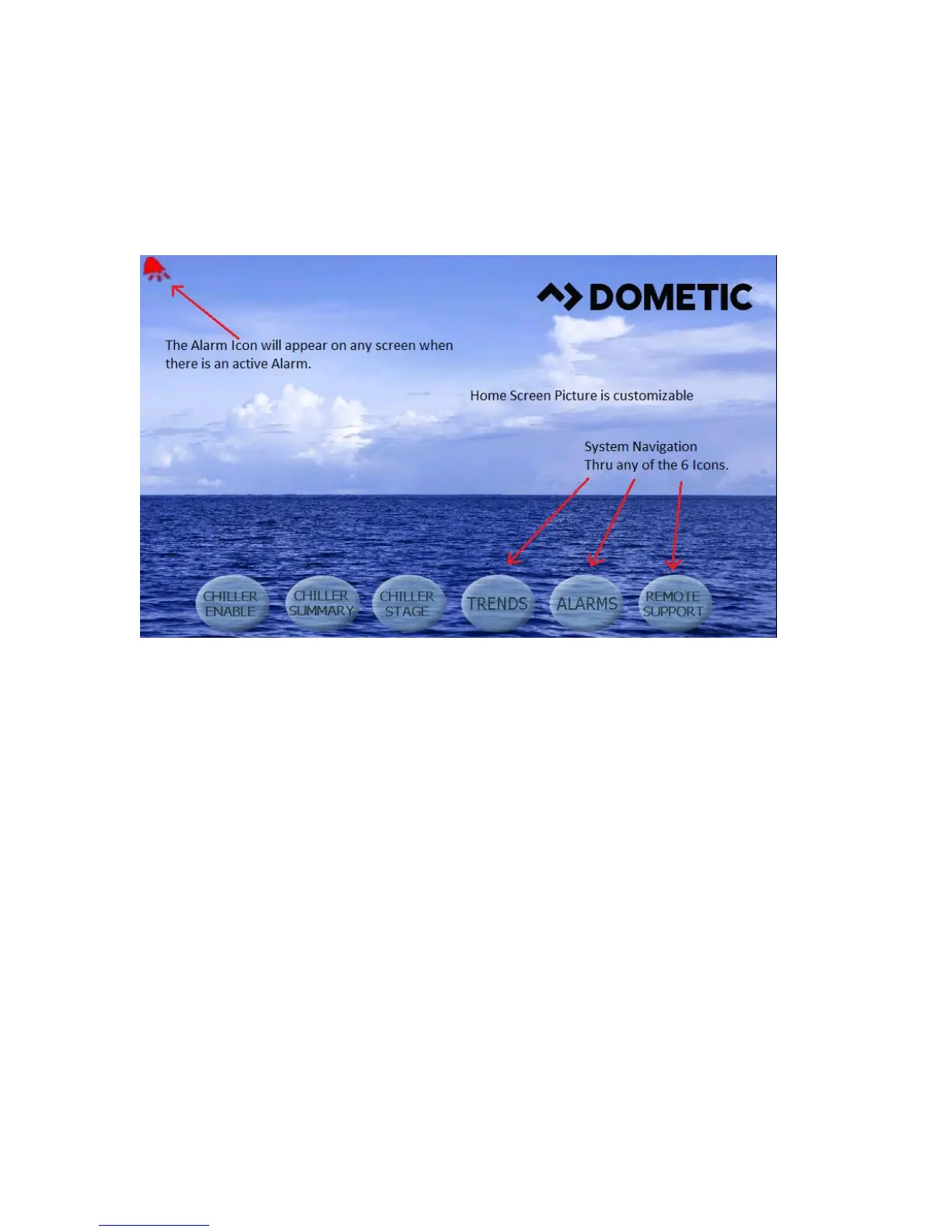
Figure 3: Main
P
age
C
hiller Enable
Touching this icon will take you to the chiller operational screen, where you can enter setpoints for both heating and cooling and
monitor chilled water temperatures and pump current information.
Chiller Summary
Touching this icon will take you to the summary screen, where you can see the state of your HP, LP and FS and view your stage
supply water temperature out for all available stages. Touching a stage on the screen will take you to that chiller stage for
additional information.
C
hiller Stage
Touching this icon will take you to the first stage, where the system refrigerant circuit and chilled water circuit can be monitored.
This screen has multiple hotspots where all stage parameters can be viewed. If the system has the installed option, additional
available hotspot icons will appear to view additional information. Forward and back buttons will navigate to the next stage.
T
rends
Touching this icon will take you to the trending screen where you can view graphically how your system has been performing.
The graph data is downloadable to a USB stick. Water temperatures and pressures as well as compressor current are available
for graphing.
A
larms
Touching this icon will take you to the active alarm screen where alarms can be reviewed and cleared. Alarm history can also be
viewed from here by using the navigation buttons on the top that take you to the alarm history. Using the drop-down menu will
allow you to go back from minutes to months in the fault history. There is also an information icon that will take you to a help
screen to display the possible causes of your alarm to aid in the troubleshooting of your system
R
emote Support
Touching this icon takes you to the screen where you can enable a third party to view your system over an Internet connection
via a VNC (Virtual Network Computing) server.



 To Next Page