Data Bay Indicators
Drobo utilizes status indicators found to the right of each Data Bay. These indicators will always let you know the status of
your Drobo. When all lights are green "everything is okay." If there is a yellow light, you are running low on protected
capacity and you should add or upsize a hard drive with one of greater capacity at your convenience. A red indicator
means you need to take action as soon as possible, you are critically low on space or not protected against a single drive
failure. A blinking red indicator means that a hard drive has failed.
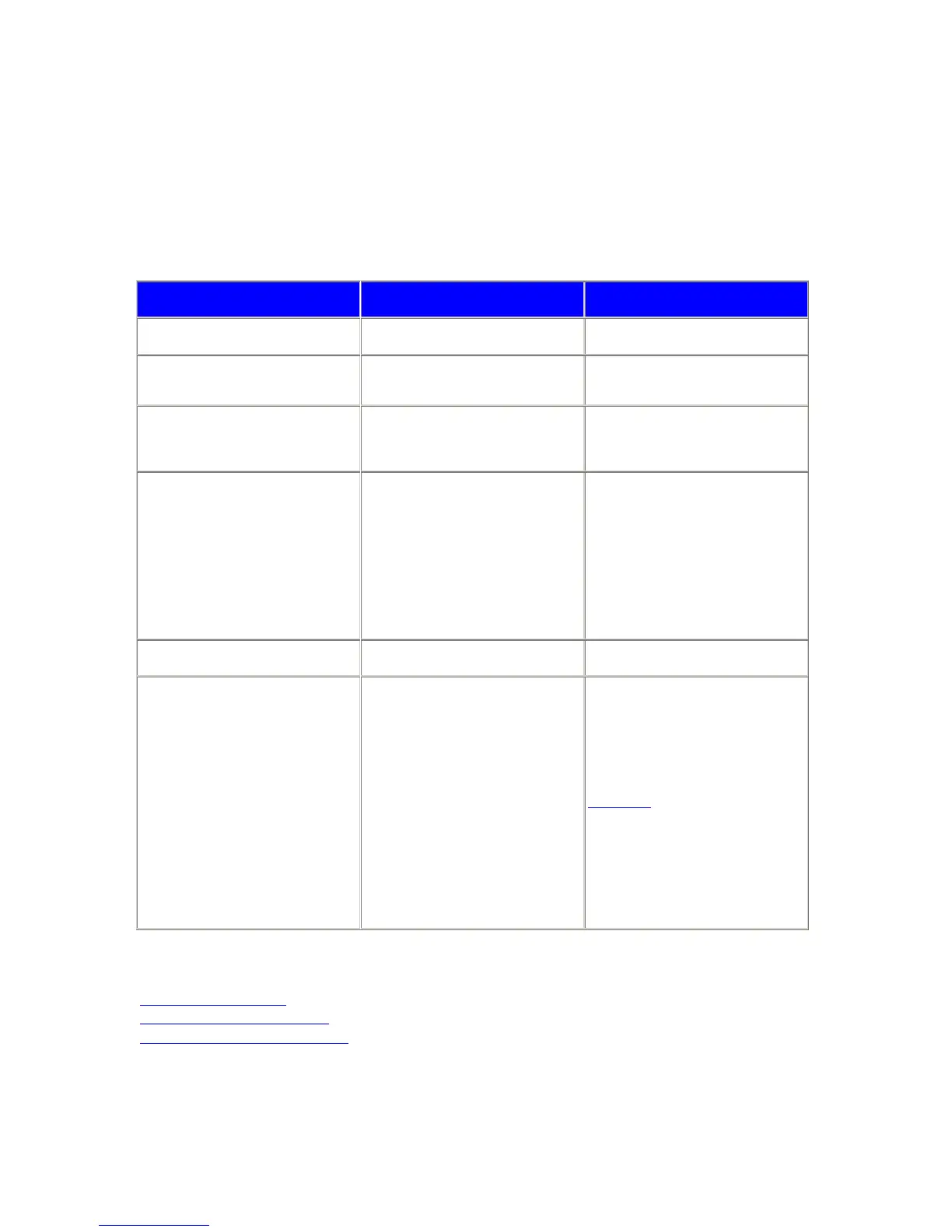
Reference the following chart to best understand what your Drobo is telling you:
Color and Light Behavior What It Means Action to Take
Green Healthy system. None.
Yellow Drobo is getting full.
Add a hard drive or upsize the existing
one with a larger capacity hard drive.
Red
Protected space is critically low, or
data protection against a single drive
failure is no longer possible.
Add a hard drive or upsize the existing
one with a larger capacity hard drive
ASAP.
Blinking Green and Yellow Do not remove drives.
Drobo is protecting your data by
duplicating and spreading it across all
of the available hard drives.
Don't remove any hard drives or
power-down Drobo.
Warning: Removing a hard drive while
green and yellow lights are blinking
may cause data loss.
Tip: You can continue to access your
data while Drobo is protecting your
data. Just don't remove a hard drive!
Blinking Red A hard drive has failed. Replace this hard drive ASAP.
Four Red Indicators
Drobo is starting up, there have been
too many hard drives removed, or too
many hard drives have been replaced
at the same time.
Wait a minute to make sure Drobo is
done booting-up. If the indicators don't
change to green, then you may have
removed or replaced too many hard
drives from your Drobo at the same
time. Identify the hard drives removed
and re-insert them into Drobo. If you
need further assistance, refer to the
User Guide.
Tip: When removing or replacing hard
drives, make sure you remove or
replace them one at a time. Never
remove a drive when the data bay
indicators are blinking green and
yellow.
Related Topics
The Ins and Outs of Drobo
Adding Hard Drives to Your Drobo
Removing and Replacing Hard Drives
19



 To Next Page