Formatting Drives Using Drobo Dashboard
Using virtualization technology, Drobo does not require you to format each and every drive added to Drobo. When you
add or upsize drives in Drobo after the initial formatting, you will get immediate access to any additional capacity. After
the initial format, you will not need to format added drives until an additional pool of storage is create and Drobo will walk
you through that process when the time comes.
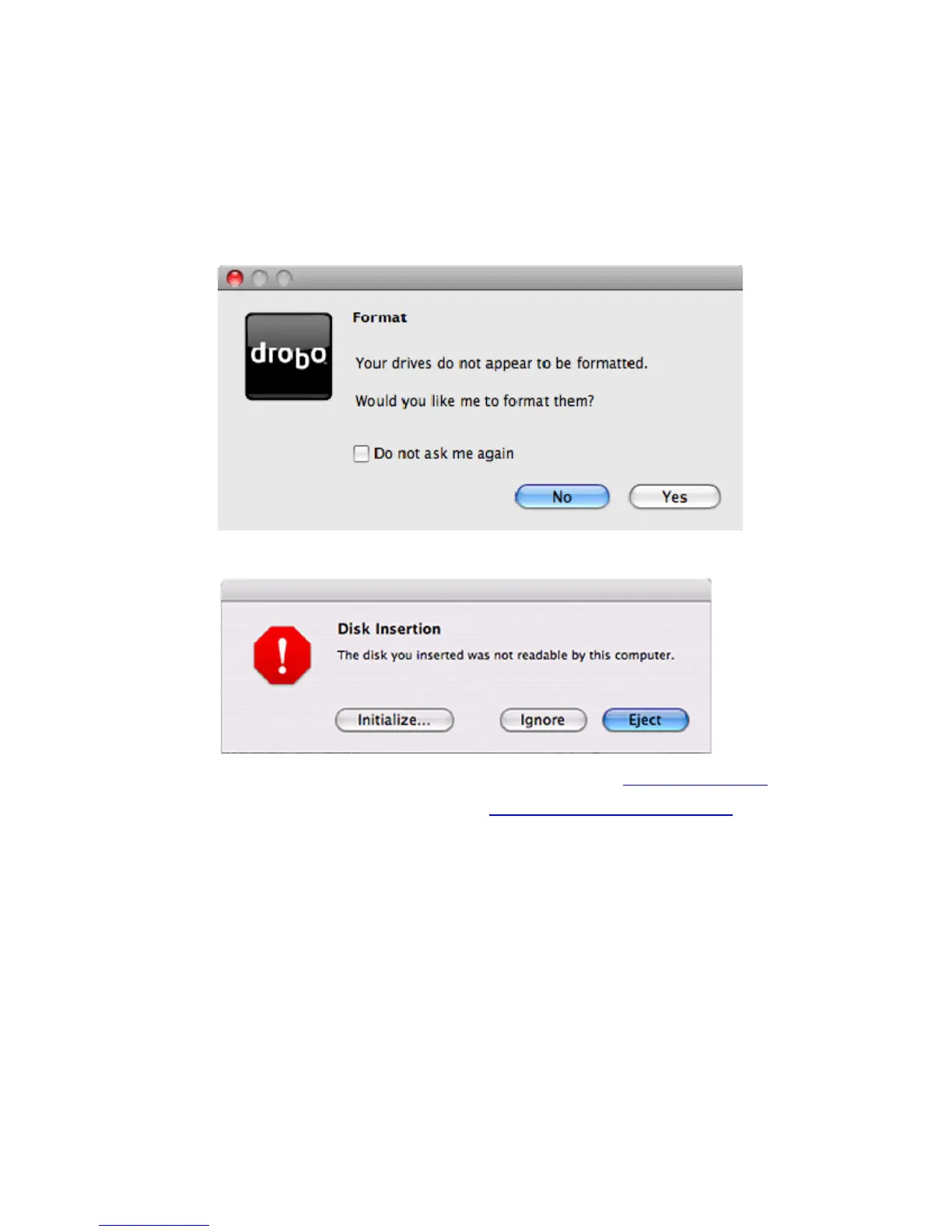
If Drobo Dashboard is running, it will automatically show you the Drobo Format dialog box.
If your Mac had also detected your unformatted drives and is displaying the Disk Insertion dialog box, then click Ignore.
Note: If Drobo Dashboard or your Mac did not detect your unformatted drives, then see
Starting Drobo Dashboard.
Note: For instructions about using the Mac OS Disk Utility, see
Formatting Drives Using Mac OS Disk Utility.
1. From the Drobo Format dialog box, click Yes to view the Drobo Format Options dialog box.
7



 To Next Page