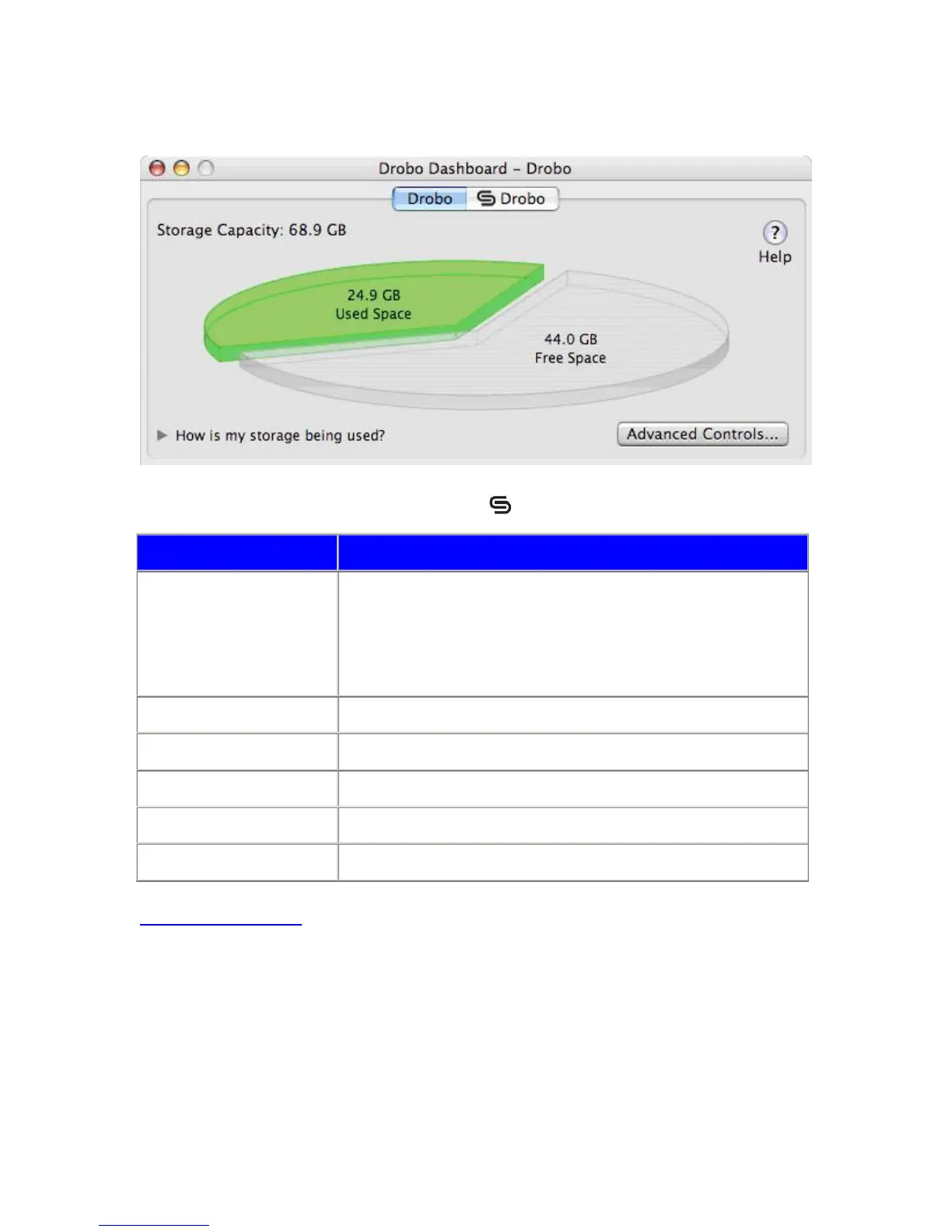
Basic Drobo Dashboard
Each Drobo attached to your Mac will have a specific drive tab. If the Drobo is connected over the network via a
DroboShare, it is specifically identified by the DroboShare logo
in the drive tab.
Item Description
Drive Tab Shows the volume name assigned to Drobo.
Note: Multiple volumes on a single Drobo will show up on a single tab separated by
a comma.
Note: Multiple Drobos attached to a single computer will show up as separate tabs
with unique volume names.
Storage Capacity Shows Drobo's total available protected capacity.
Used Capacity Portion of the total protected capacity currently in use.
Free Capacity Portion of the total protected capacity available for use.
Advanced Controls Click to access Drobo's Advanced Control Panel.
How is my storage being used? Click to view the Capacity Breakdown Bar.
Related Topics
The Capacity Breakdown Bar
27



 To Next Page