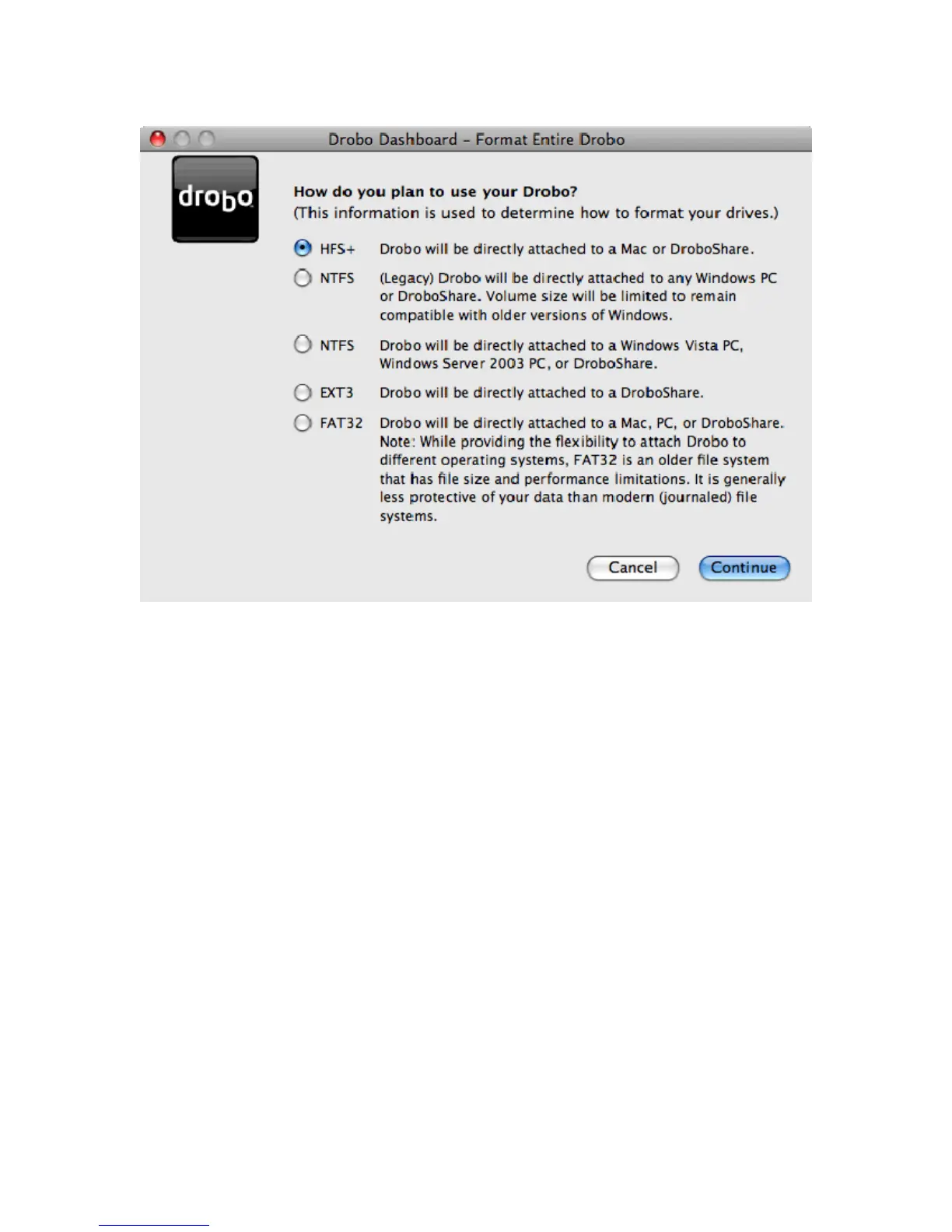
2. From the Format Options dialog box you will be presented with different format options depending on whether your
Drobo is directly attached to your Mac or attached to your local network via DroboShare.
Do one of the following and then click Continue:
o If you plan to connect Drobo to Macs and DroboShare, select HFS+. This is the default selection.
o If you plan to connect Drobo to a PC running any Windows operating system, including older
supported operating systems such as Windows XP or earlier, and DroboShare, select NTFS
(Legacy).
Note: In order to remain compatible with older versions of Windows, the volume size will be limited.
This option is only displayed if you are formatting via DroboShare.
o If you plan to connect Drobo to a PC running Windows Vista or Server 2003 and DroboShare, select
NTFS for Vista and Server 2003.
Note: This option is only displayed if you are formatting via DroboShare.
o If you plan to connect Drobo to Linux machines and DroboShare , select EXT3.
Note: This option is only displayed if you are formatting via DroboShare.
o If you plan to connect Drobo to computers with different operating systems (Mac, Windows, Linux),
select FAT32.
Note: FAT32 is an older file system technology that is generally less protective of your data than
modern (journaled) files systems such as HFS+. It also has some performance and file size
limitations.
8



 To Next Page