6. Adjusting soundeffects
This function gives you the possibility to choose various digi-
tal reverb effects to generate a realistic acoustic atmosphere.
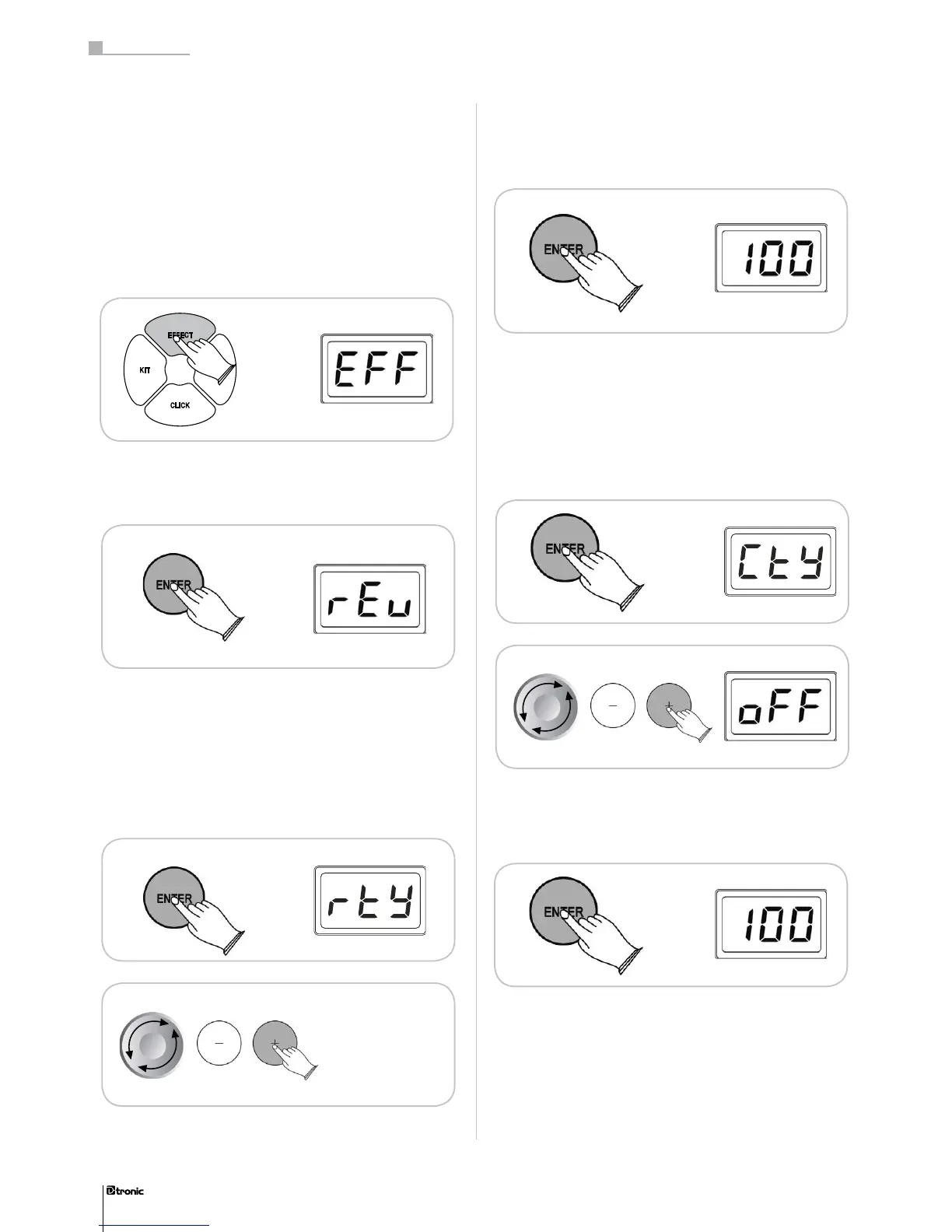
Press the EFFECT-button to get into the Effect-menu. You can
choose between a Reverb- or a Chorus-Effect by using the
Jogdial or the +/ - buttons.
The type of effect and its intensity can be adjusted in the cho-
sen menu.
6.1 Reverb effect
Reverb Type: You can choose between 8 kind of Reverbs
(Room1, Room2, Room3, Hall1, Hall2, Plate, Delay, PanDe-
lay) or turn the effect off. Conrm your adjustment with the
ENTER-button.
Reverb Level: You can adjust the intensity of the Reverb effect
between a range from 000 – 127.
6.2 Chorus effect
Chorus Type: You can choose between 8 kind of Chorus ef-
fects (Chorus1, Chorus2, Chorus3, Chorus4, Feedback, Flan-
ger, ShortDly, FBDelay) or turn the effect off. Conrm your
adjustment with the ENTER-button.
Chorus Level: You can adjust the intensity of the Chorus effect
between a range from 000 – 127.
40
Part 3: Functions
40


 To Next Page