EasyManua.ls Logo

Dual DV712 - User Manual

Dual DV712
28 pages
Print Icon
To Next Page IconTo Next Page
Loading...
INSTALLATION/OWNER’S MANUAL
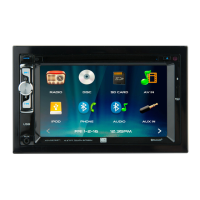
DVD Multimedia Receiver with Bluetooth
featuring a 7" Touch Screen Display
DV712
The DVD video display of the in-dash unit will not operate while the vehicle is moving. This is a safety feature
to prevent driver distraction. In-dash DVD video functions will only operate when vehicle is in Park and the
parking brake is engaged. It is illegal in most states for the driver to view video while the vehicle is in motion.
Safety Notes:
®

Questions and Answers

Summary

Warning

Safety Information

FCC Compliance

Device compliance with FCC rules and potential interference.

Preparation

Before You Start

Important steps and considerations before beginning the installation process.

Getting Started

Step-by-step instructions for initial installation and securing the unit.

Wiring Diagram

Control Locations

Remote Control Preparation

General Operation

Installing the Faceplate

Process of attaching the unit's faceplate to the front of the device.

Power, Volume, and Mute Control

How to turn the unit on/off, adjust volume, and silence audio.

Input Mode Selection

Navigating through different audio/video input sources like Radio, Disc, USB, etc.

Display and Menu Navigation

Adjusting screen angle and accessing the main menu.

Setup Menu

General Settings

Configuration options for language, wallpaper, radio area, time, and beep.

Audio Settings

Adjustments for sound effects, EQ, subwoofer, and loudness settings.

Video Settings

Options for aspect ratio, brightness, contrast, hue, saturation, and sharpness.

Bluetooth Settings

Configuration for auto-connect and auto-answer features for Bluetooth devices.

General Operation (Touch Screen)

Touch Screen Controls

Overview of touch screen interaction for accessing features during operation.

Standby and Eject Functions

How to put the unit in standby mode and eject discs.

Audio and Settings Access

Accessing audio options like EQ and navigating to the settings menu.

AM;FM Tuner Operation

Radio Operation Basics

Selecting the radio, navigating menus, and understanding mode indicators.

Tuning and Band Selection

Methods for tuning frequencies, switching between AM/FM bands, and local/distance tuning.

Preset Stations and Tuning Modes

Using AS/PS for scanning and storing stations, and toggling Stereo/Mono.

CD;USB;microSD Card Operation

Media Playback Overview

How to play audio files from discs, USB devices, and microSD cards.

Playback Controls

Using repeat, random, track navigation, and play/pause functions.

Folder Access

Navigating and accessing files within folders on the media device.

Media Compatibility (CD;DVD)

Media Compatibility (USB;microSD)

Media Compatibility (General)

Compatible Discs and Files

Lists compatible and incompatible disc types and file formats for playback.

Recording Format Standards

Explains ISO9660 standards and recommended MP3 ripping settings.

DVD Operation

Inserting and Ejecting Discs

Procedures for inserting discs and using the eject function.

Touchscreen Controls

How to display and use the on-screen controls for DVD playback.

Playback Navigation and Options

Controlling playback with repeat, chapter navigation, play/pause, and random modes.

DVD Operation (Advanced)

Screen Setup and Zoom

Adjusting screen settings like color and zooming in/out on images.

Subtitle and Audio Settings

Accessing options for subtitle display and audio language/options.

Monitor Standby and Settings Access

Putting the monitor into standby mode and direct access to settings.

Bluetooth Operation

Bluetooth Preparation and Pairing

Steps to prepare, pair, and connect Bluetooth devices for use.

Phone Functions

Accessing the phone menu, using the keypad, and initiating/ending calls.

Bluetooth Music and Device List

Accessing music playback and viewing a list of available Bluetooth devices.

Bluetooth Operation (Functions)

Standby and Eject Functions

Putting the monitor into standby mode and ejecting discs.

Audio and Settings Access

Accessing audio options and the main settings menu.

Music Playback Controls

Navigating tracks and controlling playback for Bluetooth music.

Accessing Phone from Music Mode

Switching from Bluetooth Music mode to Bluetooth Phone mode.

Auxiliary and AV Inputs

Auxiliary Input Operation

Connecting and selecting audio sources via the 3.5mm front input.

Rear AV Input Operation

Connecting and selecting audio/video sources via rear RCA connectors.

Rear Camera Operation

Connecting and using an optional rear view camera, manual vs. auto selection.

SWC Input Operation

Available SWC Controls

List of steering wheel controls supported by the unit.

SWI-RC Installation Hints

Guidance on setting up and programming the PAC SWI-RC adapter for steering wheel controls.

Specifications

Limited One Year Warranty

What to do for Service

Instructions for troubleshooting and obtaining warranty service.

Warranty Coverage and Exclusions

Details on what the warranty covers, what is excluded, and liability limitations.

Troubleshooting

Summary

Warning

Safety Information

FCC Compliance

Device compliance with FCC rules and potential interference.

Preparation

Before You Start

Important steps and considerations before beginning the installation process.

Getting Started

Step-by-step instructions for initial installation and securing the unit.

Wiring Diagram

Control Locations

Remote Control Preparation

General Operation

Installing the Faceplate

Process of attaching the unit's faceplate to the front of the device.

Power, Volume, and Mute Control

How to turn the unit on/off, adjust volume, and silence audio.

Input Mode Selection

Navigating through different audio/video input sources like Radio, Disc, USB, etc.

Display and Menu Navigation

Adjusting screen angle and accessing the main menu.

Setup Menu

General Settings

Configuration options for language, wallpaper, radio area, time, and beep.

Audio Settings

Adjustments for sound effects, EQ, subwoofer, and loudness settings.

Video Settings

Options for aspect ratio, brightness, contrast, hue, saturation, and sharpness.

Bluetooth Settings

Configuration for auto-connect and auto-answer features for Bluetooth devices.

General Operation (Touch Screen)

Touch Screen Controls

Overview of touch screen interaction for accessing features during operation.

Standby and Eject Functions

How to put the unit in standby mode and eject discs.

Audio and Settings Access

Accessing audio options like EQ and navigating to the settings menu.

AM;FM Tuner Operation

Radio Operation Basics

Selecting the radio, navigating menus, and understanding mode indicators.

Tuning and Band Selection

Methods for tuning frequencies, switching between AM/FM bands, and local/distance tuning.

Preset Stations and Tuning Modes

Using AS/PS for scanning and storing stations, and toggling Stereo/Mono.

CD;USB;microSD Card Operation

Media Playback Overview

How to play audio files from discs, USB devices, and microSD cards.

Playback Controls

Using repeat, random, track navigation, and play/pause functions.

Folder Access

Navigating and accessing files within folders on the media device.

Media Compatibility (CD;DVD)

Media Compatibility (USB;microSD)

Media Compatibility (General)

Compatible Discs and Files

Lists compatible and incompatible disc types and file formats for playback.

Recording Format Standards

Explains ISO9660 standards and recommended MP3 ripping settings.

DVD Operation

Inserting and Ejecting Discs

Procedures for inserting discs and using the eject function.

Touchscreen Controls

How to display and use the on-screen controls for DVD playback.

Playback Navigation and Options

Controlling playback with repeat, chapter navigation, play/pause, and random modes.

DVD Operation (Advanced)

Screen Setup and Zoom

Adjusting screen settings like color and zooming in/out on images.

Subtitle and Audio Settings

Accessing options for subtitle display and audio language/options.

Monitor Standby and Settings Access

Putting the monitor into standby mode and direct access to settings.

Bluetooth Operation

Bluetooth Preparation and Pairing

Steps to prepare, pair, and connect Bluetooth devices for use.

Phone Functions

Accessing the phone menu, using the keypad, and initiating/ending calls.

Bluetooth Music and Device List

Accessing music playback and viewing a list of available Bluetooth devices.

Bluetooth Operation (Functions)

Standby and Eject Functions

Putting the monitor into standby mode and ejecting discs.

Audio and Settings Access

Accessing audio options and the main settings menu.

Music Playback Controls

Navigating tracks and controlling playback for Bluetooth music.

Accessing Phone from Music Mode

Switching from Bluetooth Music mode to Bluetooth Phone mode.

Auxiliary and AV Inputs

Auxiliary Input Operation

Connecting and selecting audio sources via the 3.5mm front input.

Rear AV Input Operation

Connecting and selecting audio/video sources via rear RCA connectors.

Rear Camera Operation

Connecting and using an optional rear view camera, manual vs. auto selection.

SWC Input Operation

Available SWC Controls

List of steering wheel controls supported by the unit.

SWI-RC Installation Hints

Guidance on setting up and programming the PAC SWI-RC adapter for steering wheel controls.

Specifications

Limited One Year Warranty

What to do for Service

Instructions for troubleshooting and obtaining warranty service.

Warranty Coverage and Exclusions

Details on what the warranty covers, what is excluded, and liability limitations.

Troubleshooting

Overview

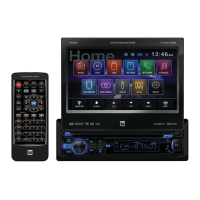
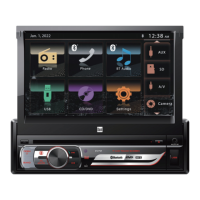
The DV712 is a DVD Multimedia Receiver with Bluetooth® featuring a 7" Touch Screen Display, designed for in-vehicle entertainment and communication. This unit supports various media formats including DVD, CD, USB, and microSD cards, allowing users to enjoy audio and video content on the go.

Function Description

The core function of the DV712 is to provide a comprehensive multimedia experience in a vehicle. It integrates a DVD player, AM/FM tuner, Bluetooth connectivity for phone calls and audio streaming, and multiple auxiliary inputs. The 7-inch touch screen display serves as the primary interface for controlling all functions, offering an intuitive user experience.

The DVD player supports DVD Video, DVD+R/RW, and DVD-R/RW discs, as well as CD-DA, CD-ROM (ISO), CD-R, and CD-RW. This allows for playback of both video and audio discs. For digital media, the unit includes a USB port and a microSD card slot, enabling playback of MP3 audio files and viewing of AVI video files or JPG photos. The unit is designed with a safety feature that prevents video display while the vehicle is in motion, requiring the parking brake to be engaged for video functions to operate.

The AM/FM tuner provides access to radio broadcasts, with the ability to store preset stations across multiple bands. Users can toggle between local and distance tuning, and stereo and mono modes. The AS/PS (Auto Store/Preset Scan) function allows for automatic scanning and storage of the strongest stations.

Bluetooth connectivity is a key feature, enabling hands-free phone calls and wireless audio streaming. The unit supports auto-connect and auto-answer features, enhancing convenience and safety while driving. Users can dial numbers directly from the touch screen keypad or access their phone's contact list. Bluetooth audio allows for streaming music from a paired device.

The DV712 also includes auxiliary inputs for connecting external audio/video devices. A 3.5mm auxiliary input is located on the front panel, while rear RCA A/V inputs provide additional connectivity options. A dedicated rear camera input allows for the integration of a rearview camera, which can automatically display the camera feed when the vehicle is in reverse or be manually selected.

Usage Features

The DV712 offers a range of user-friendly features accessible through its touch screen interface and physical controls.

General Operation:

  • Power On/Off: The unit can be turned on or off by momentarily pressing the power button.
  • Volume Control: A rotary knob allows for easy adjustment of the volume level.
  • Mute Function: Pressing the MUTE button silences the audio, and pressing it again restores the previous volume. Rotating the volume knob also cancels mute.
  • Mode Selection: The MODE button cycles through available input modes, including Radio, Disc, microSD Card, AV In, iPod (optional), Bluetooth Phone, Bluetooth Audio, Auxiliary Input, Rear Camera, and Settings.
  • Faceplate Installation: The faceplate snaps into place, aligning with the front of the unit.
  • LCD Screen Control: The LCD screen can be opened or closed using the OPEN button, and its angle can be adjusted using the UP/DOWN arrows.
  • Main Menu Access: A Home Icon on the top left of each mode screen provides quick access to the main menu.
  • Touch Screen Controls: The bottom of each screen features touch controls for Standby (dims display), Eject (ejects disc), Audio (adjusts EQ, Surround Sound, Balance/Fader), and Settings.

AM/FM Tuner Operation:

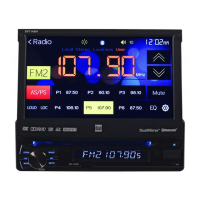
  • Radio Icon: Select the Radio icon from the Main Menu to access the tuner.
  • Frequency Tuning: Use the "<<" and ">>" arrows to tune the radio to lower or higher frequencies, respectively. Single-step tuning is available with "<" and ">" arrows.
  • Band Selection: Cycle through 2 AM and 3 FM bands.
  • Local/Distance Tuning: Toggle between local and distance tuning modes.
  • Stereo/Mono Tuning: Switch between stereo and mono audio.
  • Preset Stations: Press and hold to set the current station to a preset spot, or momentarily press to recall a desired preset.
  • AS/PS: Scan presets or automatically find and store the strongest stations.

CD/USB/microSD Card Operation:

  • Automatic Playback: Inserting a disc or USB device, or microSD card, initiates playback automatically.
  • Main Menu Access: Select the corresponding icon from the Main Menu to return to disc, USB, or microSD card playback.
  • Repeat Options: Select Repeat 1 (current track), Repeat Folder, or Repeat Off.
  • Random Playback: Enable or disable random playback.
  • Navigation: Use "Previous File/Track" and "Next File/Track" to navigate through content.
  • Play/Pause: Pause or resume playback.
  • Folder Access: Access all folders on the device.

DVD Operation:

  • Automatic Playback: Inserting a disc initiates playback automatically. Sub-menus may need to be pressed to access DVD content.
  • Eject: Use the eject button to remove a disc.
  • Touchscreen Controls: Tap anywhere on the LCD to display controls.
  • Main Menu Access: Return to the Main Menu screen.
  • Elapsed Time: Displays elapsed time and time remaining.
  • Repeat Options: Select Repeat Chapter, Repeat Title, Repeat All, or Repeat Off.
  • Chapter Navigation: Navigate to previous or next chapters.
  • Play/Pause: Play or pause DVD playback.
  • Random Playback: Play chapters in random order or turn off random playback.
  • Audio Language: Adjust audio language settings.
  • Screen Setup: Access screen color settings.
  • Zoom: Zoom in and out on an image.
  • Subtitle: Access subtitle options.
  • Audio Options: Adjust audio settings.
  • Monitor On/Off: Put the monitor into standby mode.
  • Setting: Direct access to the Setup Menu.

Bluetooth Operation:

  • Pairing: The unit broadcasts a pairing signal. Complete the pairing sequence from your Bluetooth device (device name "DV712", passcode "0000").
  • Auto-Connect: Most Bluetooth devices support auto-connect, automatically connecting when in range and powered on.
  • Bluetooth Phone: Access the phone function from the Main Menu or via the phone icon.
  • Keypad: Dial numbers using the on-screen keypad.
  • Bluetooth Music: Access Bluetooth audio streaming.
  • Available Devices: View a list of available devices.
  • Call Control: Connect or end calls.

Auxiliary Inputs/Rear Camera Operation:

  • Front 3.5mm Aux Input: Connect external audio sources.
  • Rear RCA A/V Input: Connect external audio/video sources.
  • Rear Camera Input: Connect an optional rear camera. The unit automatically selects camera mode when connected to reverse lamp circuitry or can be manually selected.

SWC Input Operation:

  • SWC Interface: Compatible with PAC steering wheel control modules (PAC SWI-RC recommended). Allows for integration with steering wheel controls for functions like volume, preset, seek/track, band, and Bluetooth call control.

Maintenance Features

Proper maintenance ensures the longevity and optimal performance of the DV712.

  • Installation: It is highly recommended that the unit be installed by a professional installer or authorized dealer due to its technical nature. Ensure secure grounding to the vehicle chassis.
  • Environmental Considerations: Avoid installing the unit in areas exposed to direct sunlight, excessive heat, dust, dirt, or excessive vibration.
  • Fuse Replacement: When replacing a fuse, always use a new one with the prescribed rating (10 amp ATM mini style fuse). Disconnect the wiring harness first to prevent short circuits.
  • Cleaning the Monitor: Use only a dry silicone cloth or soft cloth to clean the monitor. Avoid stiff cloths or volatile solvents like paint thinner and alcohol, as they can scratch the surface or remove printing.
  • Liquid Crystal Fluid: If the LCD is damaged and liquid crystal fluid leaks, avoid touching it. If contact occurs, wash it off with soap immediately, as it can be hazardous.
  • Wiring: When extending ignition, battery, or ground cables, use automotive-grade cables with an area of 0.75mm (AWG 18) or more to prevent voltage drops.
  • Troubleshooting: In case of malfunction, first attempt a unit reset (as described in the general operation section). If problems persist, consult a DUAL dealer or tech support.
  • Battery Replacement (Remote Control): The remote control uses a 3-volt Lithium CR2025 battery. Remove the battery if the remote will not be used for an extended period. Dispose of batteries properly and avoid storing them with metallic objects.
  • Software Updates: While not explicitly detailed as a user-accessible feature, the manual mentions "Version" information, implying potential for software updates. Users should consult the manufacturer for information on any available updates.
  • Default Settings: The "Restore Default" option in the settings menu allows users to revert the unit to its original factory settings, which can be useful for troubleshooting or reconfiguring the device.

Dual DV712 Specifications

General IconGeneral
Radio TunerAM/FM
Apple CarPlayNo
Android AutoNo
SiriusXMNo
Backup Camera InputYes
Resolution800 x 480
RadioAM/FM
USBYes
AUX InputYes
GPSNo
BluetoothYes
USB Ports1
Audio Formats SupportedMP3, WMA
Power Output50W x 4
EqualizerYes
Supported Media FormatsMP3, WMA

Related product manuals