EasyManua.ls Logo

Dual DXDM280BT - User Manual

Dual DXDM280BT
26 pages
Print Icon
To Next Page IconTo Next Page
Loading...
INSTALLATION/OWNER'S MANUAL
AM/FM/CD Receiver
DXDM280BT

Questions and Answers

Summary

Installation Preparation

Pre-Installation Checks

Initial steps before installation, including safety and connection advice.

Installation Step-by-Step

Procedures for removing trim, transit screws, and connecting wiring.

Wiring Diagram and Fuse Guide

Wire Connection Details

Explains connections for power, ground, antenna, and speakers.

Fuse Replacement Advice

Guidance on selecting the correct fuse type and amperage for the unit.

Control Panel Layout

Front Panel Button Identification

Identifies and describes each button and knob on the front panel.

Remote Control Operation

Remote Control Button Functions

Lists and describes the functions of buttons on the remote control.

General Operation Overview

Basic Unit Functions

Covers powering the unit, adjusting volume, and display settings.

System Setup and Modes

Details on setting the clock, clock format, modes, and unit reset.

Setup Menu Options

Tuning and Input Configurations

Settings for radio tuning, frequency, and auxiliary input.

Display and Audio Feedback Settings

Options for power-on messages, scrolling, beep confirmation, and loudness.

Bluetooth and Auto Answer Configuration

Managing Bluetooth connectivity and automatic call answering.

Audio Settings and Sound Control

Tone and Balance Adjustments

Adjusting Bass, Treble, Balance, and Fader for sound output.

Equalizer and Source Volume Levels

Using EQ presets and setting individual volume gains for each audio source.

AM;FM Tuner Functionality

Tuning Modes and Band Selection

Covers seek tuning, manual tuning, and switching between FM/AM bands.

Station Presets and Auto-Store

Methods for storing, recalling, and auto-storing radio stations.

CD Player Functionality

CD Handling and Media Types

Inserting, ejecting, and information on compatible CD types.

CD Playback Controls and Modes

Navigating tracks, pausing, and using Intro, Repeat, Random modes.

MP3 CD Playback Features

MP3 Information Display Options

Shows how MP3 file details like title, artist, and folder are displayed.

MP3 Character Display Limitations

Details maximum character limits for MP3 file information display.

MP3 File Compatibility and Standards

Media Types and Recording Formats

Details compatible file types, recording standards, and limits for MP3 discs.

Playback Order and ISO9660 Compliance

Explains how MP3 playback order is determined and ISO9660 standards.

MP3 Playback Technical Specifications

MP3 File Handling and Sampling Rates

ESP, mixed files, extension requirements, and supported sampling/bit rates.

MP3 Tag Version Support

Details on supported ID3 tag versions for USB MP3 files.

USB Device Connectivity and Playback

Connecting and Initiating USB Playback

How to connect a USB device and start MP3 playback.

USB Playback Navigation and Search

Navigating tracks, pausing, and searching for files on USB.

USB File Information and Controls

USB Information Display and Icons

How metadata like song title and artist is shown from USB.

USB Folder Navigation and Modes

Navigating folders and using Repeat, Random, and Intro modes.

USB File Compatibility and Capacity Details

USB File Specifications and Order

Details character support, compatible file types, and playback order.

USB Storage Limits and Device Requirements

Information on maximum files/folders and device compatibility requirements.

USB MP3 File Specifics

MP3 File Handling and Bit Rate Support

ESP, mixed files, extension requirements, and supported sampling/bit rates.

MP3 Tag Version Information

Details on supported ID3 tag versions for USB MP3 files.

Bluetooth Device Pairing and Connection

Bluetooth Device Pairing Process

Steps for pairing new and additional Bluetooth devices.

Managing Bluetooth Connections

Instructions for connecting previously paired devices and disconnecting.

Bluetooth Call and Audio Management

Bluetooth Call Handling Procedures

Handling recent calls, redialing, receiving, and ending calls.

Bluetooth Audio Streaming Control

Managing music playback from a Bluetooth device.

Bluetooth Audio Streaming Operation

Streaming Audio Control Methods

How to stream audio and control playback via AVRCP.

Streaming Audio Prerequisites

Requirements for mobile devices and enabling streaming audio.

Troubleshooting Common Issues

Power and Audio Output Problems

Solutions for units with no power or no sound.

Fuse, Skipping, and Disc Errors

Addresses blown fuses, excessive skipping, and disc read problems.

Error Messages and File Not Found

Resolving display errors, file not found, and ID3 tag issues.

Limited One Year Warranty Details

Warranty Coverage and Exclusions

Details what the warranty covers, who is eligible, and what is excluded.

Warranty Service and Support

Steps to follow for warranty service and contact information.

FCC Compliance Information

FCC Rules Compliance Statement

Declares adherence to FCC rules and conditions for operation.

Interference Prevention Measures

Guidance on preventing and resolving radio frequency interference.

Product Technical Specifications

Audio and Tuner Performance Specs

Technical details on CD player, FM, and AM tuner capabilities.

General Unit and Power Specifications

Dimensions, USB charge, line output, and amplifier power ratings.

Summary

Installation Preparation

Pre-Installation Checks

Initial steps before installation, including safety and connection advice.

Installation Step-by-Step

Procedures for removing trim, transit screws, and connecting wiring.

Wiring Diagram and Fuse Guide

Wire Connection Details

Explains connections for power, ground, antenna, and speakers.

Fuse Replacement Advice

Guidance on selecting the correct fuse type and amperage for the unit.

Control Panel Layout

Front Panel Button Identification

Identifies and describes each button and knob on the front panel.

Remote Control Operation

Remote Control Button Functions

Lists and describes the functions of buttons on the remote control.

General Operation Overview

Basic Unit Functions

Covers powering the unit, adjusting volume, and display settings.

System Setup and Modes

Details on setting the clock, clock format, modes, and unit reset.

Setup Menu Options

Tuning and Input Configurations

Settings for radio tuning, frequency, and auxiliary input.

Display and Audio Feedback Settings

Options for power-on messages, scrolling, beep confirmation, and loudness.

Bluetooth and Auto Answer Configuration

Managing Bluetooth connectivity and automatic call answering.

Audio Settings and Sound Control

Tone and Balance Adjustments

Adjusting Bass, Treble, Balance, and Fader for sound output.

Equalizer and Source Volume Levels

Using EQ presets and setting individual volume gains for each audio source.

AM;FM Tuner Functionality

Tuning Modes and Band Selection

Covers seek tuning, manual tuning, and switching between FM/AM bands.

Station Presets and Auto-Store

Methods for storing, recalling, and auto-storing radio stations.

CD Player Functionality

CD Handling and Media Types

Inserting, ejecting, and information on compatible CD types.

CD Playback Controls and Modes

Navigating tracks, pausing, and using Intro, Repeat, Random modes.

MP3 CD Playback Features

MP3 Information Display Options

Shows how MP3 file details like title, artist, and folder are displayed.

MP3 Character Display Limitations

Details maximum character limits for MP3 file information display.

MP3 File Compatibility and Standards

Media Types and Recording Formats

Details compatible file types, recording standards, and limits for MP3 discs.

Playback Order and ISO9660 Compliance

Explains how MP3 playback order is determined and ISO9660 standards.

MP3 Playback Technical Specifications

MP3 File Handling and Sampling Rates

ESP, mixed files, extension requirements, and supported sampling/bit rates.

MP3 Tag Version Support

Details on supported ID3 tag versions for USB MP3 files.

USB Device Connectivity and Playback

Connecting and Initiating USB Playback

How to connect a USB device and start MP3 playback.

USB Playback Navigation and Search

Navigating tracks, pausing, and searching for files on USB.

USB File Information and Controls

USB Information Display and Icons

How metadata like song title and artist is shown from USB.

USB Folder Navigation and Modes

Navigating folders and using Repeat, Random, and Intro modes.

USB File Compatibility and Capacity Details

USB File Specifications and Order

Details character support, compatible file types, and playback order.

USB Storage Limits and Device Requirements

Information on maximum files/folders and device compatibility requirements.

USB MP3 File Specifics

MP3 File Handling and Bit Rate Support

ESP, mixed files, extension requirements, and supported sampling/bit rates.

MP3 Tag Version Information

Details on supported ID3 tag versions for USB MP3 files.

Bluetooth Device Pairing and Connection

Bluetooth Device Pairing Process

Steps for pairing new and additional Bluetooth devices.

Managing Bluetooth Connections

Instructions for connecting previously paired devices and disconnecting.

Bluetooth Call and Audio Management

Bluetooth Call Handling Procedures

Handling recent calls, redialing, receiving, and ending calls.

Bluetooth Audio Streaming Control

Managing music playback from a Bluetooth device.

Bluetooth Audio Streaming Operation

Streaming Audio Control Methods

How to stream audio and control playback via AVRCP.

Streaming Audio Prerequisites

Requirements for mobile devices and enabling streaming audio.

Troubleshooting Common Issues

Power and Audio Output Problems

Solutions for units with no power or no sound.

Fuse, Skipping, and Disc Errors

Addresses blown fuses, excessive skipping, and disc read problems.

Error Messages and File Not Found

Resolving display errors, file not found, and ID3 tag issues.

Limited One Year Warranty Details

Warranty Coverage and Exclusions

Details what the warranty covers, who is eligible, and what is excluded.

Warranty Service and Support

Steps to follow for warranty service and contact information.

FCC Compliance Information

FCC Rules Compliance Statement

Declares adherence to FCC rules and conditions for operation.

Interference Prevention Measures

Guidance on preventing and resolving radio frequency interference.

Product Technical Specifications

Audio and Tuner Performance Specs

Technical details on CD player, FM, and AM tuner capabilities.

General Unit and Power Specifications

Dimensions, USB charge, line output, and amplifier power ratings.

Overview

This document is an installation and owner's manual for the Dual DXDM280BT AM/FM/CD Receiver, which also features MP3, USB, AUX, and Bluetooth® connectivity.

Function Description

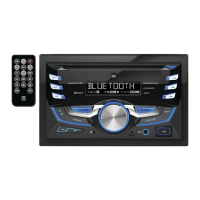
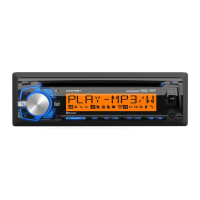
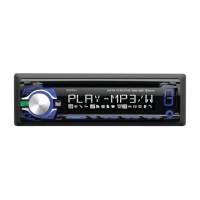
The DXDM280BT is a versatile car audio receiver designed to provide a wide range of entertainment options. It functions as an AM/FM tuner, a CD player, and supports playback of MP3 files from CDs, USB devices, and auxiliary input sources. A key feature is its integrated Bluetooth® technology, allowing for wireless audio streaming and hands-free calling from compatible mobile devices. The unit is equipped with a display that shows various information depending on the selected mode, such as clock, ID3 tag information for MP3 files, track numbers, and file/folder names.

Usage Features

General Operation:

  • Power On/Off: The unit can be turned on by pressing the power button or any other button (except EJECT) and turned off by pressing the power button.
  • Mode Selection: The MODE button allows users to switch between AM/FM radio, CD player, Bluetooth, auxiliary input, and USB modes. CD and USB modes only appear when a CD is inserted or a USB device is connected, respectively.
  • Auxiliary Input: A 3.5mm auxiliary input port is located on the front panel for connecting external audio devices like MP3 players.
  • Volume Control: Volume is adjusted using the dedicated volume knob, with a range from 00 to 46.
  • Display Information: The DISP button cycles through various display options, including the clock. During MP3 playback, it rotates through ID3 tag information, elapsed time, track number, and file/folder names.
  • Reset: A RESET button is provided for initial installation or to resolve abnormal operation.
  • Clock Setting: The clock can be set by pressing and holding DISP until it flashes, then using the tune buttons to adjust hours and minutes.
  • 12/24-hour Clock: The clock displays 12-hour AM/PM time in USA frequency spacing mode and 24-hour time in European frequency spacing mode.
  • Setup Menu: Pressing and holding the AUDIO button for more than 3 seconds accesses the setup menu, where various functions can be adjusted using the AUDIO button and volume knob.

Audio Settings:

  • Audio Menu: Pressing AUDIO momentarily cycles through Bass, Treble, Balance, and Fader settings.
  • Bass/Treble: These settings can be adjusted from -6 to +6 using the volume knob when selected in the audio menu.
  • Balance/Fader: Balance (BAL 12L - BAL 12R) and Fader (FAD 12R - FAD 12F) can be adjusted, with "BAL EVEN" and "FAD EVEN" indicating equal settings.
  • Equalization (EQ): The EQ button cycles through predefined equalization curves: FLAT, POP, JAZZ, CLASSIC, BEAT, ROCK, and USER. Manual adjustments to Bass or Treble are automatically saved as USER.
  • Loudness: The LOUD ON/OFF setting can be toggled via the AUDIO/MENU button and volume knob.
  • Source Volume Level: This feature allows for gain adjustment for each audio source (AM, FM, CD, AUX, USB) from -3 to +3. To set, press AUDIO/MENU until "SRC LEVEL" appears, then adjust with the volume knob. This adjustment is mode-specific.

AM/FM Tuner Operation:

  • Seek Tuning: The TUNE buttons momentarily seek the next strong station.
  • Manual Tuning: Pressing and holding the TUNE buttons until "MANUAL" appears allows for single-step frequency changes. Holding them down advances quickly.
  • Band Selection: The BAND button cycles through FM1, FM2, FM3, AM1, and AM2 bands.
  • Storing and Recalling Presets: Up to 18 FM and 12 AM stations can be stored by selecting a station and holding a preset button (1-6) for over 2 seconds. Presets can be recalled by pressing the corresponding button.
  • Auto Store Stations: Holding AUDIO/MENU for more than 3 seconds to find "AUTO STORE" allows the unit to automatically store the 6 strongest stations in the current band.

CD Player Operation:

  • Insert/Eject CD: CDs are inserted label-side up. The EJECT button removes the CD; if not removed within 10 seconds, it reloads.
  • Track Select: The TRACK buttons skip to the next or previous track. Holding them fast forwards or reverses.
  • Pause/Resume: The play/pause button temporarily stops and resumes CD playback.
  • Intro: The INT button accesses the Intro menu, offering "OFF" (cancels INT) and "ALL" (plays first 10 seconds of each track).
  • Repeat: The RPT button accesses the Repeat menu, offering "ALL" (plays all tracks) and "TRACK" (repeats selected track).
  • Random: The RDM button accesses the Random menu, offering "OFF" (cancels RDM) and "ALL" (plays all tracks in random order).
  • MP3 Files: The unit supports MP3 playback from CDs, displaying ID3 tag information (title, artist, folder, file name). It supports ISO9660 levels 1 and 2, Yellow Book modes, and multi-session discs.

USB Operation:

  • Connecting USB: USB mass storage devices can be connected to the unit's USB port for MP3 playback.
  • Playing Music: Upon connection, "USB READ" appears, and playback begins.
  • Track Select: Similar to CD operation, TRACK buttons skip tracks, and holding them fast forwards/reverses.
  • Pause/Resume: The play/pause button controls USB playback.
  • File Search: The SELECT button enters file/folder search mode, displaying a list of folders. The volume knob navigates folders and files, and SELECT confirms selection. "ROOT" refers to files in the root directory.
  • Folder Access: The folder buttons navigate to previous or next folders.
  • Repeat/Random/Intro: These functions operate similarly to CD mode, with options for "ALL," "TRACK," and "FOLDER" (for repeat and intro) or "ALL" and "FOLDER" (for random).

Bluetooth® Operation:

  • Pairing a New Device: The unit constantly broadcasts a pairing signal when no devices are connected. The device name is "DUAL BT" with passcode "1234." Pairing can be done from any mode.
  • Pairing Additional Devices: If a device is connected, press and hold the talk button to disconnect it before pairing a new device.
  • Connecting a Paired Device: Most Bluetooth devices auto-connect. If not, the talk button can be used to reconnect. The volume knob cycles through paired device names and recent calls (up to ten).
  • Disconnecting a Device: Press and hold the talk button for 3 seconds to disconnect.
  • Recent Calls List: In Bluetooth mode, SELECT views recent calls (dialed, received, missed). The volume knob navigates the list, and SELECT or the talk button dials.
  • Redialing Last Number: Press the talk button from Bluetooth mode to redial the last number.
  • Receiving a Phone Call: Incoming calls display on the unit with a ring tone. The talk button receives, and pressing and holding it refuses the call. Auto Answer can be enabled in the setup menu.
  • Ending a Phone Call: The talk button ends an active call.
  • Streaming Audio (A2DP/AVRCP): The unit supports wireless audio streaming from Bluetooth mobile devices. The track skip buttons navigate audio tracks, and the play/pause button toggles playback.

Maintenance Features

Installation:

  • Preparation: Before installation, disconnect the negative battery terminal. Avoid installing the unit in areas with high temperatures, direct sunlight, dust, dirt, or excessive vibration.
  • Getting Started: Remove the trim ring and two transit screws from the top of the unit. Connect the wiring harness and antenna. Test for correct operation before snapping the trim ring into place.
  • Wiring Diagram: The manual provides a detailed wiring diagram for connecting power (yellow for memory, red for accessory, black for ground), remote turn-on (blue), and speaker outputs (right front, right rear, left front, left rear).
  • Fuse: The unit uses a 10 amp AGC fuse located beside the wiring connector. When replacing, ensure the new fuse has the correct type and amperage to prevent damage.

Troubleshooting:

The manual includes a troubleshooting guide for common issues:

  • Unit will not turn on: Check yellow, red, and black wire connections, and replace the fuse if blown.
  • Unit has power but no sound: Check speaker wire connections and ensure no bare wires are touching each other or chassis ground.
  • Unit blows fuses: Check for pinched yellow/red wires or speaker wires, and ensure the correct fuse rating is used.
  • Excessive skipping: Check if the unit is mounted correctly and if the backstrap is secure. Inspect media for physical defects.
  • "ERR FILE" on display: Indicates a disc read error or focus error, or if the disc is upside down. Press EJECT or RESET.
  • "NO FILE" on display: No playable MP3 files found on the device. Check for valid MP3 files.
  • Unit will not accept a disc: CD mechanism position may be out of alignment (press EJECT to reset) or transit screws are still in place (remove them).
  • "NO SUPPORT" on display: An invalid ID3 tag version is present. The unit supports ID3 tags Version 1.0 to 2.0.

Warranty:

Dual Electronics Corp. provides a limited one-year warranty covering defects in material and workmanship from the date of purchase. The warranty covers repair or replacement and is extended to the original retail purchaser in the U.S.A. It excludes software, installation costs, damage from misuse, improper installation, unauthorized repair, and certain other conditions. For service, customers are advised to check the troubleshooting guide first, then pack the product with proof of purchase and a description of the problem, and contact Dual Electronics Corp. via toll-free number or email. The warranty explicitly excludes indirect, incidental, or consequential damages.

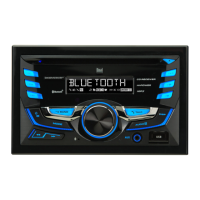
Dual DXDM280BT Specifications

General IconGeneral
BluetoothYes
USB InputYes
AUX InputYes
Display TypeLCD
Detachable FaceYes
AM/FM RadioYes
DisplaySingle-line
RadioAM/FM

Related product manuals