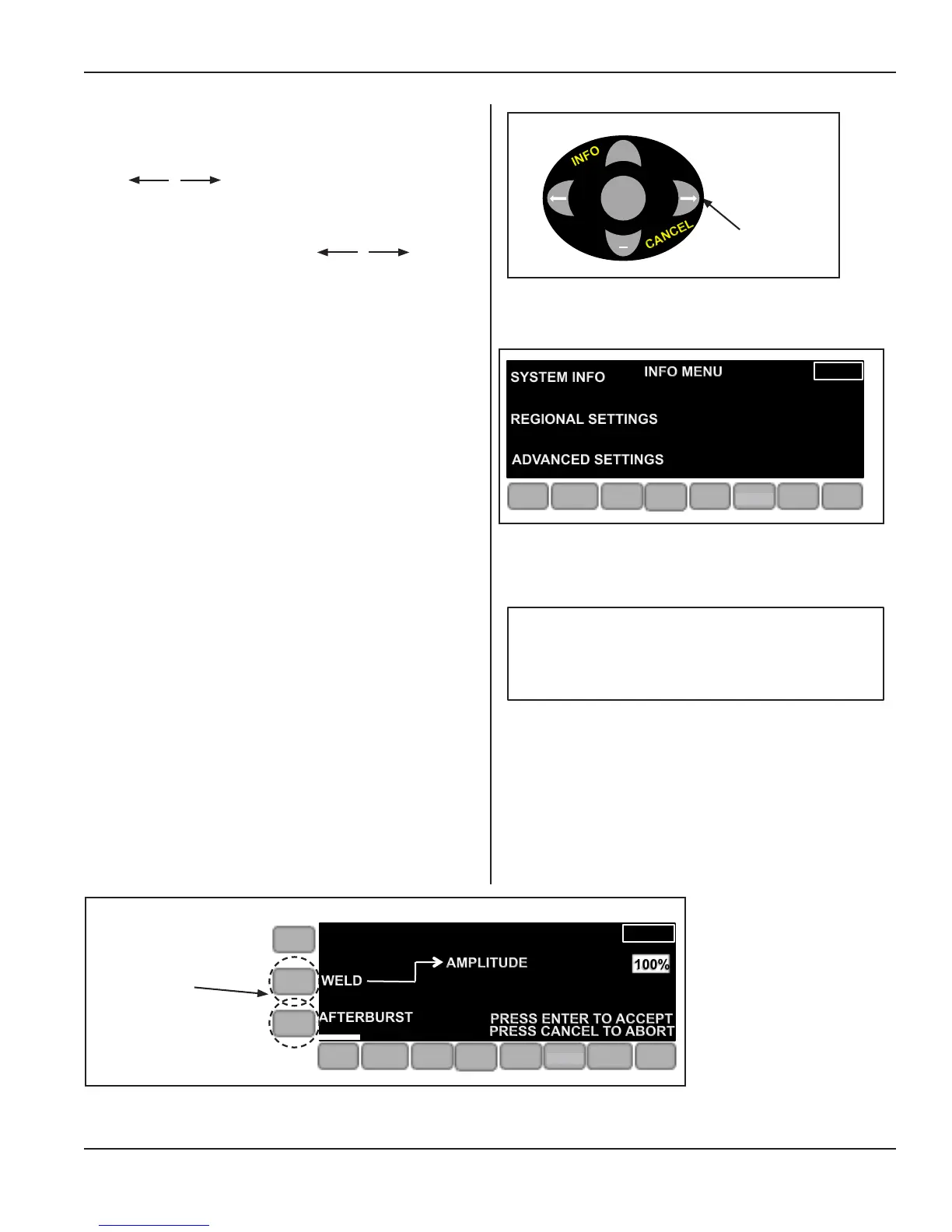
Navigation Keys (4)
Moving the Cursor - Press the left and right naviga-
tion keys to move the display’s cursor
left or right respectively.
Press the up and down navigation keys ( + or - ) to scroll
through menu lists. Also, use the keys to
move to a digit and change the value of a selected digit
with the + or - keys.
ENTER Key
Press ENTER to conrm and store a selection in memory.
Example: After entering a time value, press ENTER.
CANCEL Key
Press the CANCEL key to stop editing a value without
saving changes to the value or to leave secondary menu
screens.
INFO Key
Press the INFO key, and the menu shown to the right in
Figure 4-5 appears.
Navigation Key (4)
ENTER
+
CANCEL
INFO
Figure 4-4 Navigation Keys (4), with Enter, Info and
Cancel
AMP
PRE
WELD
WELD
POST
WELD
OPERATE
LIVE
SETUPS
LIMITS
REGIONAL SETTINGS
SYSTEM INFO
ADVANCED SETTINGS
INFO MENU
Figure 4-5 Info Menu Display
Continued
Soft Keys Bordering the
Display (3)
Use the three keys bordering the left side of the display to
make selections from the choices shown on the display.
Not all keys will be active on any given screen.
Example: For the display shown in Figure 4-6 below, two
of the three soft keys are active:
Weld, and Afterburst.
Active Keys
Figure 4-6 Active Soft Keys, Example
100%
WELD
AMPLITUDE
PRESS ENTER TO ACCEPT
PRESS CANCEL TO ABORT
AFTERBURST
ONLINE
AMP
PRE
WELD
WELD
POST
WELD
LIVE
SETUPS
LIMITS
OPERATE
NOTE
For more information about the INFO
menus, please see Section 5 - Operation.
SETUP
SETUP
Page 37
Dukane Manual Part No. 403-594-02
Section 4 - Controls
( )


 To Next Page