96
Additionally, in the camera configuring screen users may have the
following selections:
1.Cameras
2.Activate the camera and the camera name
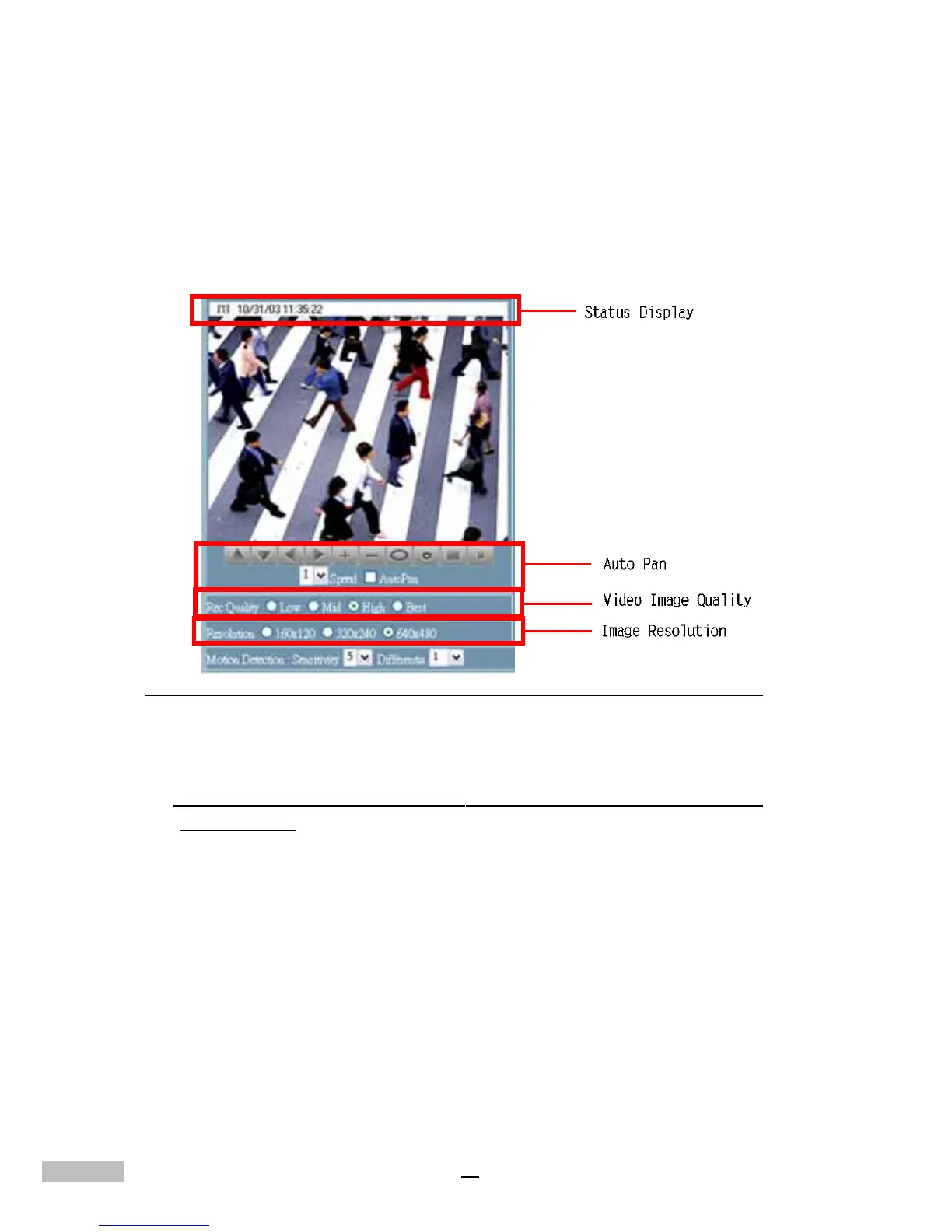
3.Status Display — the Camera Number, the Date and the Time will
be displayed on the monitoring screen on the left
Figure 14-25: Remote Camera Configuration(1)
4.Character Color — the optional colors are Black, Red, Green, Blue
and White
NOTE: It will change the text and background color of DVR site, not your
browser site.
5.Background Color — the optional colors are Black, Red, Green,
Blue and White
6.Recording Mode — there are 3 modes: No Recording, Recording
and Schedule
7.Hue, Saturation, Brightness, Contrast — Users can adjust the
value or click to choose the default value (50, 50, 50, 50)
8.Motion Detection Frame Setting —
a. “Hidden Area/Show Area” button: Click this button to hide the
motion detection frame that has been drawn, click it again to show
the frame.



 To Next Page